Your request inbox houses your requests and quotes throughout their lifecycle. Moving from brand new to (hopefully) a completed tour. Maintaining your request inbox will lead to more accurate KPI’s on your insights page. Additionally it makes the working environment less cluttered which is important when trying to provide quotes to your clients as efficiently as possible!
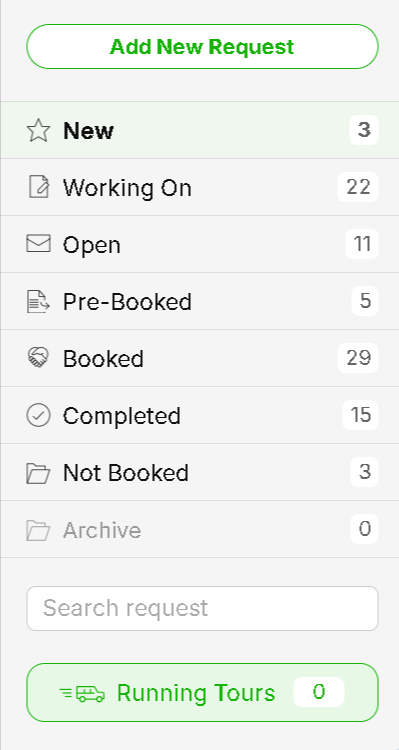
Requests in the ‘New’ status are added manually or come through automatically from SafariBookings or via the ‘Share tours’ SafariOffice add-on. These are requests for which a quote has not yet been created.


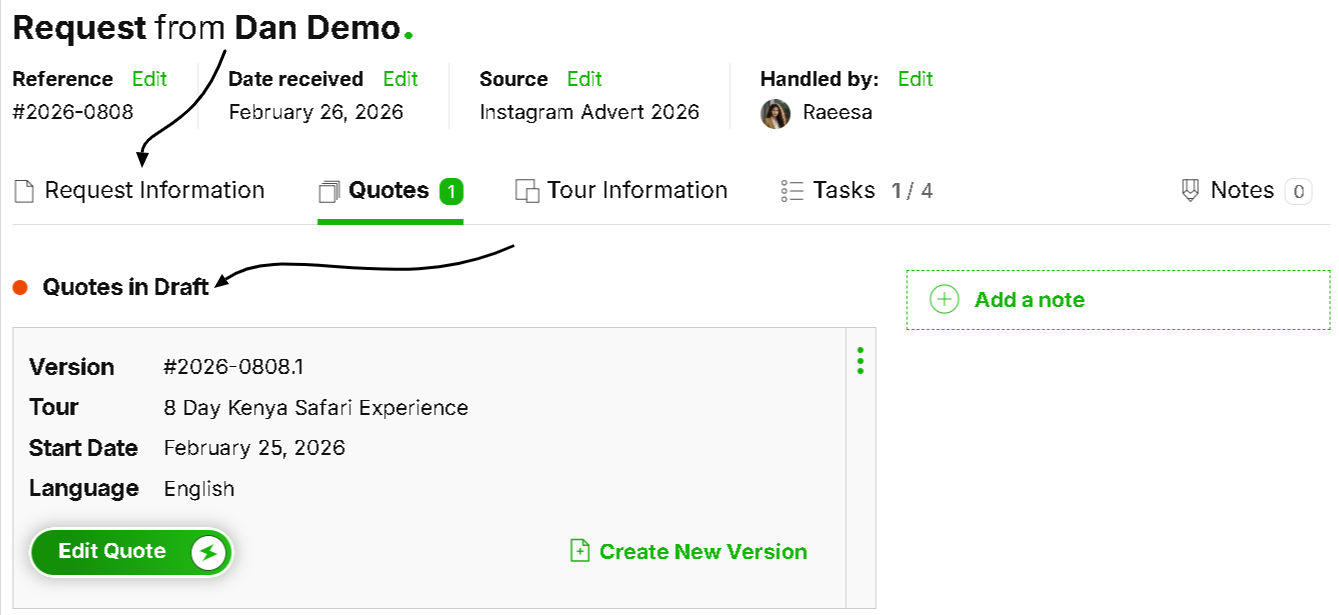
Once you create a quote for a new request, it'll go to the ‘Working On’ status as you are In fact, now, working on the quote . You can click on ‘request information’ to refer back to all the client and tour details.
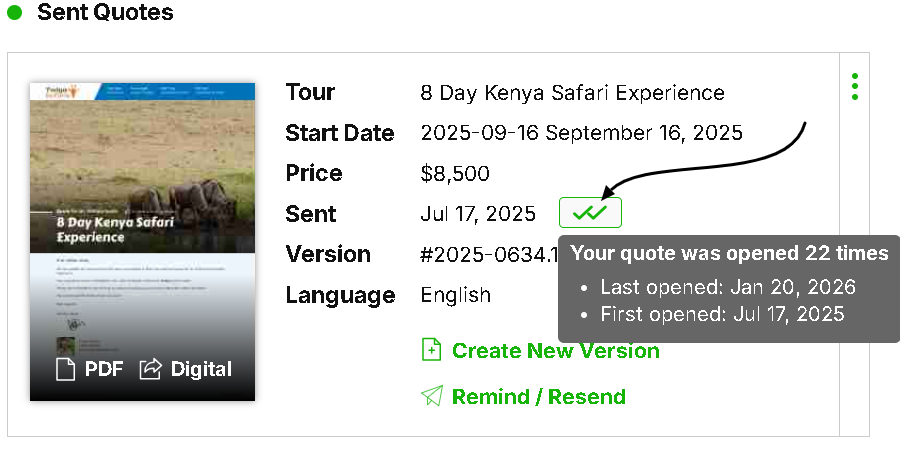
Once you've sent the quote to the client, it will automatically move to the ‘Open status’. In the open status, you can check how many times a client has opened your quote by hovering over the double check-marks.

You will also be notified when the upcoming date of a trip is imminent.

When you click on a quote in the open status you can see the ones that have been sent as well as those that are still in draft.
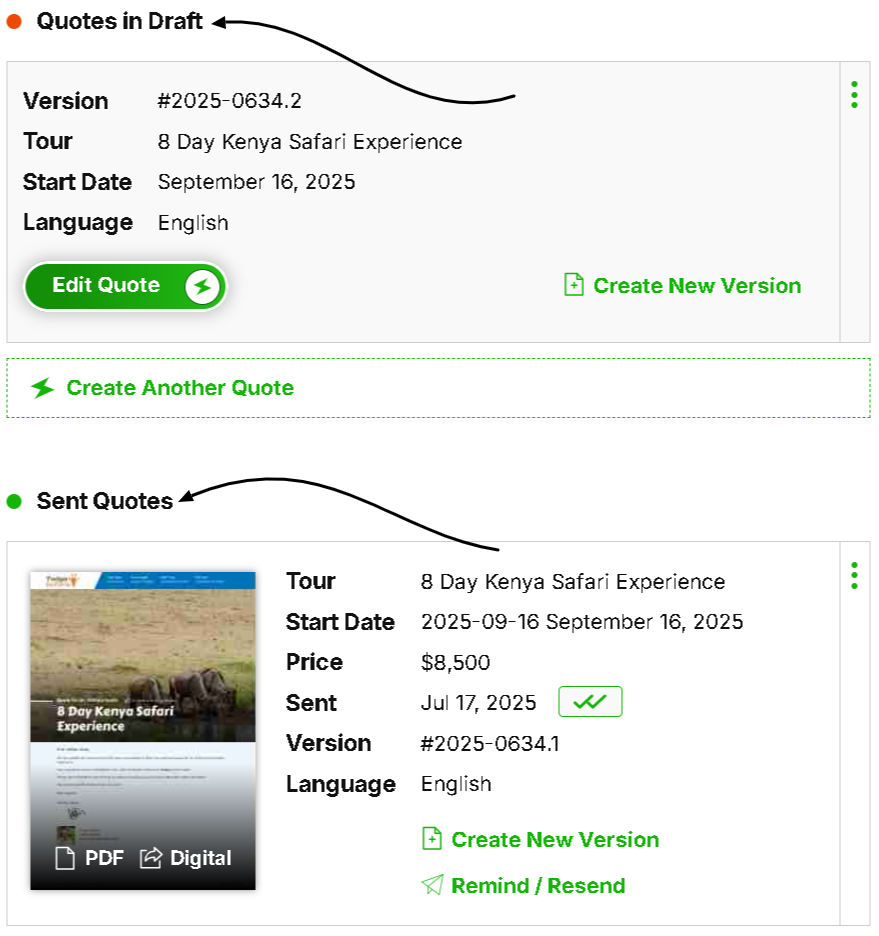
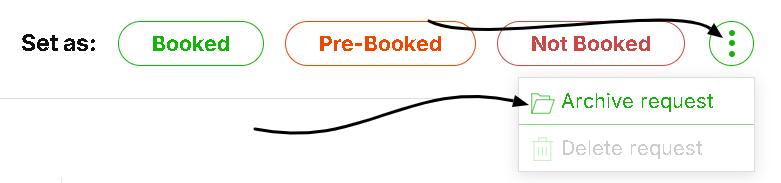
From here, you can set a quote to booked, pre-booked or not booked.

If you set a quote to booked, you can choose the correct quote that was confirmed, as well as enter the exact booking value and confirmed start date.
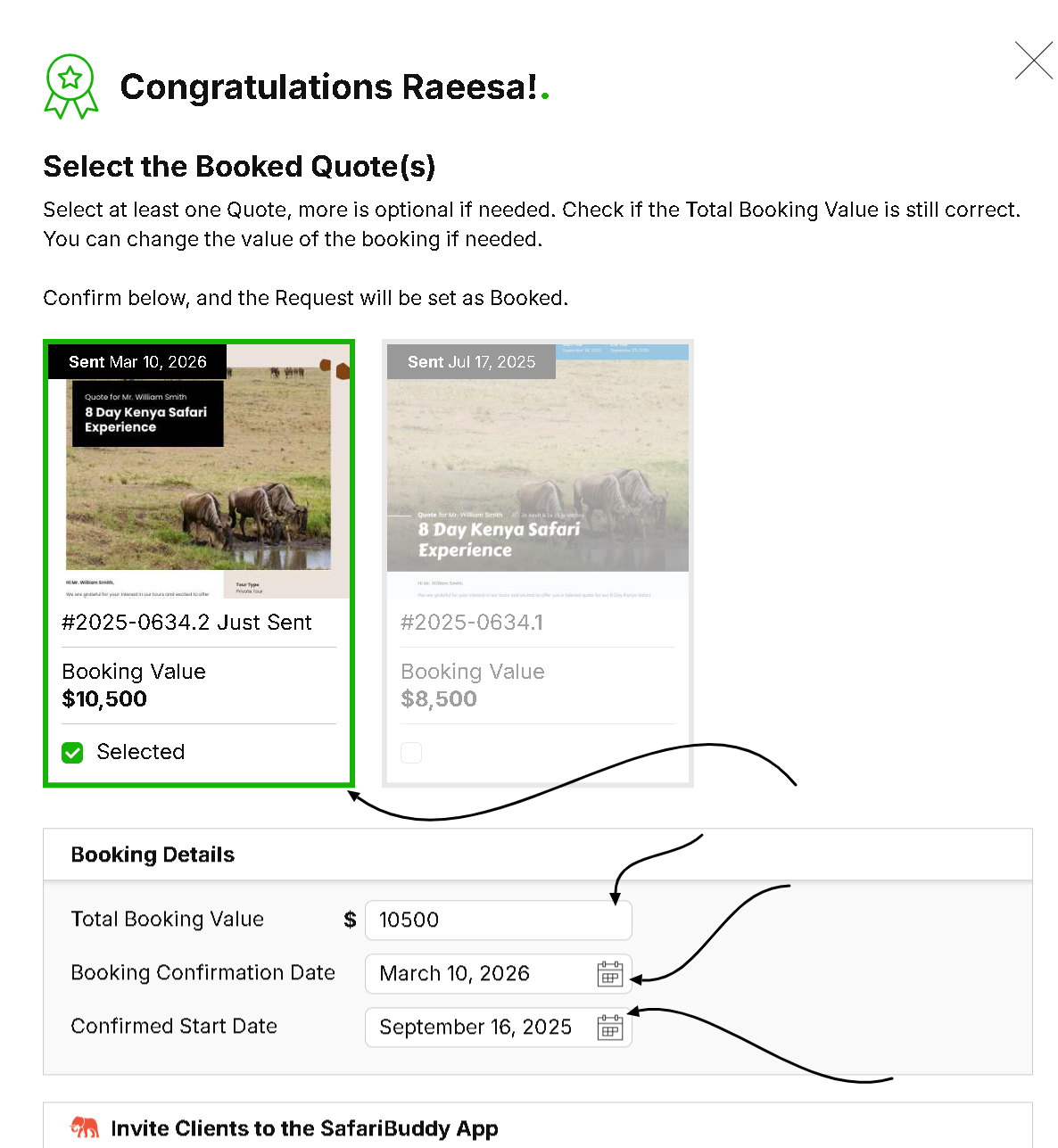
Once the quote moves to the booked status, it will remain there until the tour begins. At the time of the start date, it'll move to the ‘running tours’ tab. And thereafter the ‘completed tours’ tab.
If an open request does not get booked, you can set it to not booked and give a possible reason for this.
The ‘pre-booked’ status is a status that does not affect the KPIs of your insights page. This status is for clients that are yet to pay their deposit even though they have confirmed their booking with you. once you receive the deposit amount we recommend putting this quote in the ‘booked’ status.
How to Activate and Use the Pre-Booked Status
Learn about the Pre-Booked status in SafariOffice that helps you manage confirmed but not final bookings with ease.
If you believe a request does not qualify to either become booked or not booked, or you simply don't want to follow up after your initial contact with a client, you can archive a request using the three green dots at the top right within any of the statuses.
Within any of the statuses you are able to filter by the employee handling the request. Simply click the drop down menu under ‘Handled by’ in the top left of the screen.
You can also sort by several date subsets.

Lastly directly underneath the statuses, you’re able to search for specific quotes by typing in key words/numbers.
Click below to navigate to the next part of the onboarding series :
#3 Creating a Client Request
A demonstration of how to manually add a request
