Your profile and those of your colleagues is something that can change with time. Knowing how to keep your information secure as well as that of your clients’ all comes down to properly maintaining your user profile!
Each employee assigned to a user of a given company in SafariOffice will have their own unique sign in details and profile.
This includes a unique email address, password, profile picture, and signature.
To sign into your account navigate to the sign in page using any up to date browser
Here you must enter your email address and password associated with your account
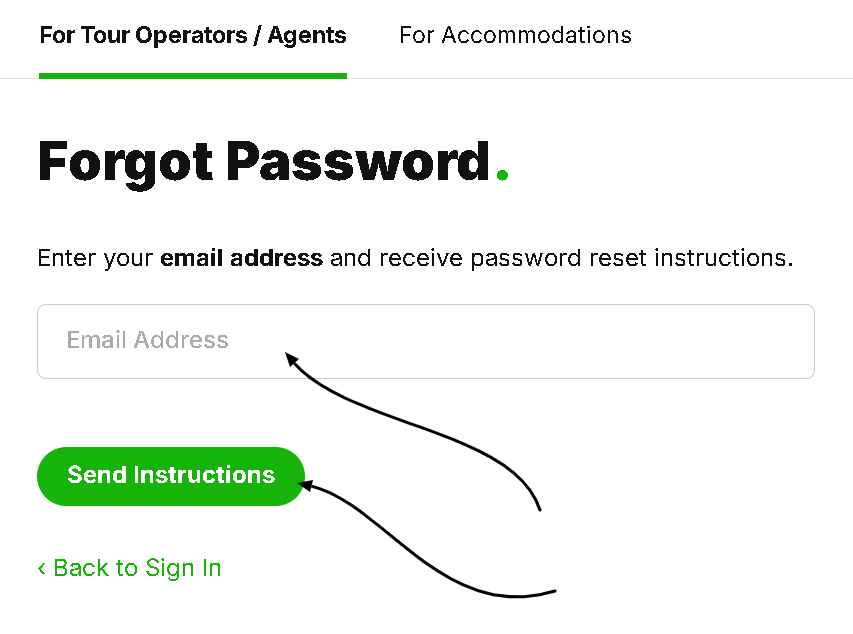
If you've forgotten your password, use the forgot password link.
If you click ‘Forgot Password’, simply enter the email address associated with your Safari office account in this field.
Thereafter click send instructions, a set of password reset Instructions will be sent to your email.

Once signed in, navigate to the settings in the top right corner of the screen.
Immediately you will see the profile settings for your account. Your first and last name as well as email address should already be filled in. You can then add your role within the company and upload a profile picture.
Under the signature tab, you can draw or upload an image of your signature.
If you choose to activate your Two-Factor Authentication. Please read this article before doing so to prevent getting locked out of your account :
How to Use Two-Factor Authentication (2FA)
Learn how to enable, use and remove the 2FA
The signature, along with all of your previous information will show up at the bottom of the cover page of any quotes you send out.

Depending on the document style you choose, the layout may look a little different.
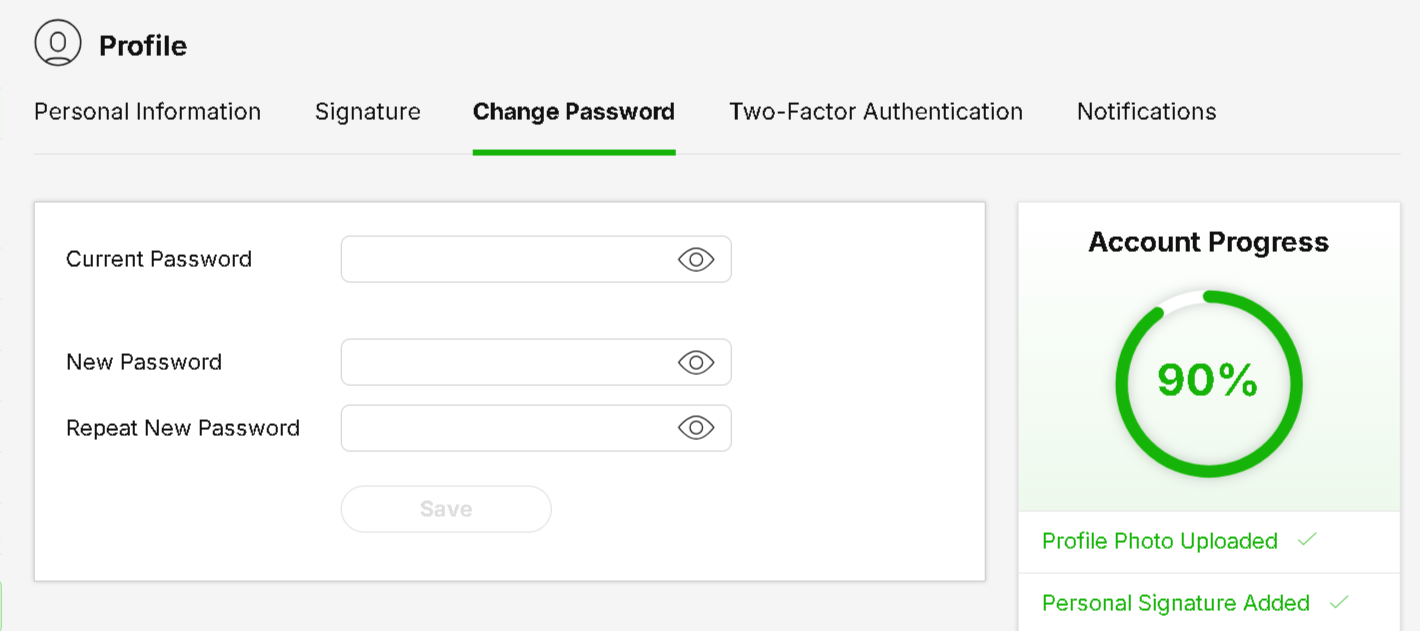
Under the change password tab. You can opt to change your current password. Simply enter the current password and then the newly chosen password twice.
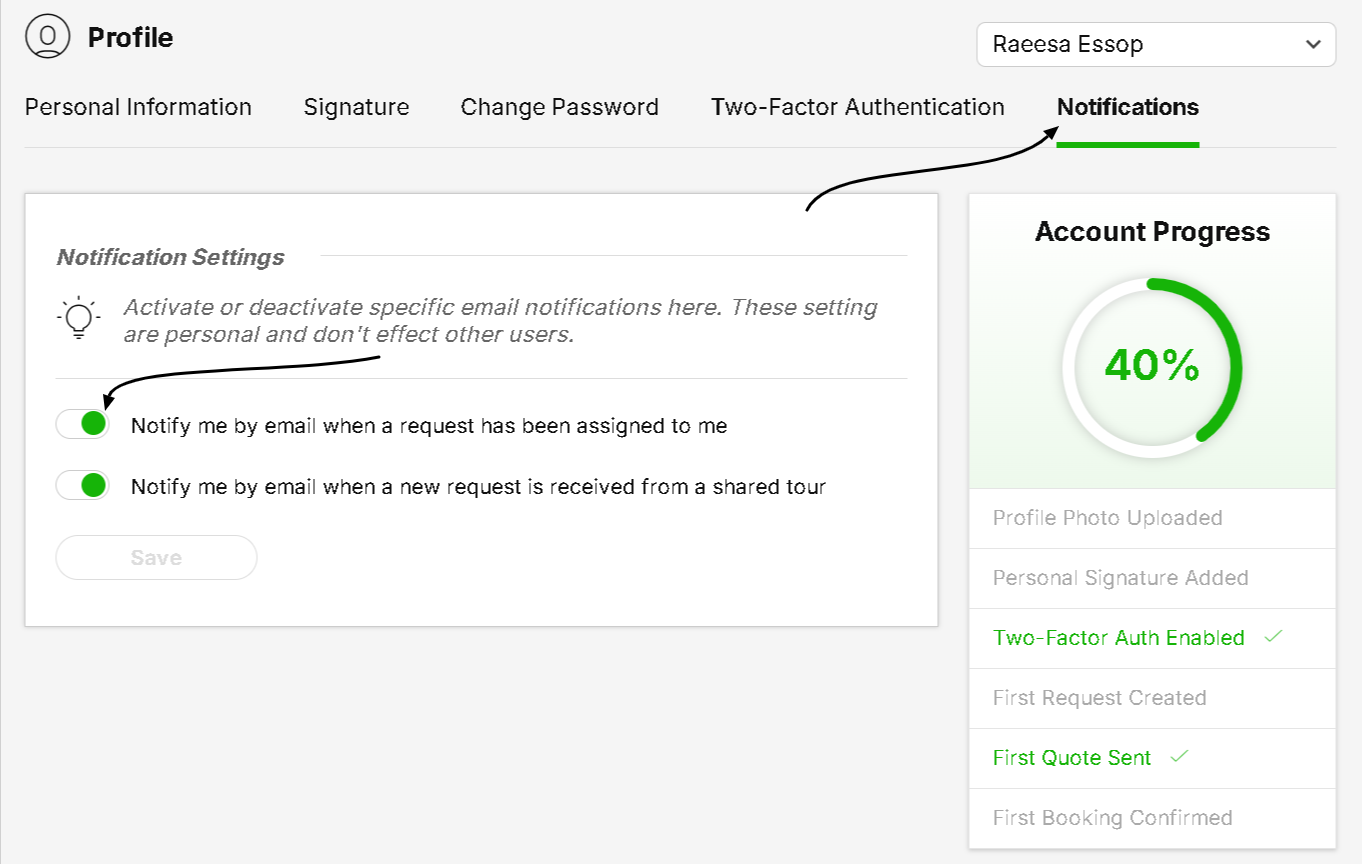
Lastly, in the profile settings, you are able to activate or deactivate email notifications for new requests that come in. These notifications will only be sent to you and not the rest of your colleagues using Safari Office.
If you would like to know how to invite other members of your company to Safari office.
We have a separate article detailing this process.
Check it out here
How to Add a New User to Your Account.
Adding your team or colleagues to SafariOffice.
Click below to navigate to the next part of the onboarding series :
#2 Your Request Inbox
Discover what the different statuses of your request inbox are for
