We strongly recommend enabling Two-Factor Authentication (2FA) to keep your SafariOffice account safe. It adds an extra layer of security; even if someone gets your password, they still won’t be able to log in without a code from your phone. Here’s a guide to help you use it.
Two-Factor Authentication means every time you log in you’ll need:
Your password
A random 6-digit code from your 2FA App on your phone.
You’ll enter both. It only takes a few seconds, but it makes your account much safer.
You need an app that generates the 2FA codes. Here are a few trusted ones:
These apps are safe and free. You don’t need to sign up, just download and you’re ready.
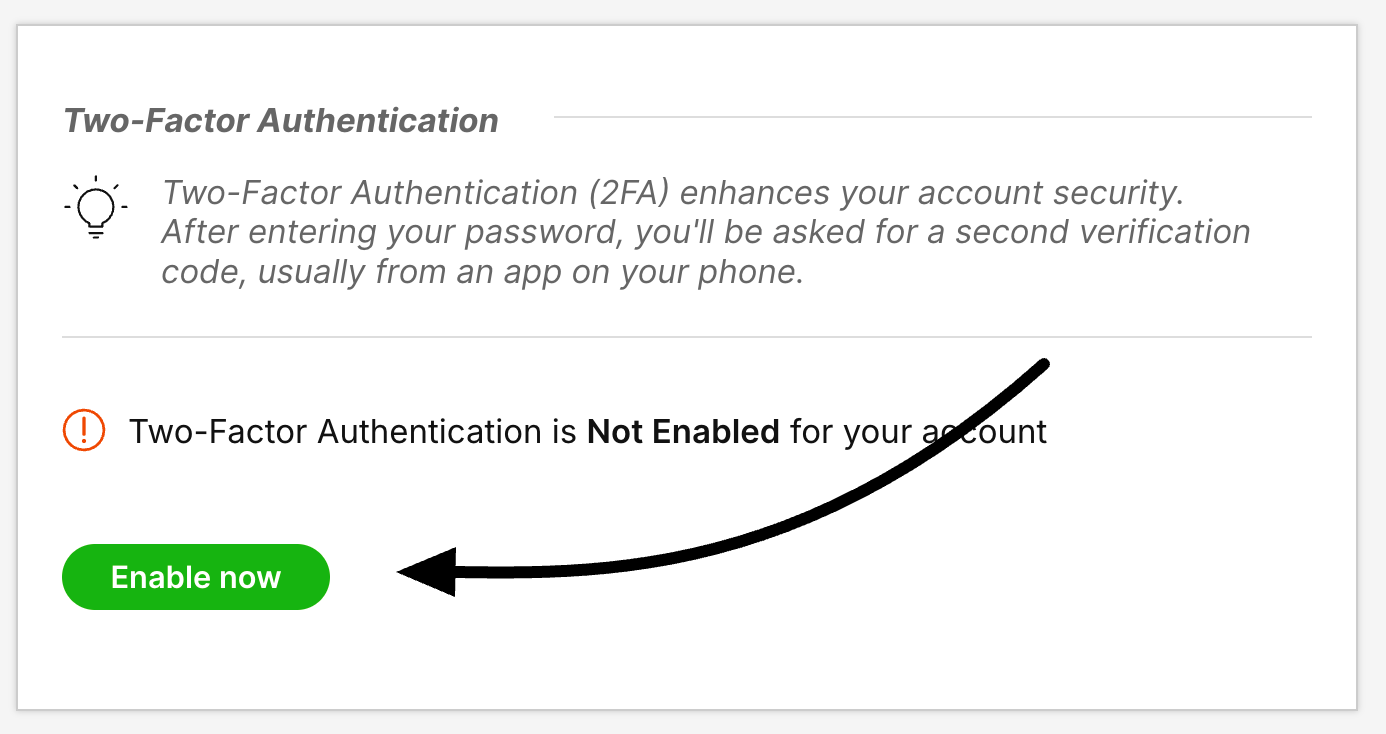
Select Enable Now.
You’ll be prompted to enter your password.
A QR code will appear on your screen.
Open the app you installed (Google Authenticator, Authy, etc.).
Tap the "+" or “Scan a QR code” option.
Point your phone camera at the QR code on your SafariOffice screen.
The app will now generate a 6-digit code that refreshes every 30 seconds.
Type the 6-digit code from your phone into SafariOffice.
Click Enable Two-Factor Authentication.

Keep the app on your phone.
You’ll use it to get a randomised 6-digit code every time you sign in to SafariOffice.

To turn off the 2FA;
Click Remove Two-Factor Authentication

Enter your password as prompted and click Remove 2FA
2FA will be removed from your account.
