Once you have finished customizing your itinerary and pricing, you are ready to complete the ‘Finish and Share’ step of the quoting process. This final step allows you to send your the quote directly to your client using SafariOffice.

The first field you will see in this step is the ‘Share with Client’ drop down. From here you have 2 options:
To use SafariOffice to send the quote. If you select this option you will need to follow the rest of the instructions in this article.
Or to download the quote and use your own IT system. See later in this article.
Still at the top of the ‘Finish and Share’ section, you will be able to change several fields:
Recipient Address: The "Send To" field automatically populates with the email address you entered at the request level. If this was left blank, you can manually enter the address here and even add multiple recipients if necessary.
Sender Address: The "Send From" field defaults to your business email address as defined in your settings. However, you can use the dropdown menu to select a specific staff email address instead.
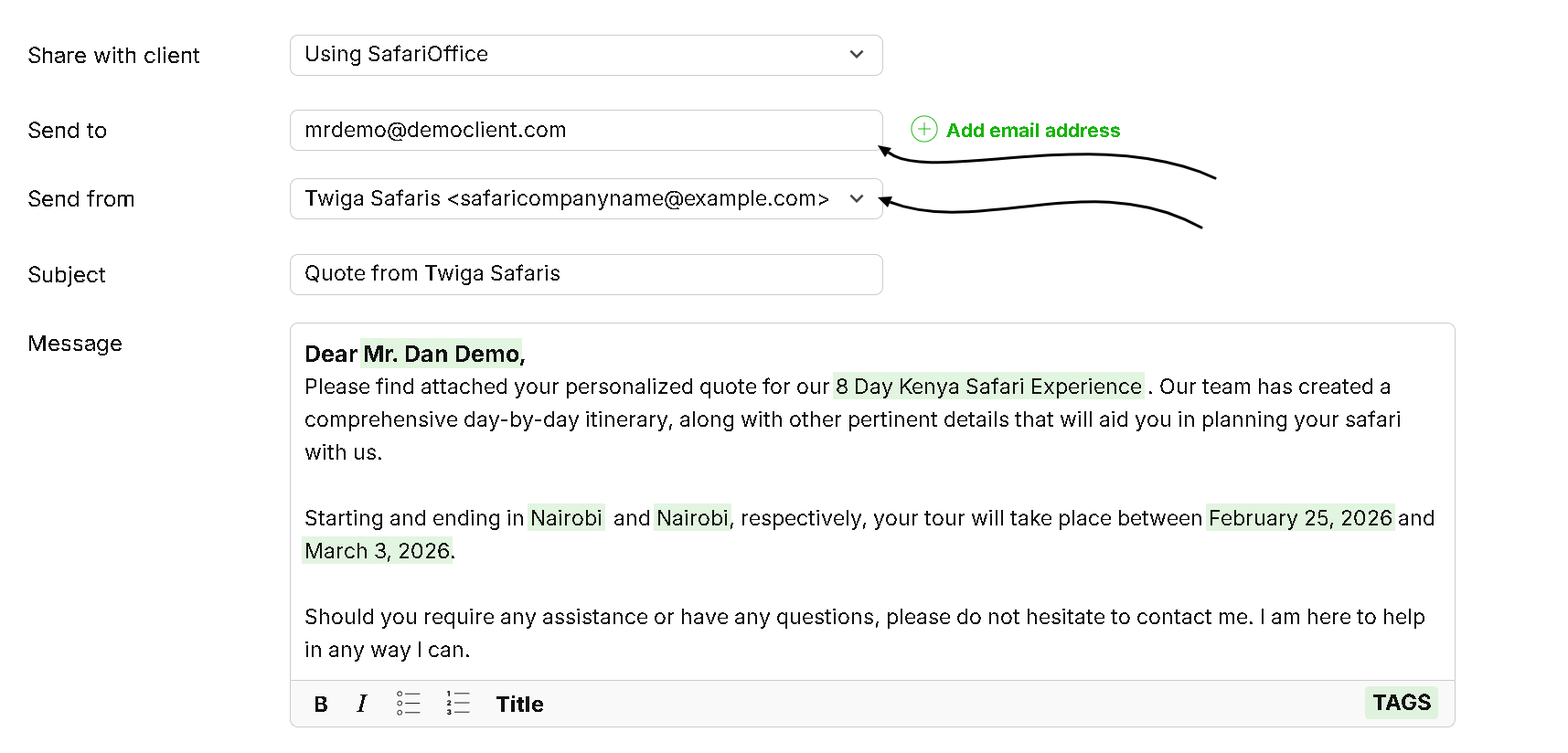
Managing Replies: It is important to note that when a client replies, the entire email chain will exist within that chosen email inbox (in the ‘send from’ field) rather than inside SafariOffice.

While SafariOffice provides an automated template for the message body, you have full control over the final text.
Personalization: You can customize the message to answer specific client questions or provide additional context regarding the tour version you are sending.
Included Links: The email automatically includes a link to the digital itinerary and provides the PDF version as an attachment.
How to Edit Your Email Content
Learn about how to edit your email before sending it to your clients.
Before sending the quote to the client, you have several tools to ensure everything looks perfect:
Send a Test Email: To see exactly what your client will see, click "Send Test Email" (at the bottom right of the screen) and enter your own email address in this field.
Final Preview: When you are ready to proceed, click "Continue to Preview". This gives you one last opportunity to verify the email content, links, and attachments before they are officially sent.
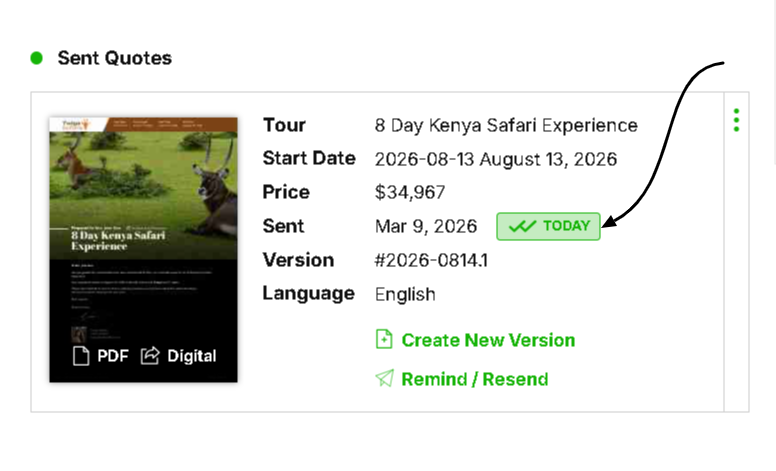
Once you click "Send," the software redirects you to the Quote Request tab. You will notice that the quote status has now updated to "Open," indicating it has been delivered to your client.
From here you will be able to see the green check marks which will provide you with the tracking information (if sent using SafariOffice).
From this menu, you can:
Copy the link to the digital itinerary
Download the PDF version of your quote
Select the status you want to the quote to be in once you ‘Save and Close’ (e.g. ‘set quote as sent’ will result in the quote being placed in the ‘Open’ status.
Send the digital itinerary link and PDF quote through to the client using your own IT System
