Expanding your business to international clients requires communicating in their preferred language. In this article, you will learn how to activate the language Add-on to access high quality translated content in French, German, Spanish, Italian, Portuguese, and Dutch.

You can activate any language Add-on from the Go to Settings > Add-on Store.

Choose the Language Pack Add-on and click 'Activate Add-on'.

Choose your plan:
- Yearly plan (you pay for a year and get a discount of 15%) or
- Monthly plan (you pay per month)
Click 'Activate Add-on' to confirm your subscription.
You will now get the confirmation screen, the Add-on is active.
Find your subscription in the Subscription Overview.
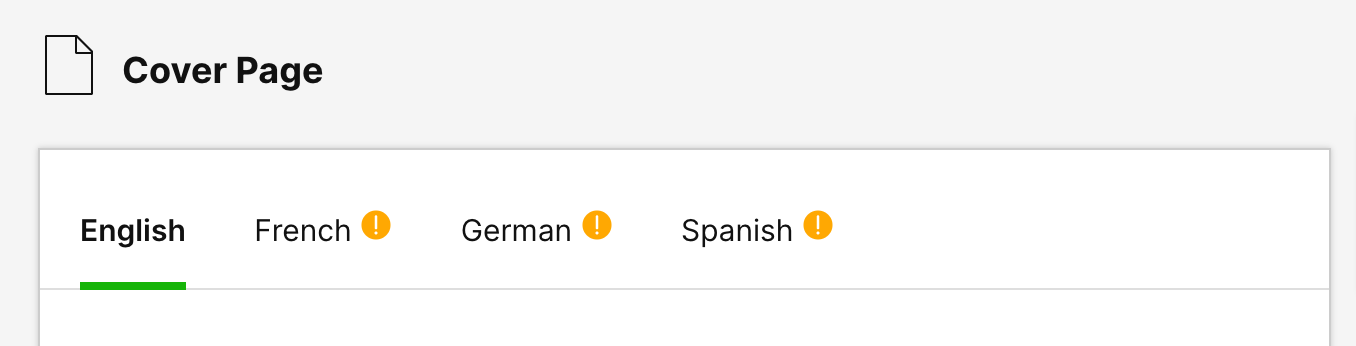
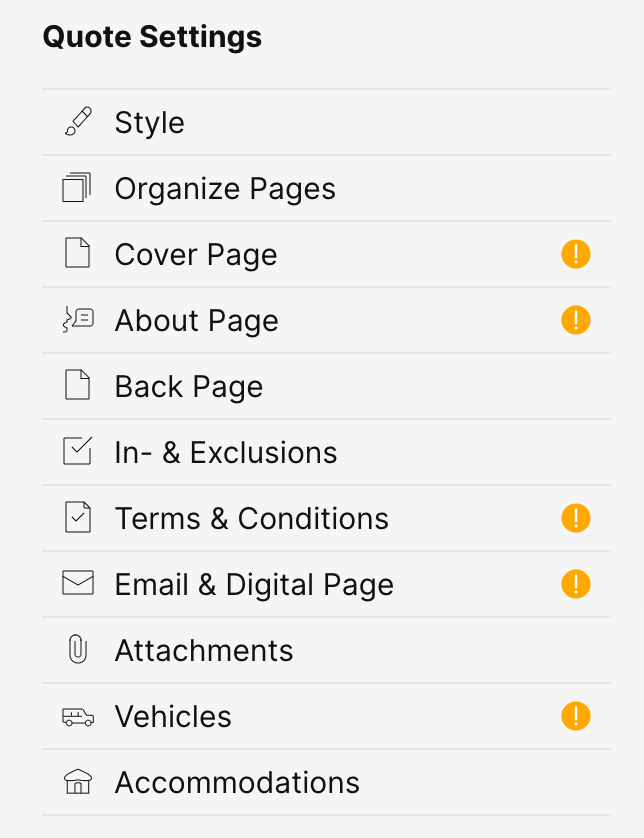
After activating a (new) language in the Quotes Settings section you will see items that now have an exclamation mark.
This indicates you might want to check this content as it might not have translations or only default translations provided by us. All content from our database has translations except for the custom content you added yourself.
When you click on an item you will now find tabs with the new language where you can check the content and manage the content for that language.
Open your Settings>Quotes Settings>Cover Page.
Click on the item to open its details.
Select the new language tab to check and manage the content
For example the Cover Page:
The Settings menu with exclamation marks for checks.

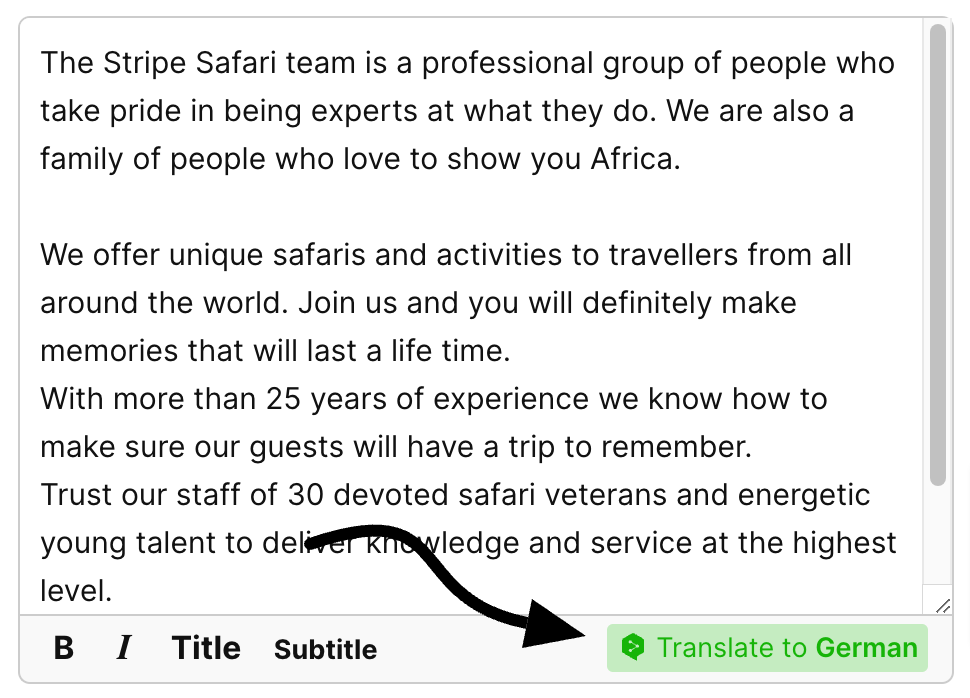
We have created an integration with DeepL machine-learning translation software to help you translate unique custom content, like your About page. Make your changes in English and click the button on the right bottom of the WYSIWYG (text) editor to translate that content.

Use the DeepL integration when available.
Related Article
