Creating quotes for your clients in their native language builds trust and increases your chances of converting requests into bookings. In this article, you will learn how easy it is to add and manage custom descriptions for your destinations, accommodations, and activities in different languages.
You can manage all your custom multi-language descriptions directly from your Content Library. You can add translations to existing Content Library database items or create custom content from scratch.
If you have the Multi-Language Add-on, follow these steps to add your French, German, Spanish, Italian, Portuguese, and Dutch descriptions manually:
Go to your Content Library.
Choose the section you want to add a description to: Destination, Accommodation, or Activity.
Click Add New Content at the top right of the table.
Type the name of the item and select it from the list, or click Create New Entry for a custom item.
Click the Next Add Content button.
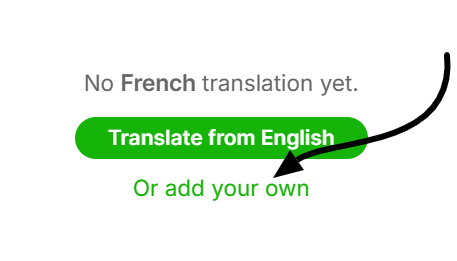
Click add your own to type your description directly into the respective language fields.
Click the Save Description
SafariOffice PRO users with the Multi-Language Add-on can use the AI Assistant to manage and add translations instantly. This ensures your content is automatically translated without leaving the platform.
As soon as you enter a description in your main language (e.g. English), the AI Assistant will offer a direct option to fill any empty language fields with a translation for that item.
Open the content detail screen for your chosen destination, accommodation, or activity.
Ensure you have text in your main language field.
Open the language field you’d like to add content to.
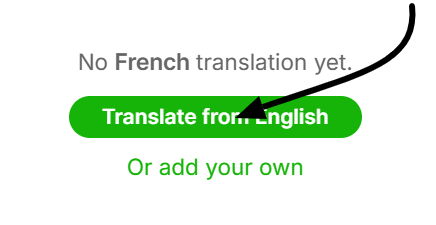
Select the Translate from English button.
Click Use translations once the content is generated.
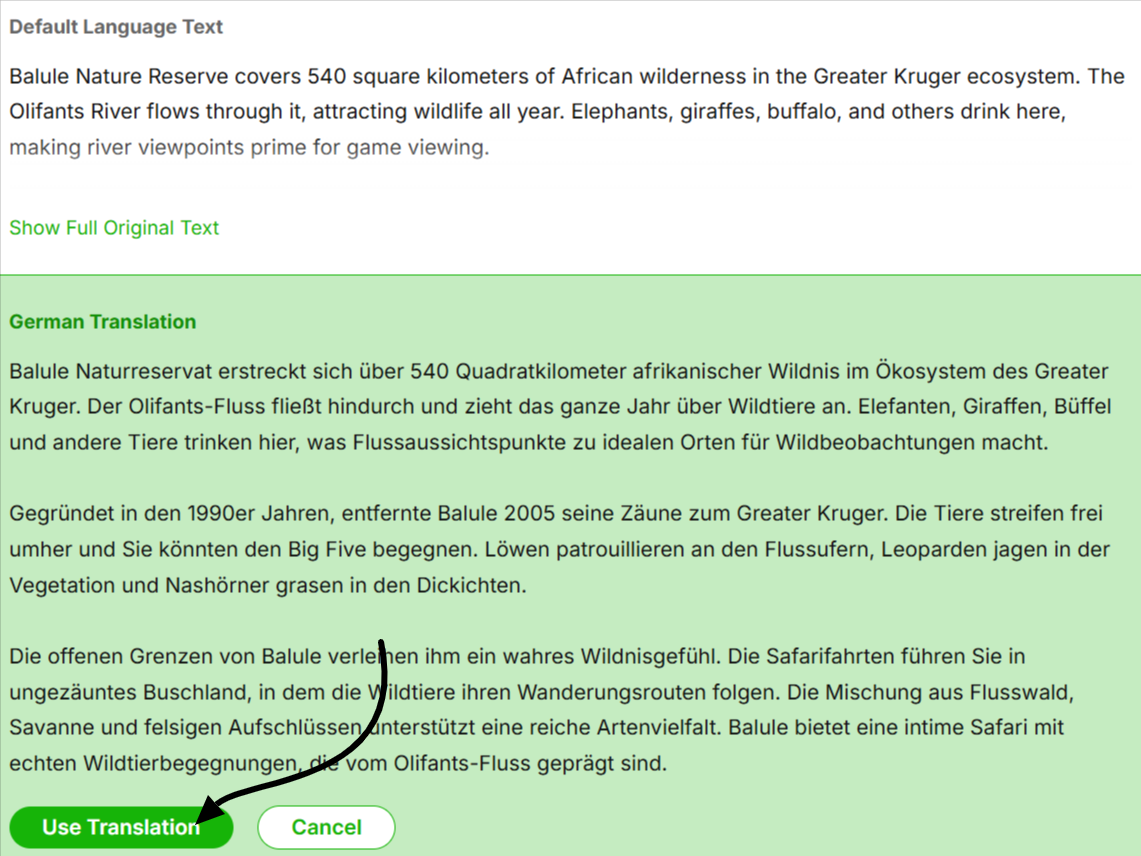
Review the generated content provided by the AI.
Click Save Description.

How to Add a Custom Description to Your Content Library
In this article, we explain how to add a custom description to Your Content Library.
