Using the right words and descriptions can make the difference between a lead and a confirmed booking. We have integrated advanced AI tools directly into your workflow to help you generate professional, engaging content for your itineraries and quotes in seconds.
In this article, you will learn how to use our specialized AI prompts to streamline your content creation and elevate your digital presence. The AI basically gives options to Optimize your content, Generate content, Translate Content or check Translated Content.
You are always in control of the AI. Use the content or revert to what you had. Use the content as a base and then rewrite as you wish. Generate as many times as you like.
SafariOffice provides a suite of AI-driven tools designed specifically for the safari and travel industry. These tools are accessible within your content editors to help you manage your Quote and Tour Template Content, Email & Cover Page Content and Library Content efficiently.
Help refining your message with the ‘Optimize my writing’ tool
Generate titles for your days with the ‘Generate Day Title’ tool. The AI will understand the context of the current day and generate a more engaging title than just the destination name for that day.
Generate real day descriptive stories using ‘Generate Day Description’. Now the AI will use all input for that day it has to describe a beautiful and engaging day description that is more than jst the destination SafariOffice gives by default.
Generating new individual descriptions based on contextual input from you and SafariOffice with the ‘Generate description (for destination, activity or accommodation)’ tool. You can write sloppy, past content in, or re-use content that is already there and let the AI optimize it so it blends perfect with your content.
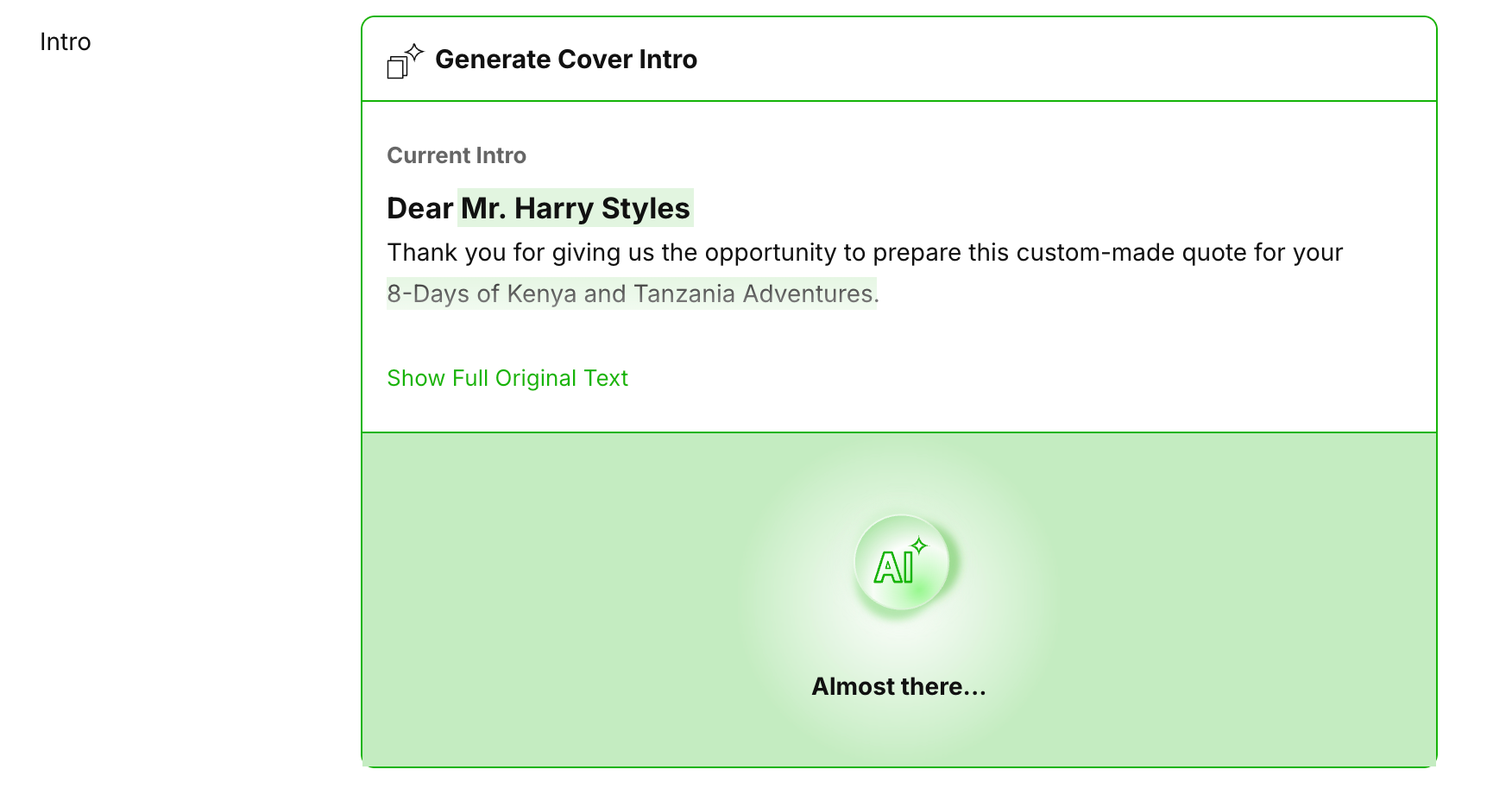
Generate cover pages and emails with the ‘Generate Cover Intro or Email Message’ tools. The AI can use client details, and other variables like dates, total price and also uses Notes on the specific Request to hyper-personalize your quotes with easy.
If you have the Language Add-on and Share Tours Add-on
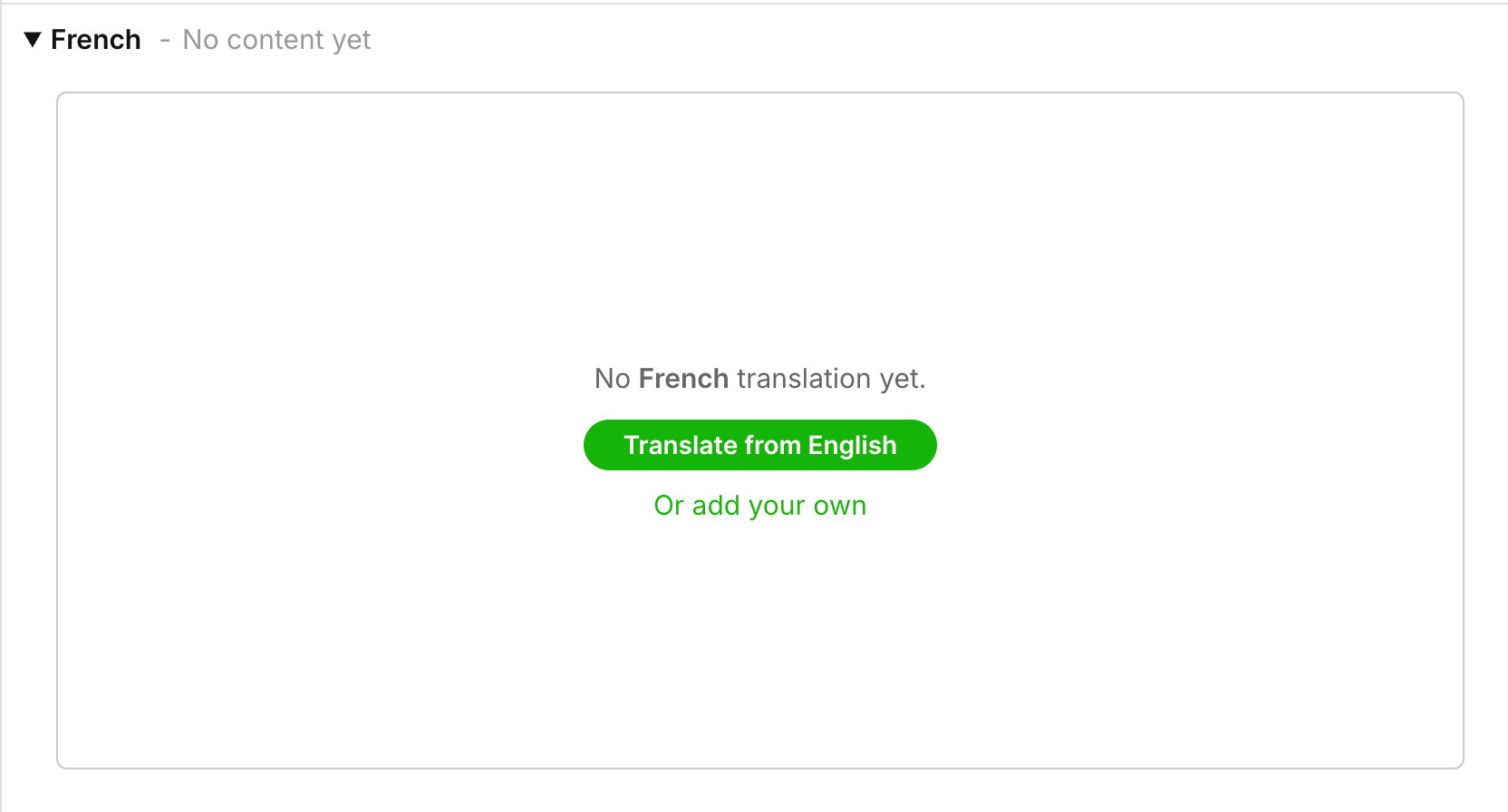
Help with translating and checking your translations using the ‘Translate to’ tool
Getting a summary for a Shared Tour with the ‘Generate Tour Introduction’ tool

Most (not all) text fields in SafariOffice have an option to use one or more AI actions on. This mainly is available in the Preview & Edit step and the Share & Send step (or Save step for Tout Templates).
Follow these steps to optimize and generate content for the itinerary using the SafariOffice AI:
Got to step 3 of tour building the Preview & Edit
Open the page you want to change content on click Edit Page (always at the left top).
Select the text field you wish to use the AI for.
Click the AI button within the editor always at the right top.
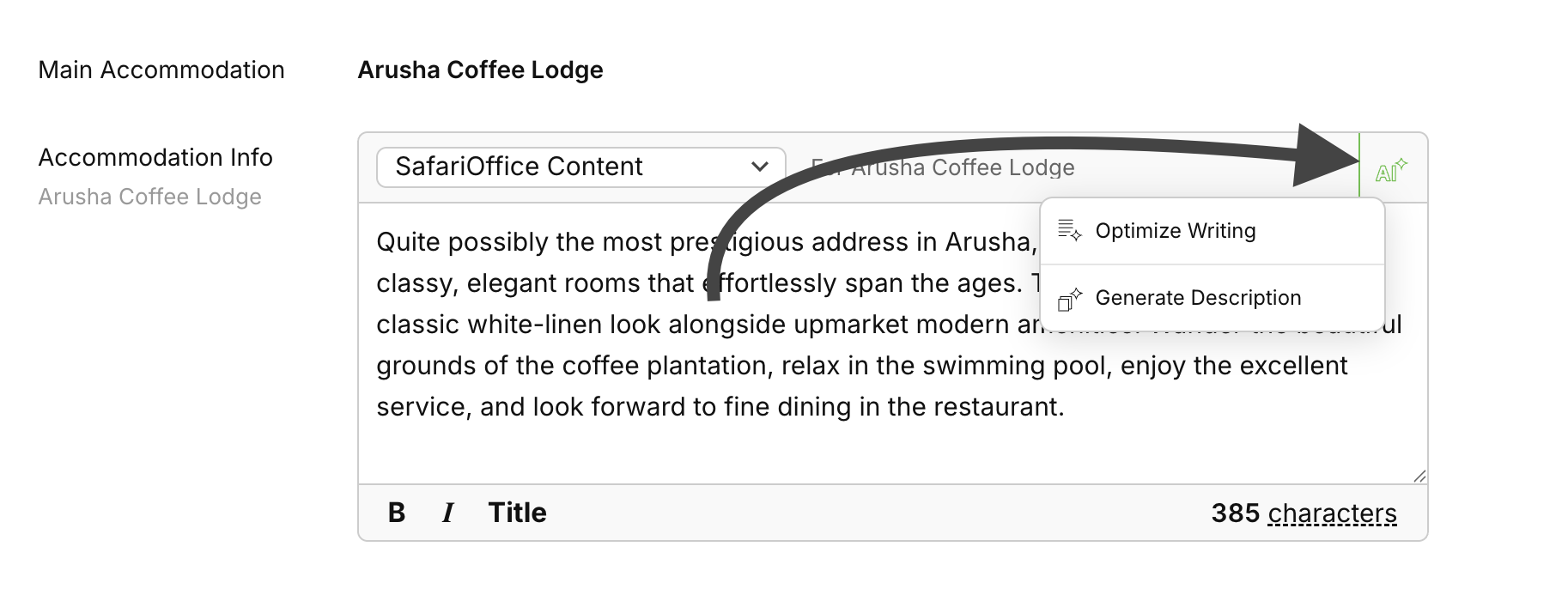
Selected the desired action (tool) you want to use
See the AI in action, depending on the task this can take a few seconds.
Review the generated content.
Click Save to apply the changes to your item.
Additionally you can also use the AI on the Email message you are creating
Go to step 4 of Tour Building the Finish and Share (or Save on a Tour Template)
Click the AI button on the right top.
Choose which action you want the AI to do.
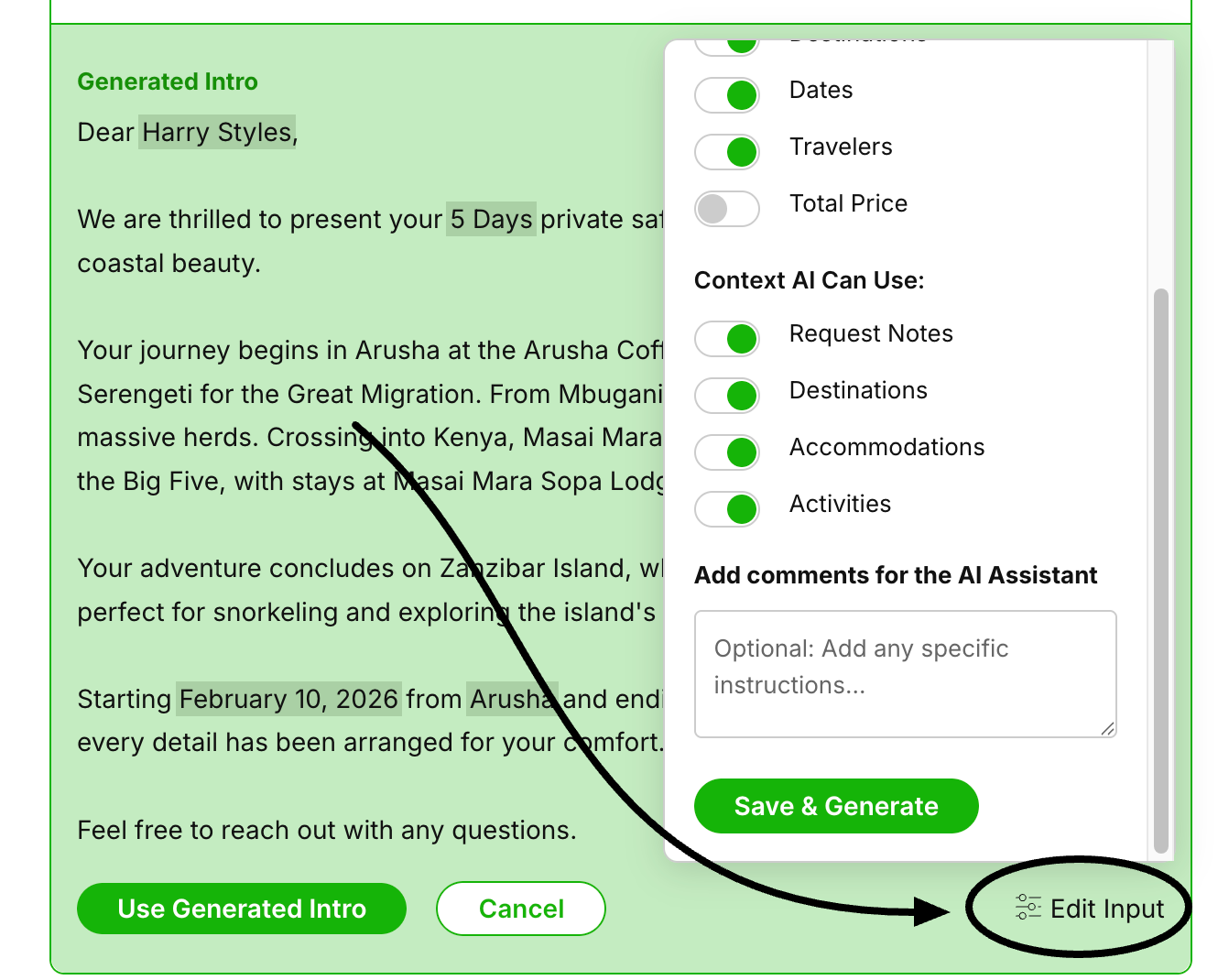
See the result and Use it or Regenerate optionally chaning the inout used by the AI clicking Edit Input.
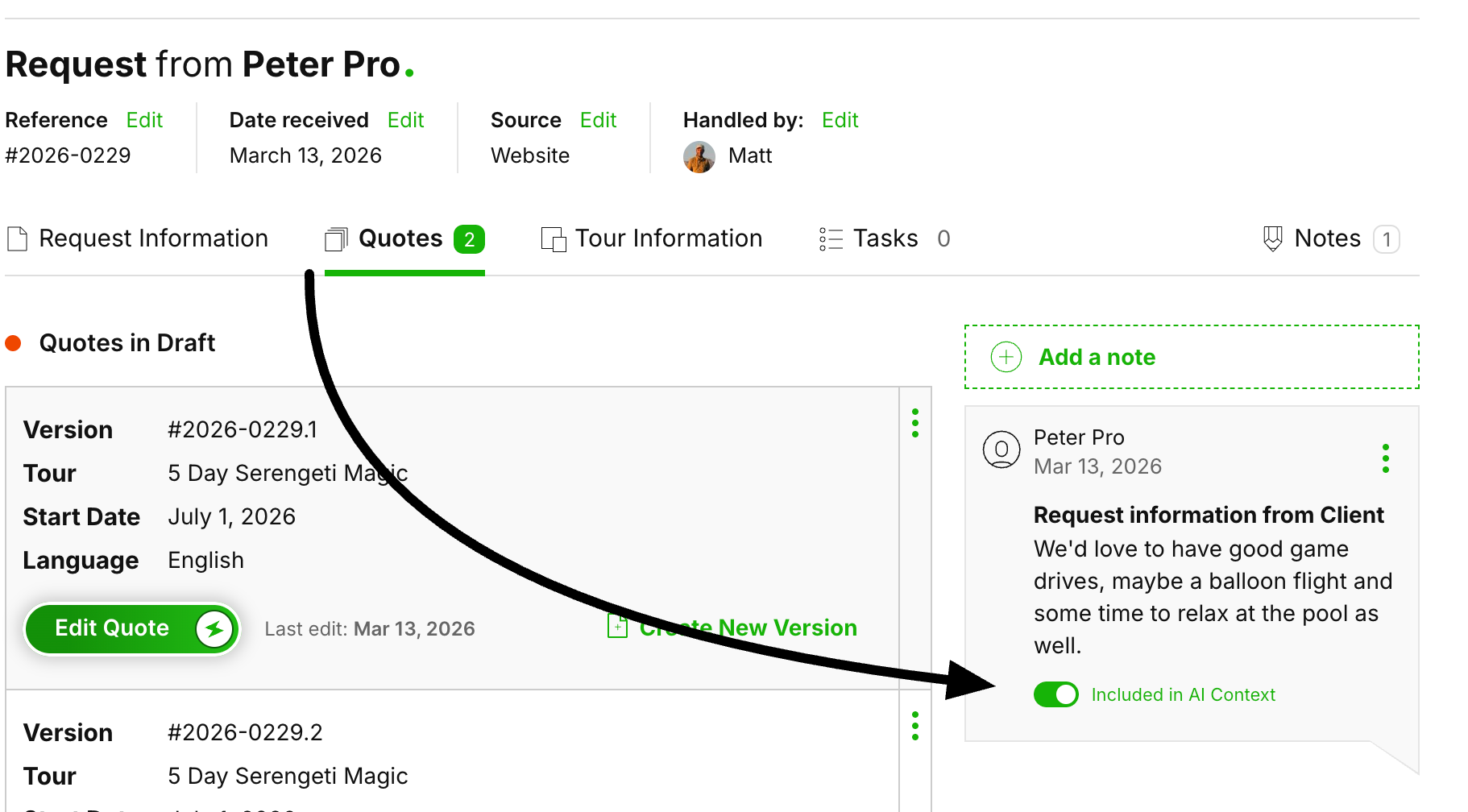
The AI can use any Note on a Request to write more personalized content in the Cover and Email messages.
If a Request came in from a Published SafariOffice Shared Tour or SafariBookings, the Note (with the client's initial message) will be included in the context so the AI can use it if it sees fit. For example, if someone requests “pool time” during the trip and you have added some accommodations with a nice pool, the AI could use this to hyper-personalize your message.
If you want to exclude (or include) any other Notes you create from the AI's use, you can toggle this on or off in the Notes section. This is easy if you gather more information from your client during the proces you feel might aid in later communications (like birthdays, favorite destinations or animals)
Using the AI in the content Library is the same as using it in the Builder.
If you create completely new entries, the AI will not be able to generate any description from scratch. You are free to input any of your own content and let the AI optimize it.
Share Tours content is basically the same as the Tour Template itself. It has one major difference and that is the tour introduction. This for marketing purposes is the intro to a tour for tour website, landing page or wherever you want to promote the tour.
Open the Share Tour modal on a Tour
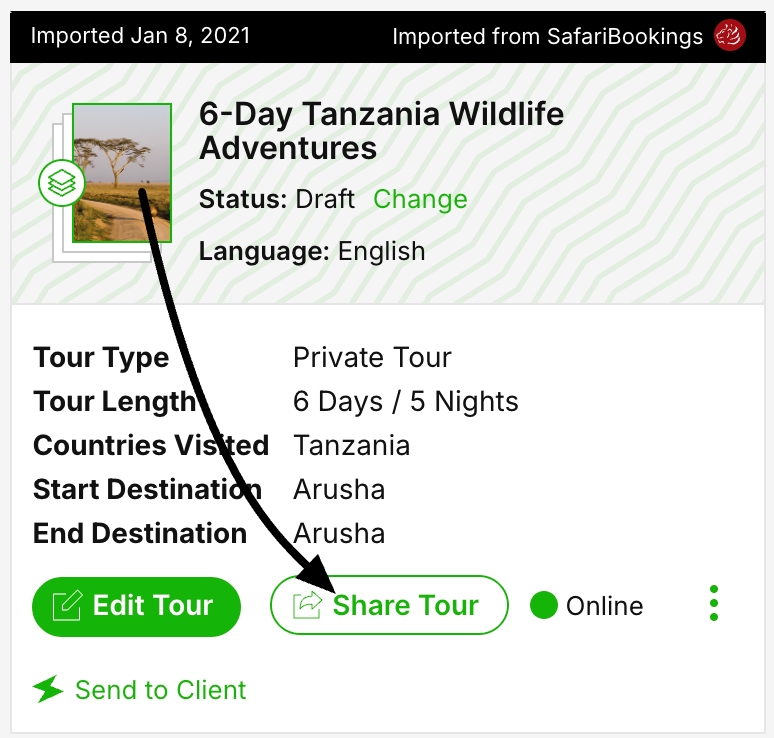
Go to the intro text field
Use the AI option at the right top
Choose to optimize your written summary or generate a introduction
Insert the generated option or cancel.
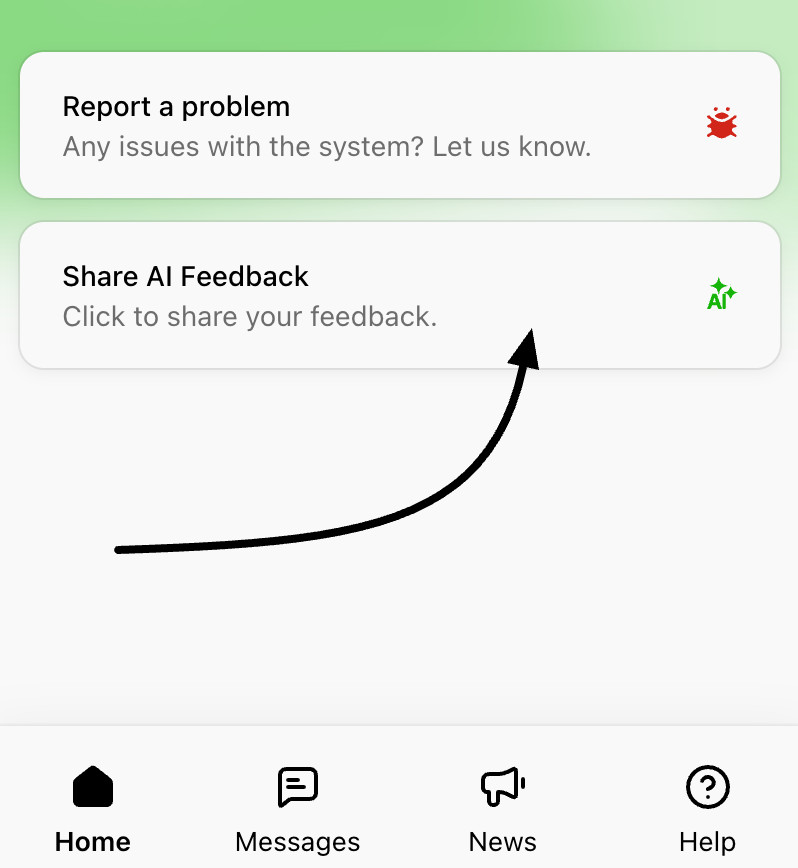
Managing Your AI Assistant Tone of Voice
In this article, you will learn how to configure your AI Assistant to match your brand's unique voice and manage language-specific tones.
