In SafariOffice, you can add tour staff, such as guides or drivers, to a tour using the Tour Info tab on a Request. This feature is especially useful when using the SafariBuddy App, as clients will see the staff listed as part of their tour experience.
You control how much information is shared and when it becomes visible to the client.

To add staff to your account, follow these steps:
Click "Add Staff Member"
Fill in at least the first name. Other fields are optional.
If you include contact details (e.g., phone or email), these will be shown in the SafariBuddy App.
If you prefer not to share contact details, simply leave those fields empty.
Adding a profile photo is optional but recommended—make sure it’s professional and representative.
Click "Save" to complete.
You can always make changes to the staff member's details here. Simply click the member or use the three green dots at the end of the row.
Once a staff member is in your library, you can assign them to a tour as follows:
Open the relevant Request and go to the Tour Info tab.
Scroll to the Tour Staff section and click "Add Tour Staff"
Select the staff member(s) you want to assign to the tour.
Click "Apply"
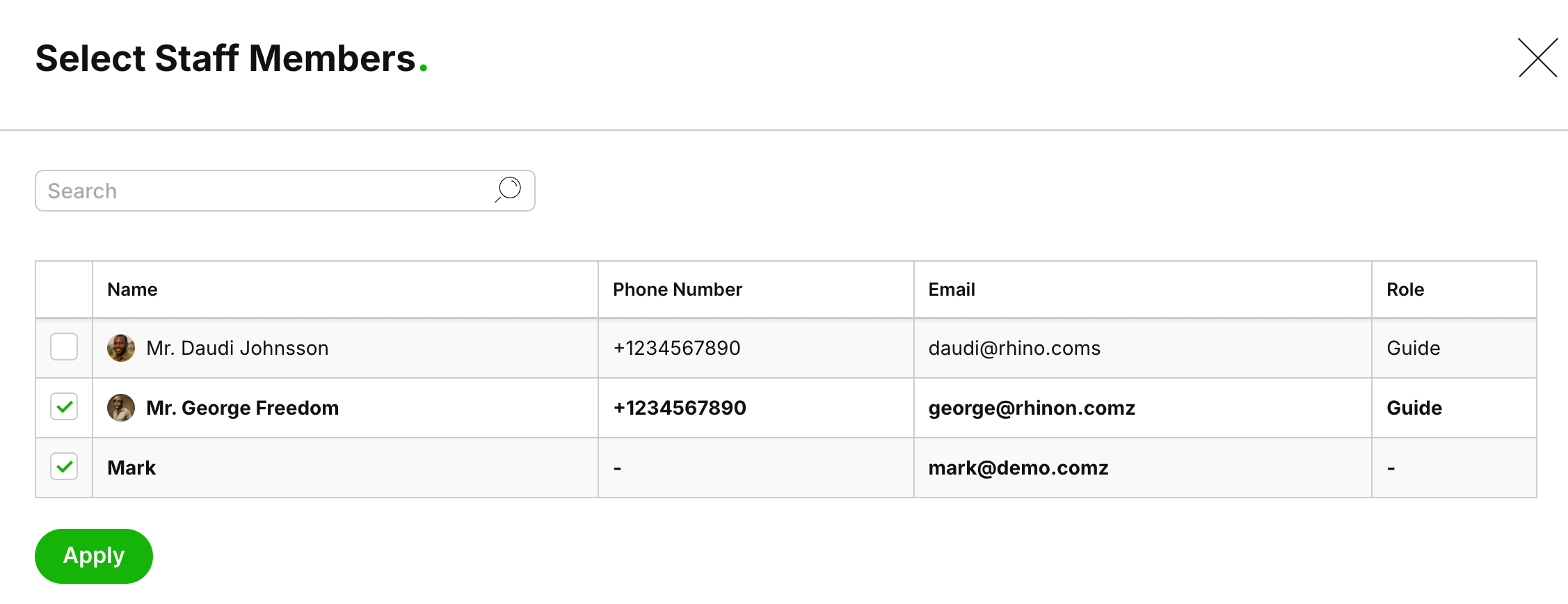
The selected staff will now be linked to the tour, and clients will see them in the SafariBuddy App.

To remove a staff member from a tour, use the three green dots next to their name and select "Delete".
How to Use SafariBuddy Manager
In this article, you'll learn how to share a booked tour with your clients through the SafariBuddy app
How to Use Individual Traveler Details
Lear how to add and use traveler details on a tour request.
