The SafariBuddy Manager allows you to share a booked tour with your clients through the SafariBuddy app. Once a tour is confirmed, you can activate and manage the app for the client to provide a seamless travel experience. Clients get access to all travel details and information, and can share their needs like dietary requirements or information on allergies.
You will need to have the 'SafariBuddy Add-on' active!
Activate SafariBuddyGo to the Requests section in SafariOffice.
Open a Booked request.
At the top, next to the booked quote, you'll see an orange button:
"Manage SafariBuddy".
You'll also see the status next to the button (Published or Unpublished).
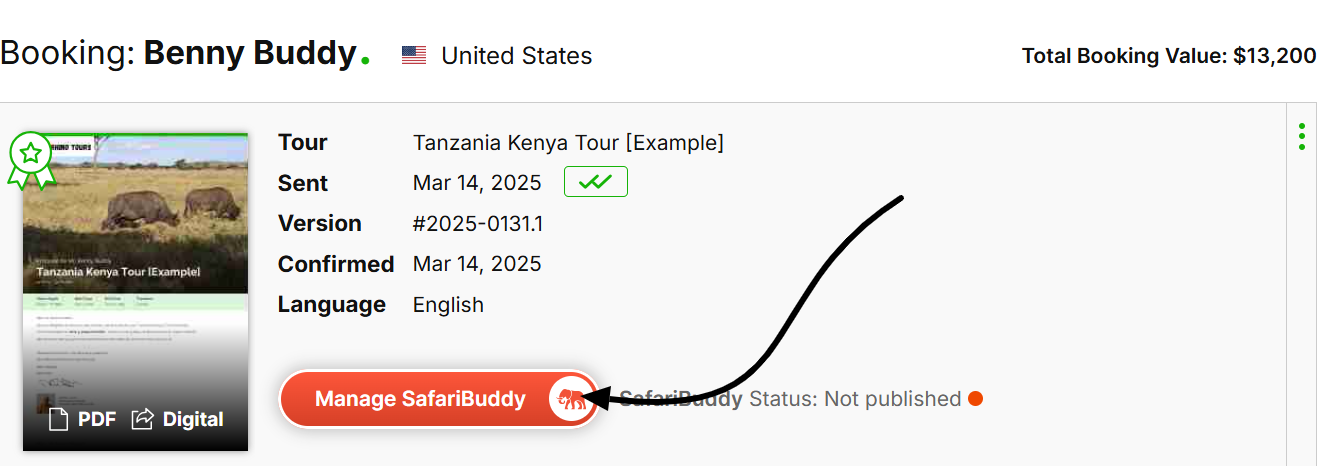
Click the "Manage SafariBuddy" button.
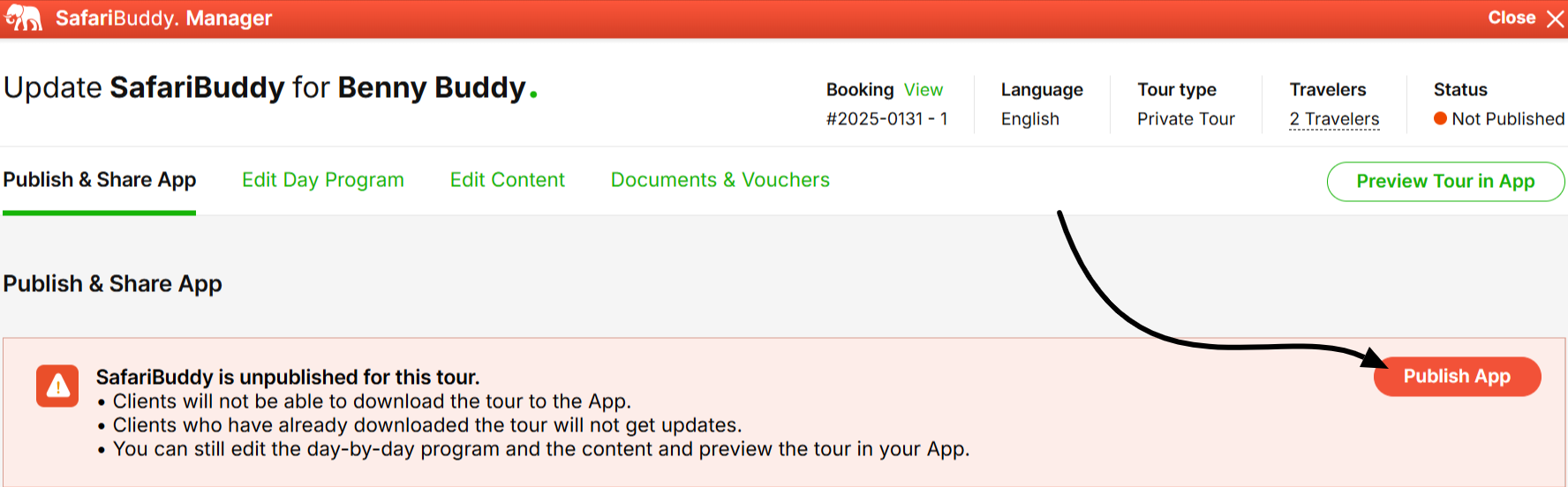
It will open the "Publish & Share Tab".
The first time you open it, the status will show Unpublished.
Click "Publish App" to make the tour available for the App and start sharing it.
The button will turn green and indicate it’s ready to share.
On the "Publish & Share App" tab, you’ll see the name of the main client.
If additional travelers were added under Tour Information, their names may also appear.
You can still update or add traveler details directly in this screen.
If you didn't have names for the other individual travelers yet, you will see as many rows as the booking indicates there should be travelers.

You can invite clients in multiple ways:
By Email: Sends an invite with app download instructions. An email address is needed.
By WhatsApp: Shares the link directly using your WhatsApp. A phone number is needed.
Copy QR Code or Shareable Link: Copy and send by any method or message platform.


Here is a video to help you publish and sharing the app with your clients.
In the third column of the traveler table, you’ll see the status of each invite:
Whether the app is downloaded.
Whether the tour is installed.
Whether the traveler is active.
Clients can share the app and tour with fellow travelers, as long as there are slots available (never more than indicated as booked for the group). They can do this from the App.
Those invited travelers can then:
Add the tour to their device.
Enter their own name and personal info.
This will automatically appear in your SafariBuddy Manager.
You can update the tour even after sharing it via the app:
Click the tab "Edit Day Program" to open the day-by-day builder.
This works just like the quote or template builder.
Any changes made here will reflect in the SafariBuddy app.
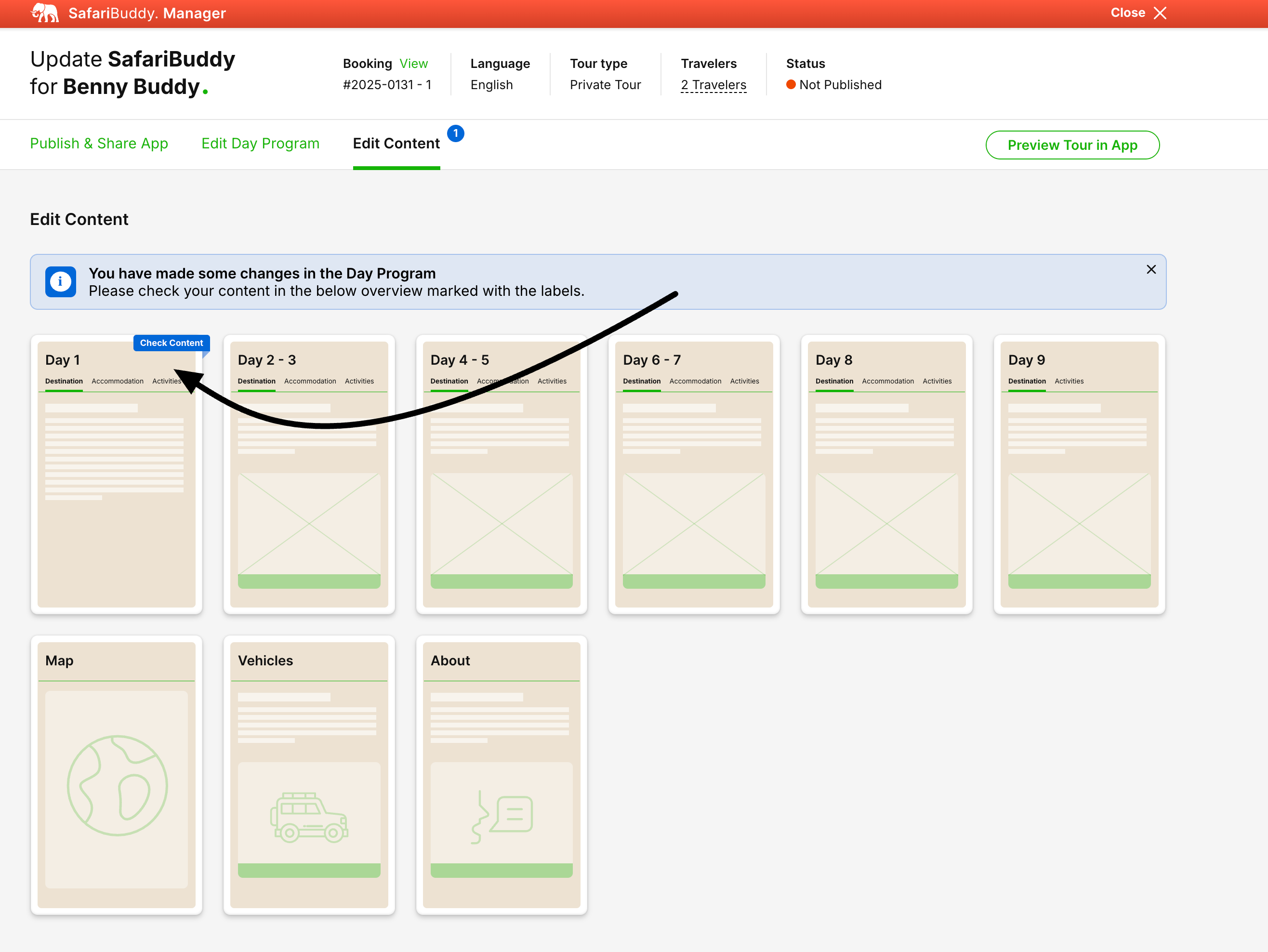
Use the "Edit Content" tab to:
Update any sections of content by clicking the corresponding tile.
Update maps.
Edit vehicle details.
Change contact info or other About page details for the App.
If you made changes in de day-by-day (tab 2), you will see days marked here that might need some attention because it has new content available for checking.

Here is a video that shows how to make edits to a booked quote and request. Updating the day-by-day program and content for the SafariBuddy App.
Click "Preview Tour in App" (top right corner) to see exactly what the client sees.
Helps you ensure everything looks right before sharing or after updates.
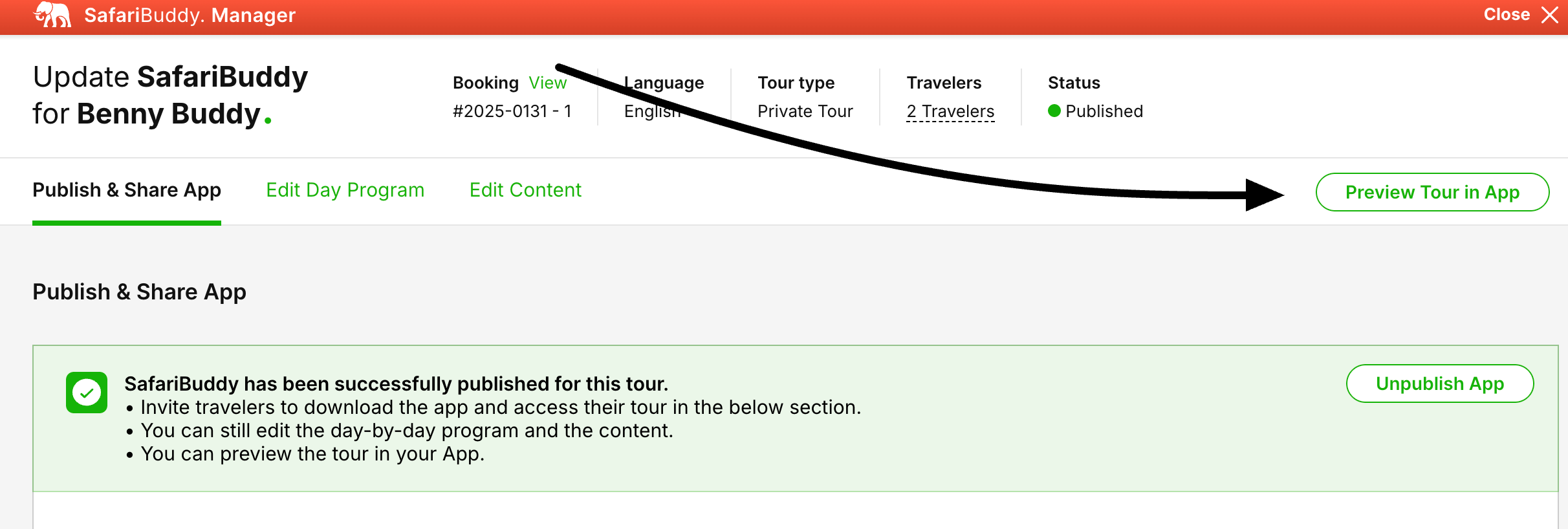
You can "Unpublish" the tour at any time.
This disables any future updates and after a while, access to the tour in SafariBuddy for your client.
Go to Settings > Marketing > SafariBuddy
In the first tab, Dietary Requirements & Allergies, you can create some settings for how and when updates regarding these requirements are done and received.
https://app.safarioffice.com/safaribuddy#tab-dietary
1. You can choose to if you want to ask for this information using the App or not. If you switch it off by choosing "No", this feature is not available for clients. You might want to do this if you have different ways of asking for this information.
2. You can set until what time before the tour starts the clients can enter or edit this information. You might not want to receive this information last minute.
3. You can enter a default email address that receives notifications if clients make updates to their requirements. If left blank, the assigned user for the request will receive the update notification.
In the second tab Model, you can choose what model you prefer to be your SafariBuddy.
https://app.safarioffice.com/safaribuddy#tab-model
Try the App and get more info on the app: https://www.safaribuddy.com/
