
When managing your tour templates, you can make a copy (or multiple copies) of each template. Making a copy of a template allows you to make multiple versions of a specific itinerary.
This is particularly useful when you have to create a different version of an existing template by only applying a few changes.
For example, you want to offer an itinerary using the same locations, activities, and meal plans, but with different comfort levels for different groups of people.
In this case, it would be useful to create the following:
-Version 1: Budget tour that only includes cheaper accommodations
-Version 2: Luxury tour that only includes luxurious accommodations.
Making a Copy of a Template
You can simply change the template status in two ways:
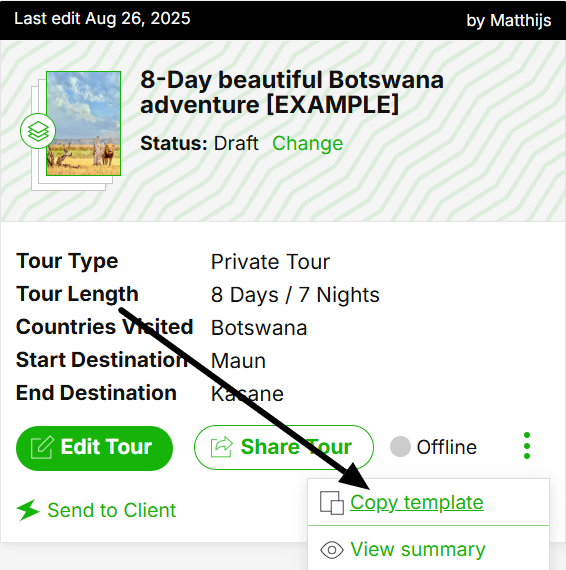
1. Directly in the Templates Tab
Go to the tour template you want to make a copy.
Click the three green dots at the bottom right of that specific template. Select 'Copy template'.
2. When Editing a Template
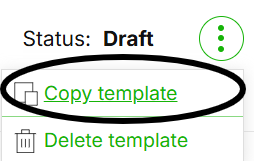
Go to three green dots at the top right of your template at any stage that you are editing a template.
Click on the dots, and then select 'Copy template'.
You will then get a pop-up to confirm the copy. After you select 'Yes, copy this template', the copy of the current template will show up in your 'Templates' tab.
A pop-up window will appear in which you can confirm your decision accordingly. After you select 'Yes, copy this template', the copy of the current template will show up in your 'Templates' tab.
