Keeping your tour descriptions and images up to date is essential for creating beautiful quotes quickly. In this article, you will learn how to add and edit your custom content in the Content Library. This is a very powerful tool if you like to create and manage unique content that’s only for your business.
By keeping your content in one place, any updates you make automatically apply to all your Draft quotes and Tour Templates (and published tours if you use the Share Tours Add-on).

SafariOffice divides content into three main categories: Destinations, Accommodations, and Activities.
You have two options for these categories:
Add your own descriptions for, images, or videos to replace the standard SafariOffice database items.
Add a completely new custom destination, accommodation, or activity if it is missing from our database.

You can add or update your text and media in two ways:
Go to the Content Library
Add or edit your text descriptions, images, and videos directly on this page.
This is easy when adding larger batches of custom content you would like to use in future tours and proposals.
This is easy when you simply want to built your content database on the fly while creating.
Open the Preview & Edit step of your Quote or Tour Template.
Select to add the content for a new description to your Content Library for future use.
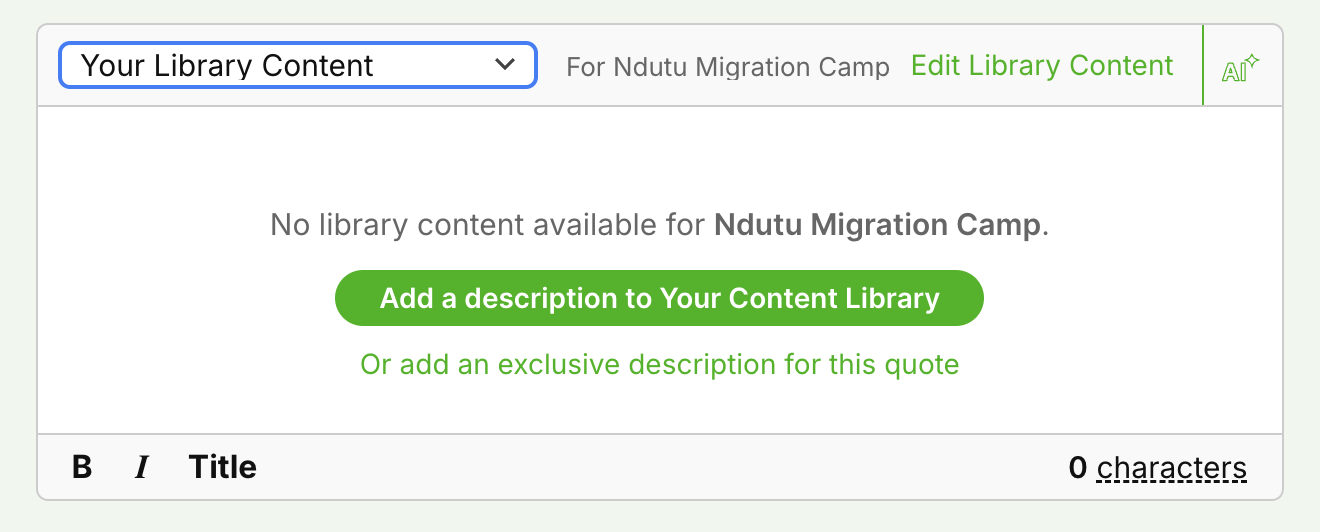
OR
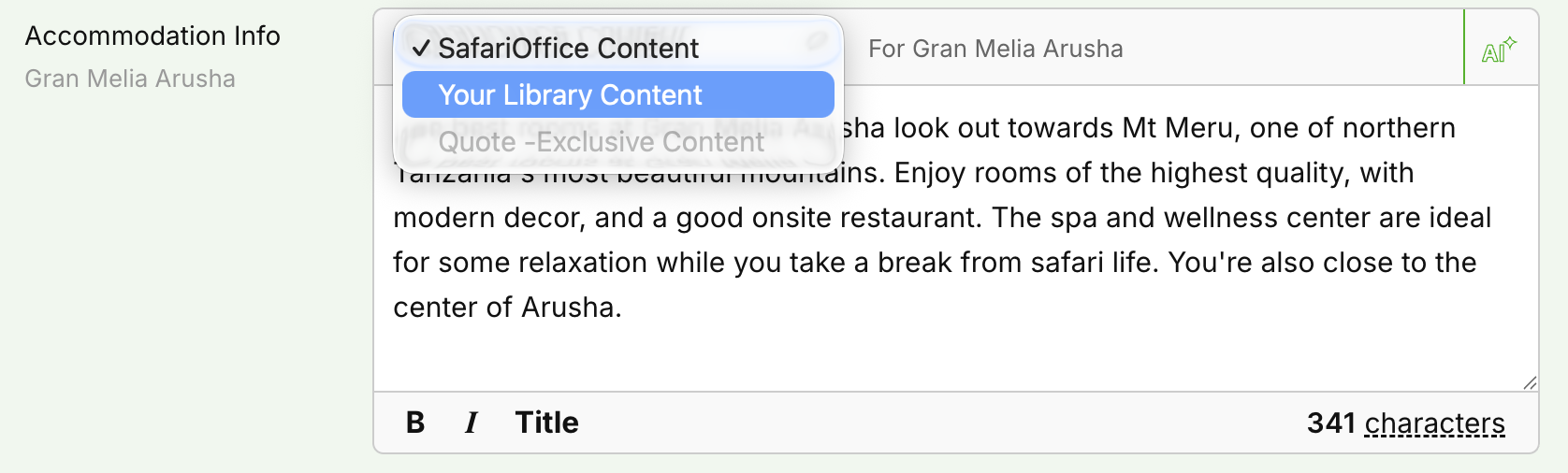
Select the item from your Library using the dropdown to override a current default item if you already have an item in your Library.
Here are some articles explaining the use of the library itself.
You can also organize media for other parts of your tours.
You can add imagery on a country level that will become available in the ‘country’ folder of your image sections. If a tour goes to one (or more countries) these images will always be available not matter the destination, activity or accommodation. But they will never be auto-applied by the system. They are an additional source of content for you to use and always have at hand.
Themes are another way of adding content to your Library and organizing it. These folders will also always be available and offer an option to work on themes like ‘Honeymoon, Kids & Family or to add your own Custom Maps that are accessibele on the Map page.
You can even add your own themes, in this way giving you an option to create a full free folder structure for your content not related to Destination, Accommodations and Activity.
Vehicles
In the vehicles section you can add Vehicles, with their descriptions and images. These vehicles can than be selected when creating itineraries. An important part of the information you can provide your clients. So you have one central place to do this. In the Vehicles chapter of your tours you can select the vehicles that apply to that tour (one or more are possible).
How to Add and Use Vehicles in Itineraries
Learn how to add vehicles to itineraries and also show them in SafariBuddy.
Staff members
Currently mainly used on the tour info tab and for SafariBuddy users. If you add Tour Staff here (like a guide or chef) these will show up in SafariBuddy.
How use the Tour Staff Section
Learn how to use the tour staff section on SafariOffice.
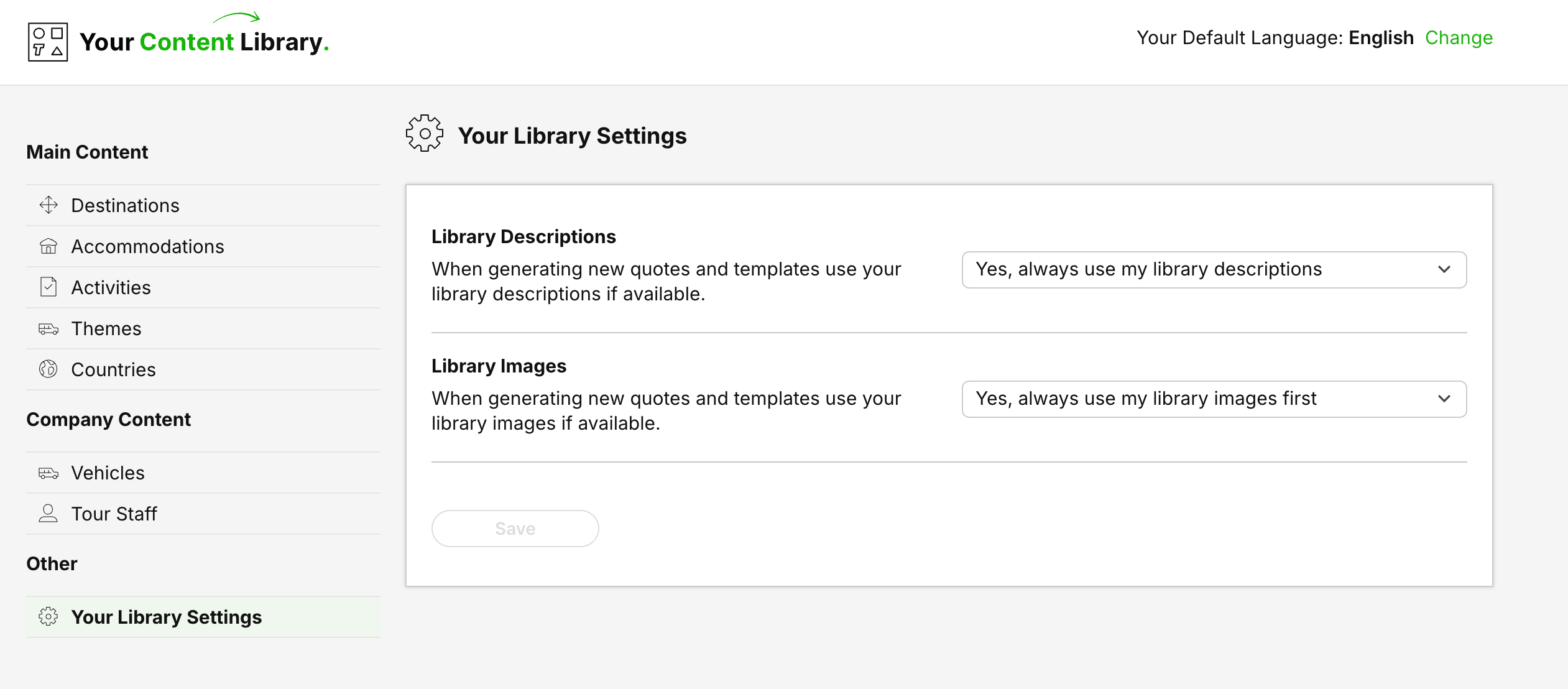
These settings allow you to influence how the system uses your content by default.