The library allows you to update descriptions for destinations, accommodations, or activities in one place, ensuring that all tour templates and draft quotes are automatically updated.
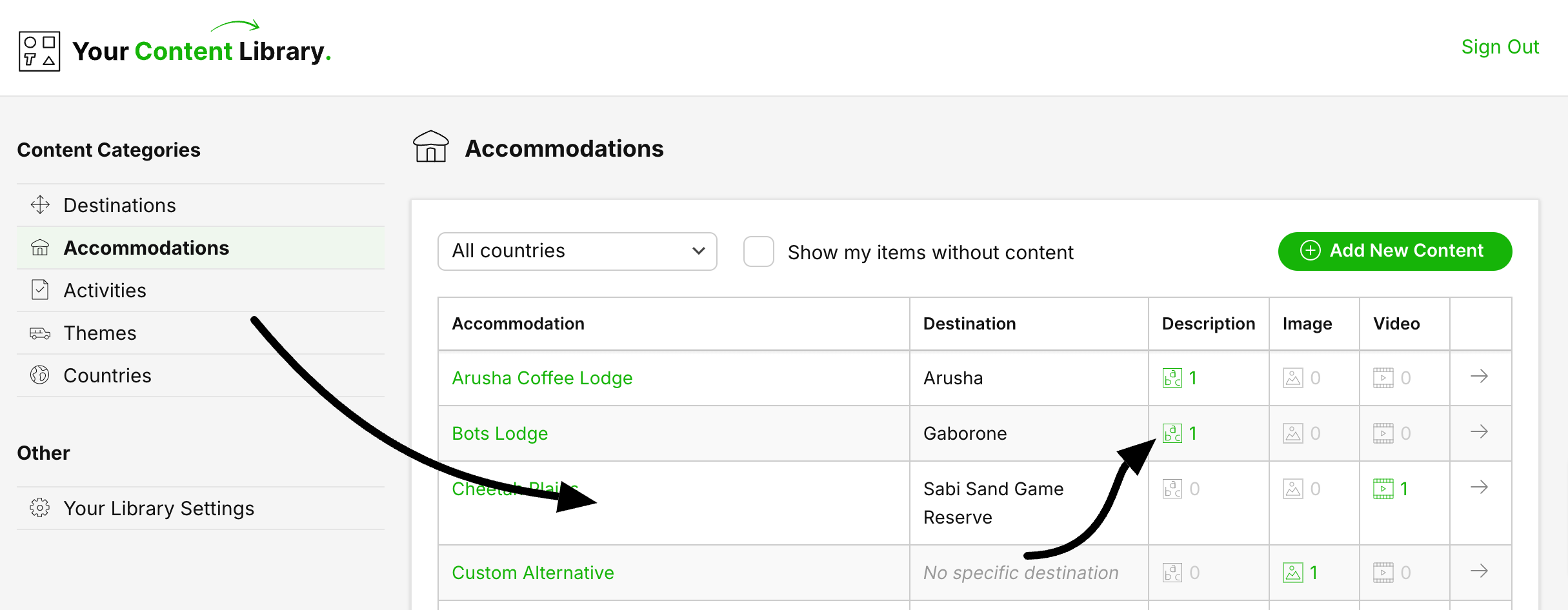
Navigate to Your Content Library
Select the section you want to update: Destinations, Accommodations, or Activities.
Click on the corresponding line to open the item.
Alternatively, click a specific column to directly access descriptions, images, or videos.
If descriptions, images, or videos are present, the icons will turn green and display a number.
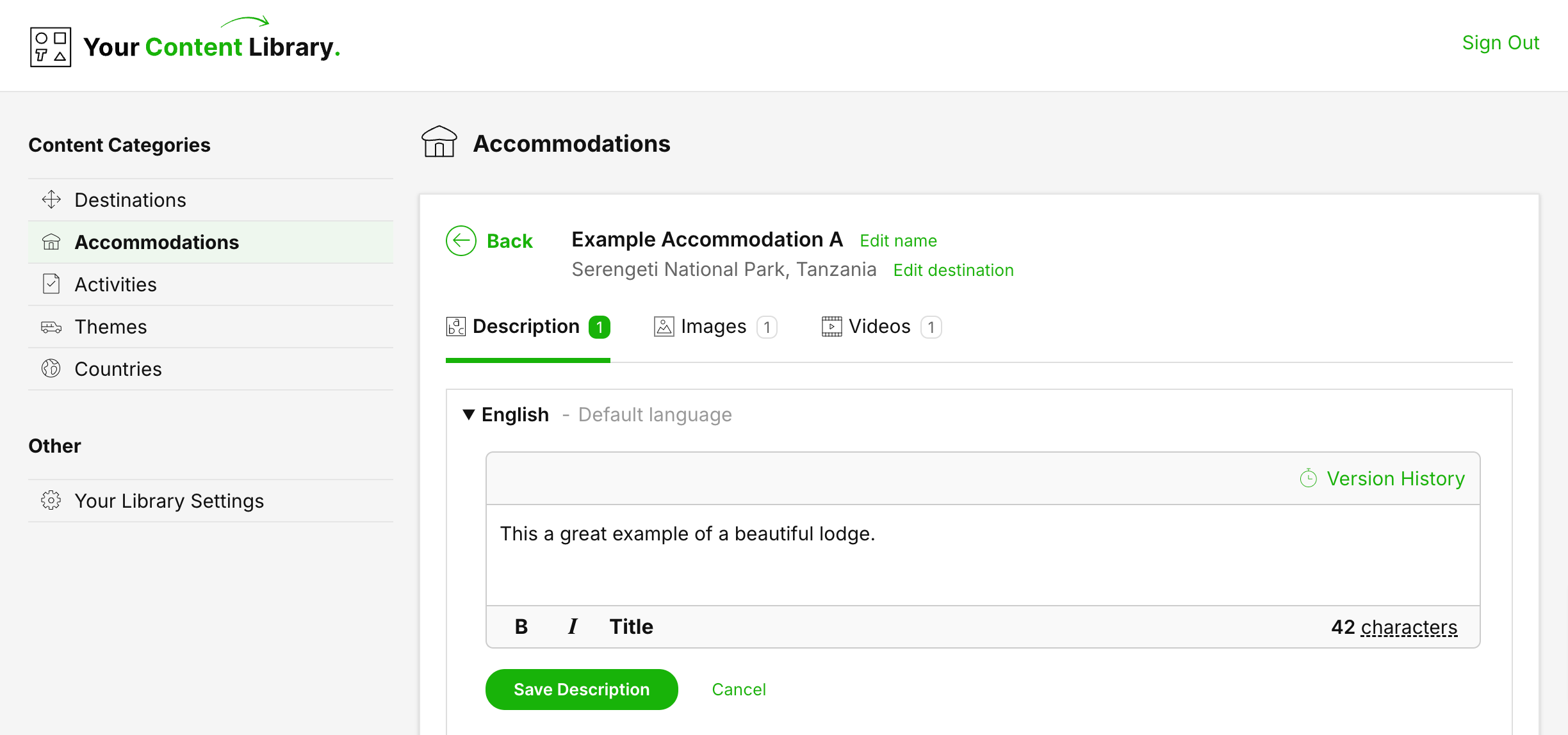
Start typing in the description field. The 'Save Description' button will activate as soon as you make a change.
The character count in the bottom left will indicate if the description is optimal:
It turns orange when you reach 90% of the maximum recommended length.
It turns red if you exceed 100% of the optimal length, though you can continue if desired.
Click 'Save Description' when you are satisfied with your changes.
The item will be updated across all Draft Quotes and Tour Templates.
If you’ve enabled additional languages, you can manage those descriptions the same way.
In SafariOffice, you can easily track the version history of your descriptions in the Content Library.
You can see who made changes and when, and you also have the option to revert to an older version.
Open the item you want to review.
Click 'Version History' at the top right of the description.
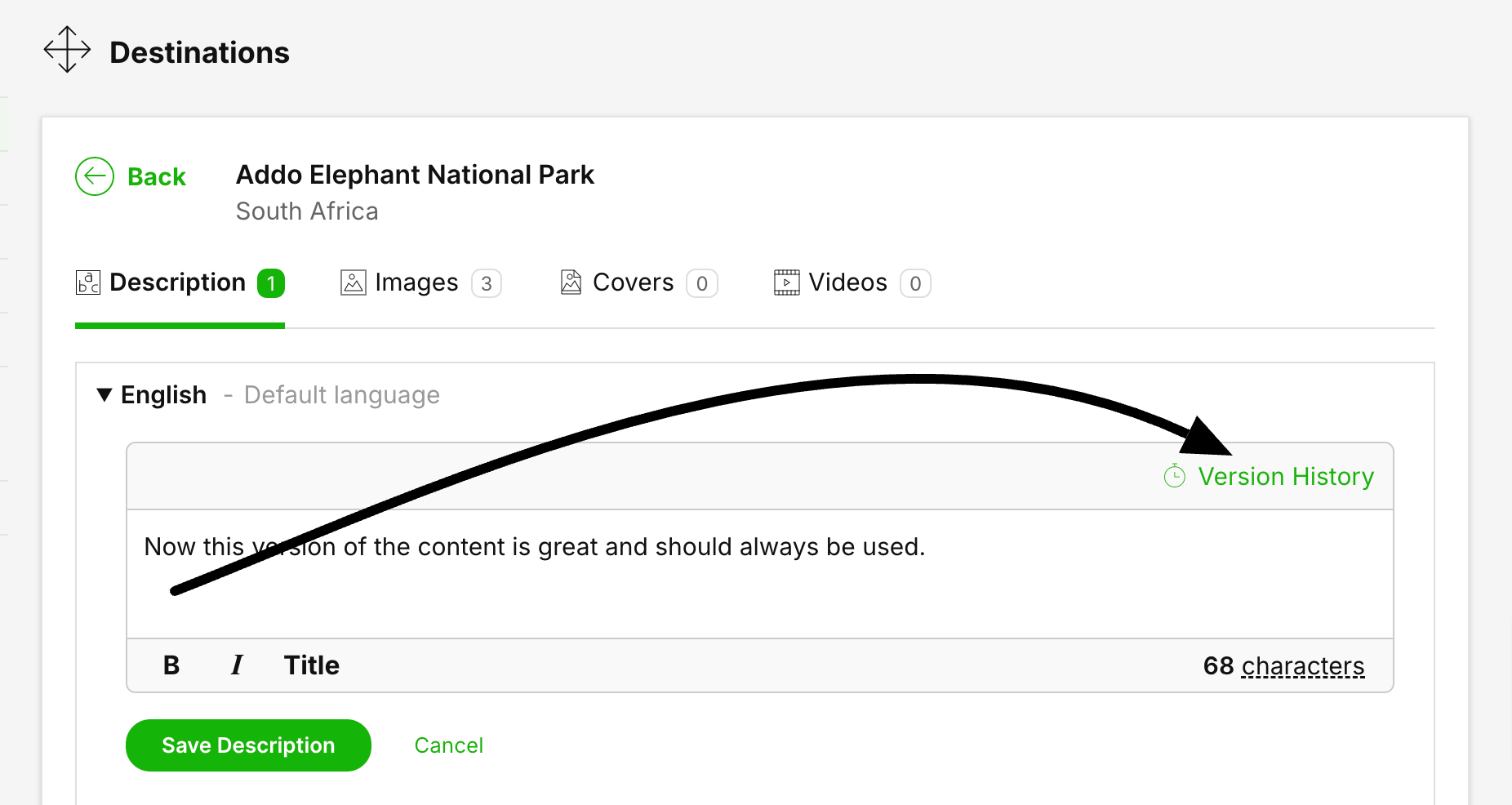
If you want to choose another version of the content click 'Reset to this version'. Every time you save a new histroy item is logged.
If the item is one you've added to your Library (and not a SafariOffice database item), you can change its name.
Click 'Edit name'
Change the name
Click 'Save'
The item and everywhere it has been used is updated
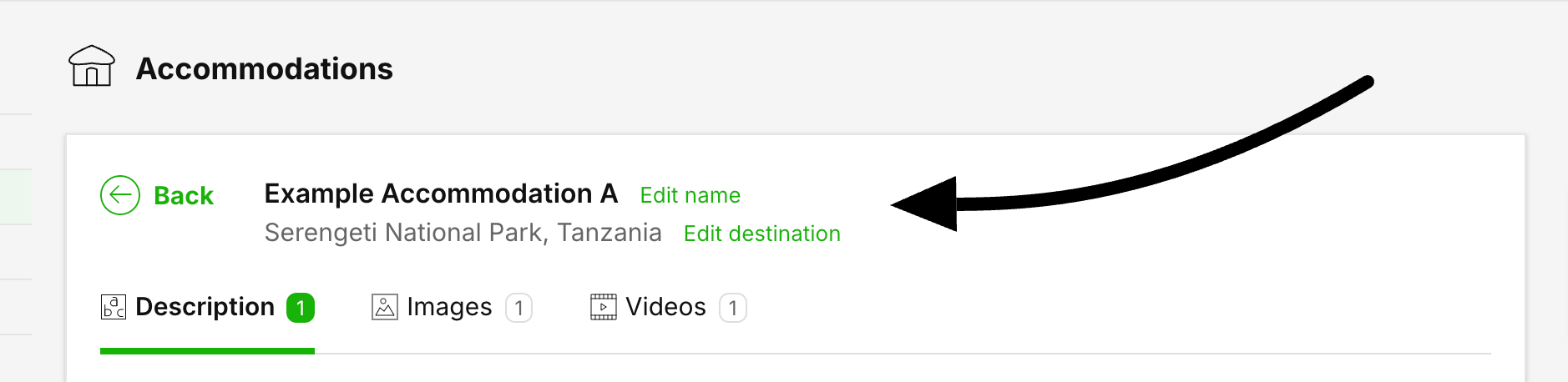
In case of an accommodation or an activity, you can also update the destination, if it is an entry you created.
Click 'Edit destination'
Change country and or destination
Click 'Save'
The item and everywhere it has been used is updated
How to Add a Custom Description to Your Content Library
In this article, we explain how to add a custom description to Your Content Library.
Archiving Items in the Content Library
How to Archive and Unarchive content items you created in the library
