The accommodations you add in the day by day builder will determine the images and text you get in the final version of the quote. The same is true for the destinations.
You are still able to manipulate the images, their layout and the text in step 3. However filling in this information correctly in step 1 will greatly lessen your work going forward.

To begin navigate to a quote/template in question
You will then automatically get taken to Step 1 ‘Day by Day’
Depending on your view settings, the first column will be the ‘Accommodation’ field. From here you can :
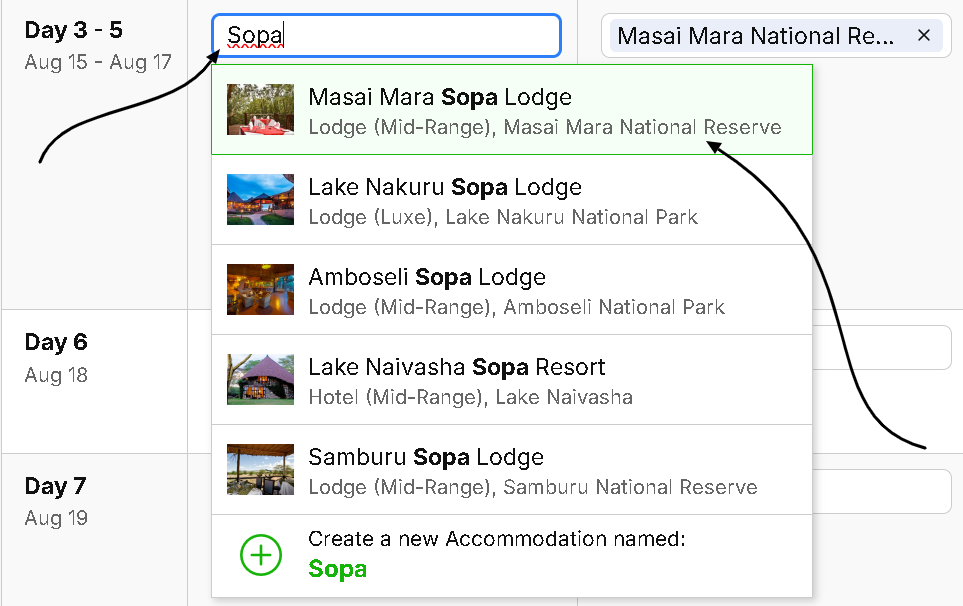
Enter an accommodation name that shows a dropdown menu of options. This indicates the accommodation is in the SafariOffice Database (pictured below). Click on the correct accommodation to add it to the itinerary
Enter an accommodation name that is not present in the SafariOffice Database and create a custom entry.

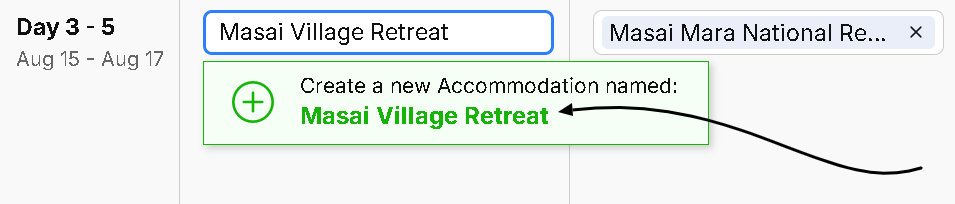
A custom accommodation refers to the accommodations that do not exist in the SafariOffice database
To add one :
Navigate to the day by day builder of your desired document
Type the name of the accommodation into the ‘Accommodation’ field for the desired day
The dropdown will have a green drop down menu item. The text reading ‘create new accommodation named’. Clicking this will create the custom accommodation
You will be able to add your own images/text to this new accommodation
Any content you add to SafariOffice regardless of the type is completely private and only accessibly by you and your colleagues.
How to Add Custom Accommodation to Your Quote
Learn how you can add a new or custom accommodation to your itinerary.
If the tour has several nights at the same accommodation you can combine nights by selecting the drop down menu beneath the name of the accommodation.
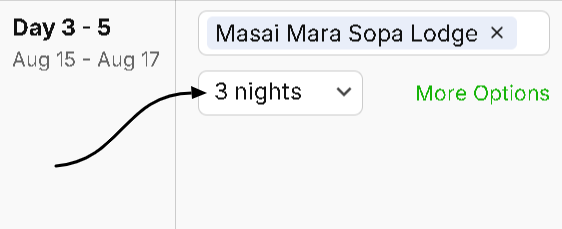
You can also make several changes by clicking on the text ‘More options’ hyperlinked text also beneath the name of the accommodation.
For example, you can edit the standard room settings to be different to the overall room settings (in a quote) and even add accommodation alternatives.
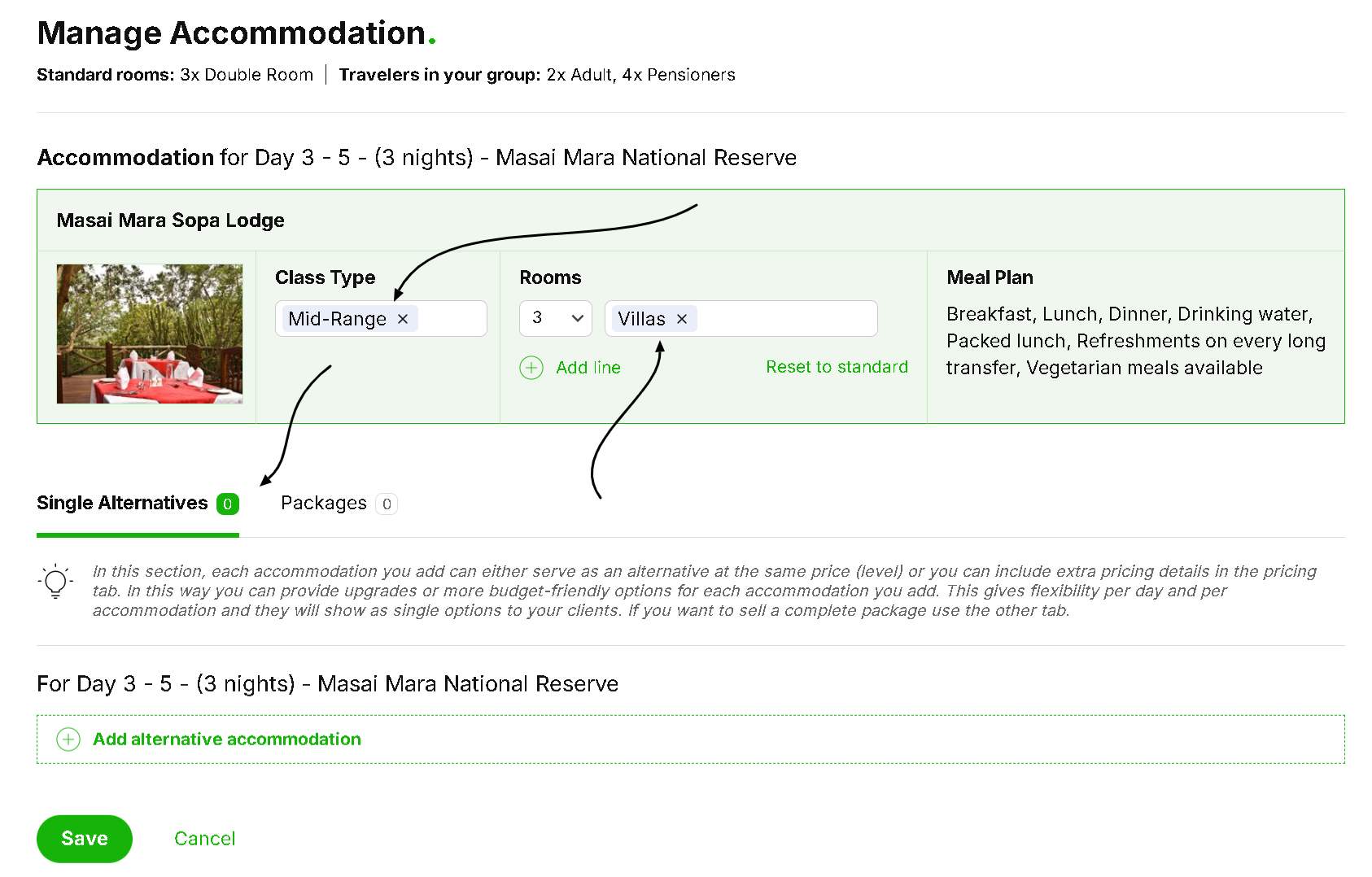
Read more about accommodation alternatives here :
How to Add Alternative Accommodations
Learn about how to add alternative accommodations to your itineraries.
When you add an accommodation that is in the SafariOffice database, the destination will auto populate with the closest city/reserve/park of interest.
If this is not the correct destination you are able to remove it by clicking the small ‘x’ next to the destination name.
The setting that may influence this behavior is the ‘Change view’ option next to the page heading ‘Create Day by Day Program’.
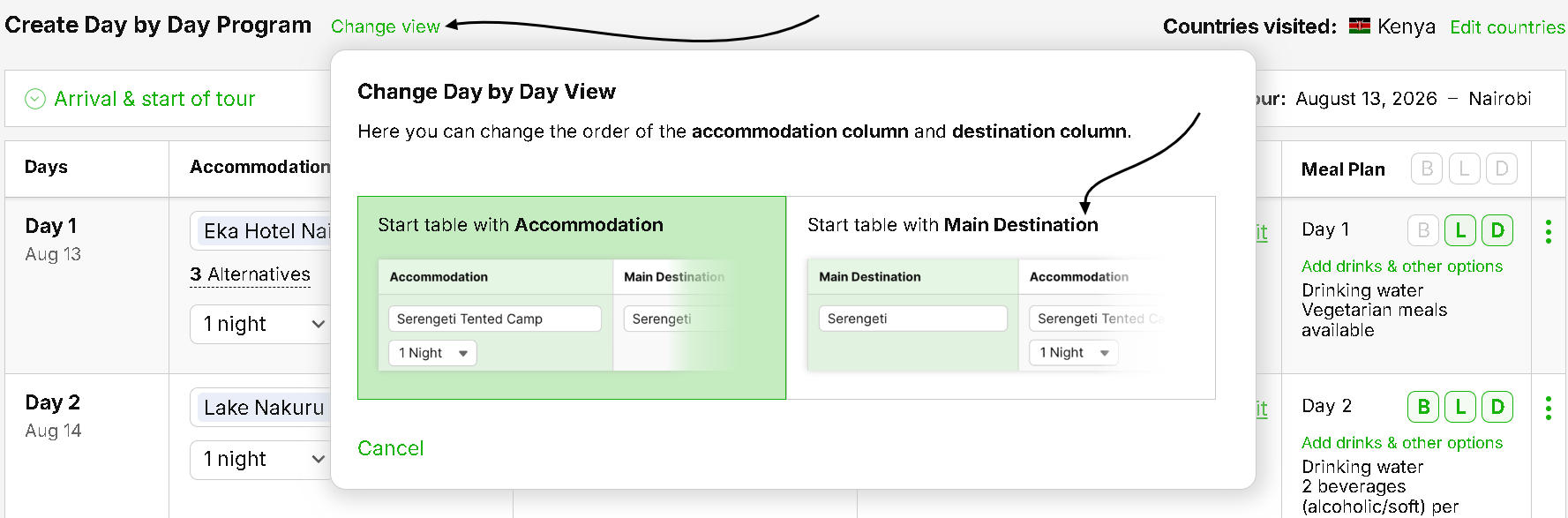
This can allow you to place the destination as the first column in the day by day builder.
Some operators may find this view more helpful especially if they want to discover the many different accommodation close to a specific destination.
Creating custom destinations is much the same as creating custom accommodations as detailed above.
Click below to navigate to the next part of the onboarding series :
#6 How to Add (Optional) Activities
A demonstration of how to add optional activities to step one of the quote creation process
