Adding video to your Digital Header is an excellent way to bring your Quotes to life and engage your clients from the first click. In this article, we’ll show you how to select the best video display option and update your content directly from the Preview & Edit screen. You can also set a default Video (or videos) to show with every quote you create using the new Style Design Studio.
Example video

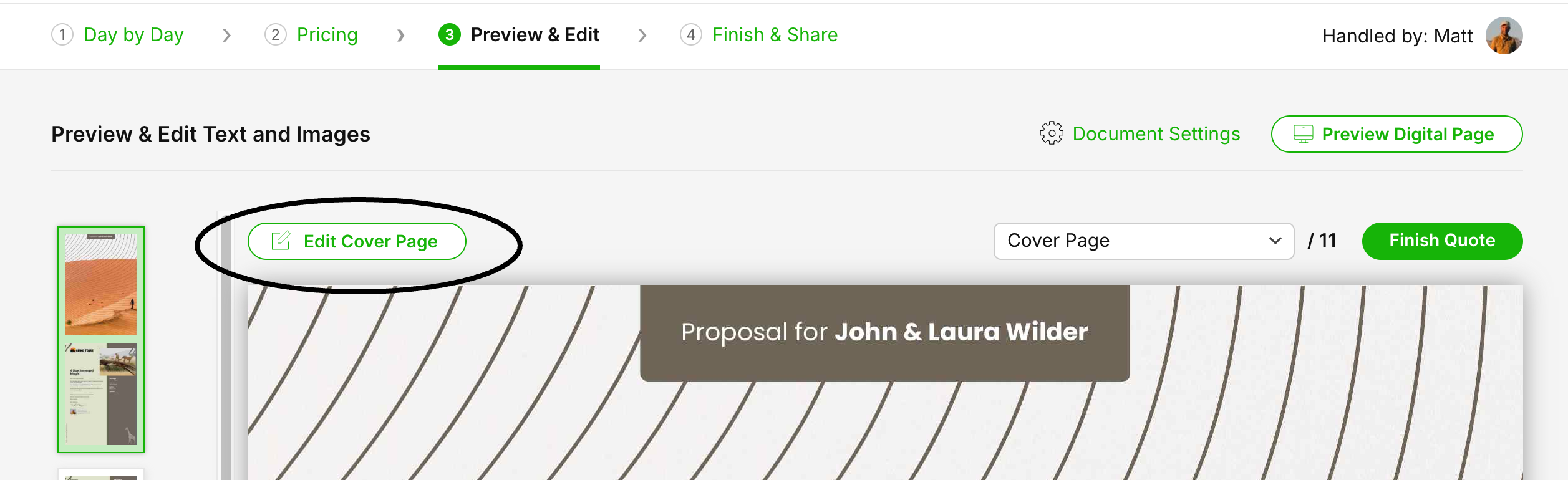
Go to a Tour or Quote you want to add a video to
Go to the Preview & Edit step (step 3 of the builder)
Go to Edit Cover Page (the first Page)
Go to the Cover & Digital Header Section
Select the tab Digital Header
Before adding your video, you need to decide how it will appear on your Digital Page.
SafariOffice offers two distinct ways to showcase video content. As a Fullscreen header and as a Video in a Pop-up. Both can be combined as well to maximise video options!
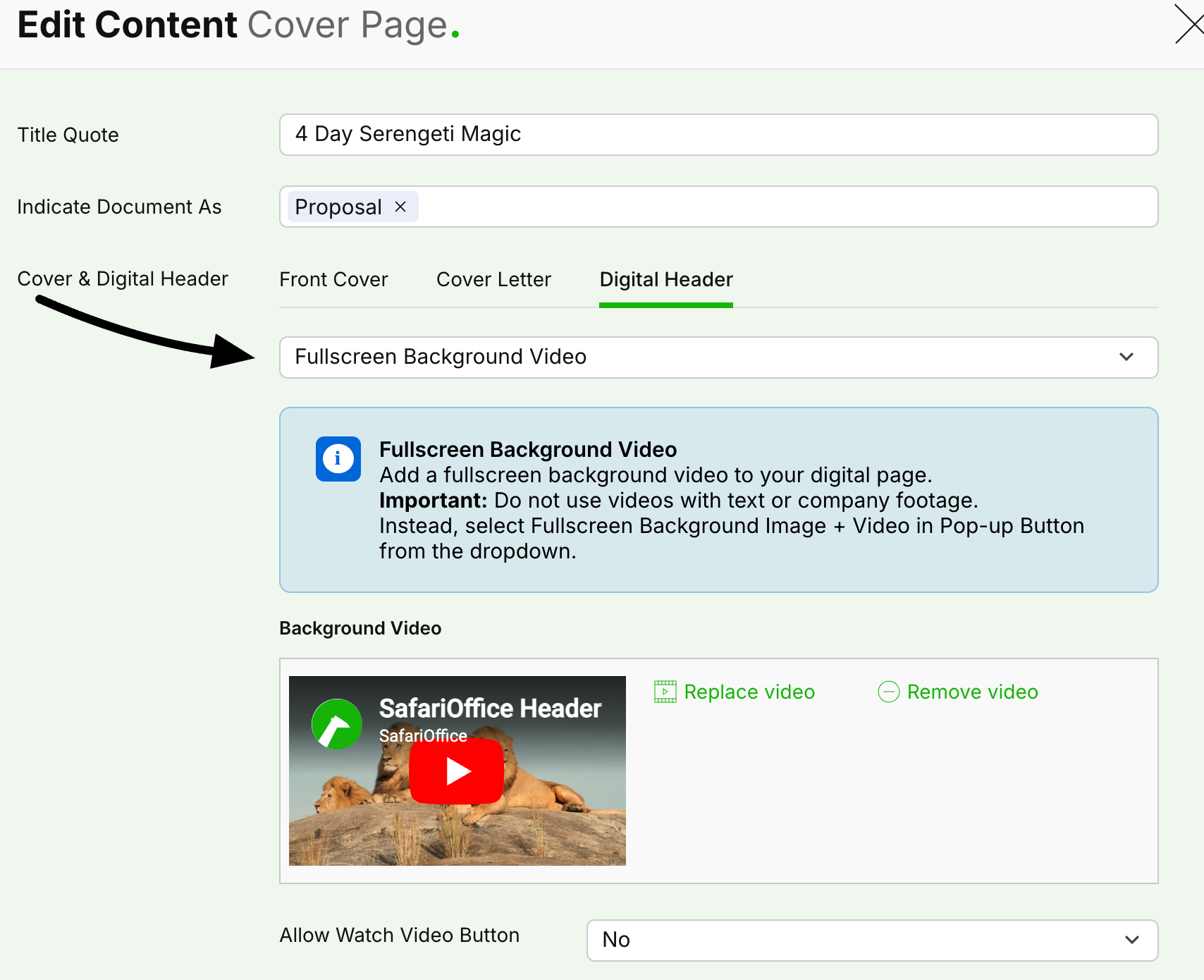
This option places a video directly behind your header content for a cinematic feel.
Go to the Digital Header tab.
Select Fullscreen Background Video from the dropdown menu.
Click Add Video or Replace video to open your library.
Select an existing video or enter a link from YouTube or Vimeo.
Click Save

This mode keeps your static image visible and adds a "Watch Video" button for the client. The image is still the header and the video is accessible for your client by clicking a ‘watch video’ button. This allow for videos with a message, more text and possibly voice over and music.
Go to the Digital Header tab.
Select Fullscreen Background Image + Video in Pop-up.
Choose whether you want to display the Front Cover or Cover Letter image as the background for the header itself. We advise to use the Cover Letter Image by default.
Click Add Video or Replace video to open your library.
Select an existing video or enter a link from YouTube or Vimeo.
Select Yes or No under Show Mask on Digital Header to adjust visibility.
Click Save
This mode offers both options for users that want a nice background video for the header AND a video that might have more text, sound and informational content to read or listen to.
Go to the Digital Header tab.
Select Fullscreen Background Video + Video in Pop-up.
Click Add Video or Replace video to open your library for both the Background and Pop-up window video. Make sure to select the right video per section.
Select an existing video or enter a link from YouTube or Vimeo.
Select Yes or No under Show Mask on Digital Header to adjust visibility.
Click Save
If you have a background video, or—more likely—a company video with information, you might want to add it by default to any tour or quote you create. This is also possible using the new Style Design Studio.
Navigate to the Style Design Studio in your Settings.
Scroll to the Digital Header Defaults
Set to ‘Yes’
Now you can also choose from the above mentioned options. For video you have three options
Fullscreen Background Video
Video in Pop-up with Play Button
Fullscreen Background Video + Video in Pop-up
Add the video(s) you want to always use and these will be added to any new quote or tour template.
Click Save at the button and choose whether to apply to all current Tours and Draft Quotes.

Using the Style Design Studio
In this article we explain the options offered to design your style in detail.
What is SafariOffice PRO?
This article describes the core features and idea behind SafariOffice PRO
