Staying on top of every Request is essential for converting more inquiries into bookings. In this article, you will learn how to use your To-Do List and quick actions to efficiently monitor your sales and follow up with clients.

We designed the To-Do List to categorize your workflow into logical stages based on the status of your client interactions and the request pipeline. It is basically a different view on the pipeline giving you clear insight into priorities and also quick actions to move forward with client requests or update their status so things are always up-to-date in your system.
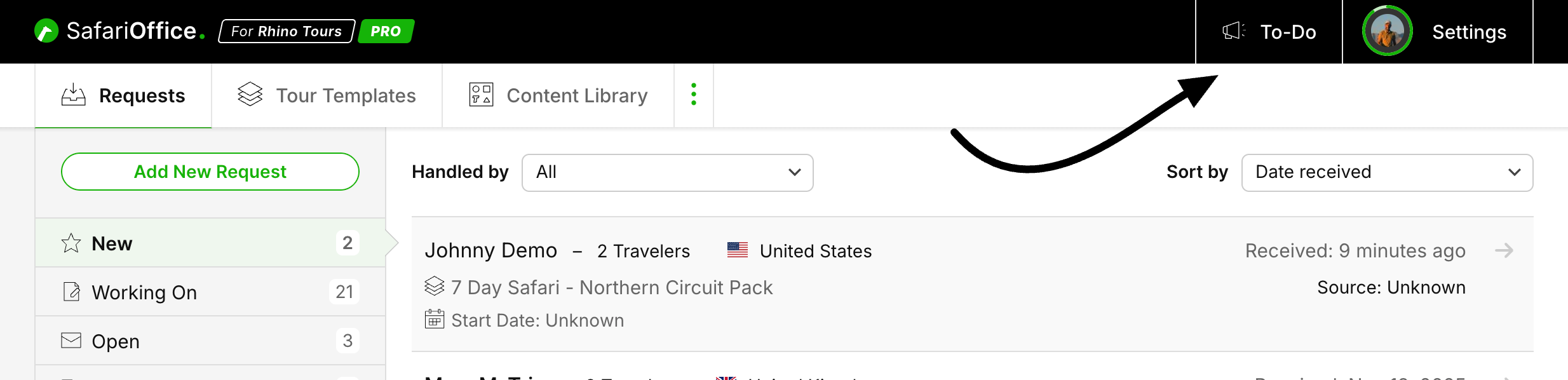
Click To-Do in the top navigation bar.
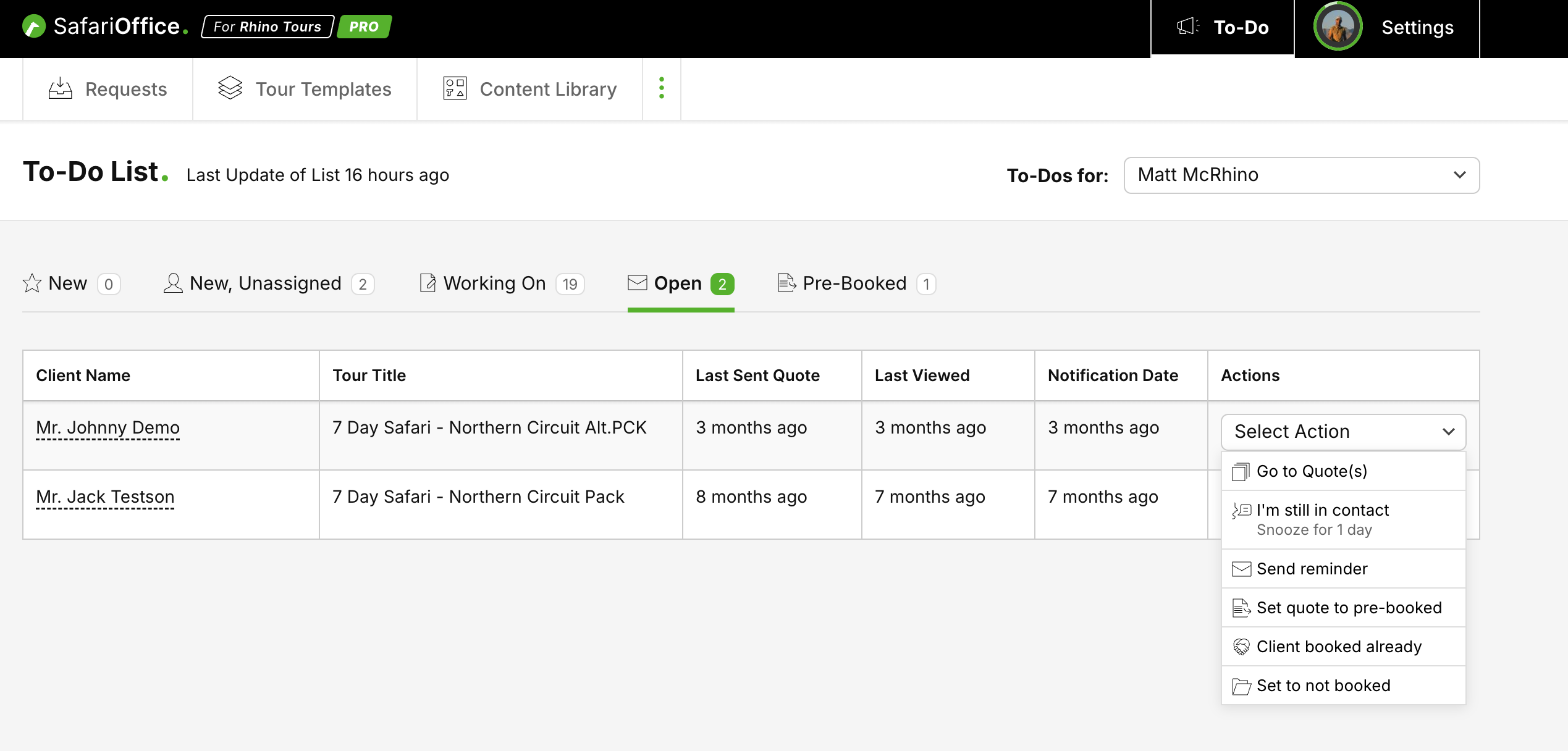
Select a status tab to view your current To-Do list per status.

Each entry in your To-Do List includes quick actions to help you prioritize your work. Depending on the request status you can take different types of quick actions. These help you check and move forward with the request. Here is a summary of the actions available in the Select Action dropdown for each stage of your workflow.
Request that have come in but have no follow up in SafariOffice yet.
Go to Request: View the full details of the request.
Create Quote: Directly takes you to the quote builder step 1 for that request.
Requests that need an owner.
Note: Only Visible to Admin that can assign Requests
Go to Request: View the full details of the request.
(Re)Assign Request: Assign the request to yourself or another team member.
Archive: Remove the request from your active list if it is no longer relevant.
Active Requests where you are currently building a Quote which is Draft.
Go to Quote(s): Open the quotes tab of the request to continue working on the draft.
Still working on quote: Update SafariOffice that the proposal is in progress and not yet ready for the client. Snoozes the To-do notification for the amount of days set in your company Settings before it turns up here again.
Requests with a quotes that have been sent and are awaiting a client’s response.
Go to Quote(s): Takes you to view the sent quotes for this request.
I'm still in contact: Log that you are communicating with the client outside of SafariOffice. Snoozes the To-do notification for the amount of days set in your company Settings before it turns up here again.
Send reminder: Opens the reminder follow-up email page to send a reminder straight away.
Send WhatsApp Follow-Up: Opens the WhatsApp follow-up page to send a message straight away.
Set quote to pre-booked: Move the request forward if the client has indicated they want to book but final reservations and other actions need to be taken.
Client booked already: Opens the Booked modal to finalize the Booking.
Set to not booked: Close the request if the client has declined the proposal.
Clients who have confirmed but require final administrative steps to get to Booked (status available if activated in the Settings.)
Go to Quote(s): Takes you to view the sent quotes for this request.
I'm still finalizing: Indicate that you are still completing the final booking requirements. Snoozes the To-do notification for the amount of days set in your company Settings before it turns up here again.
Set to booked: Opens the Booked modal to finalize the Booking.
Re-open: Move the request back to the Open stage if the client needs further changes.
Set to not booked: Cancel the booking if the client pulls out at the last minute.
Per tab you will see how many open To-Do notifications there are indicated with a green number next to the tab title for a quick overview.
Next to the the title at the left top you will see when the last update of this list was. By default this list updates every night.
When a quick action is taken or a request is moved forward through another way To-Do notifications will automatically disappear from your list.
If a user has managed to resolve all To-Do Notifications from their list for that day they can use the button that appears to check for new To-Dos.
If you are and Admin user you can also filter by To-dos per staff member at the right top of the To-do page. This gives you some insight to how busy team members are and of they are on top of their priorities.

Settings for To-Do & Smart Notifications
This article explains what settings and options you have to influence how to-dos are created.
What is SafariOffice PRO?
This article describes the core features and idea behind SafariOffice PRO
