Timely follow-ups are essential to convert a Request into a booking. In this article, you will learn how to configure your To-Do Settings so SafariOffice automatically notifies your team when action is needed.

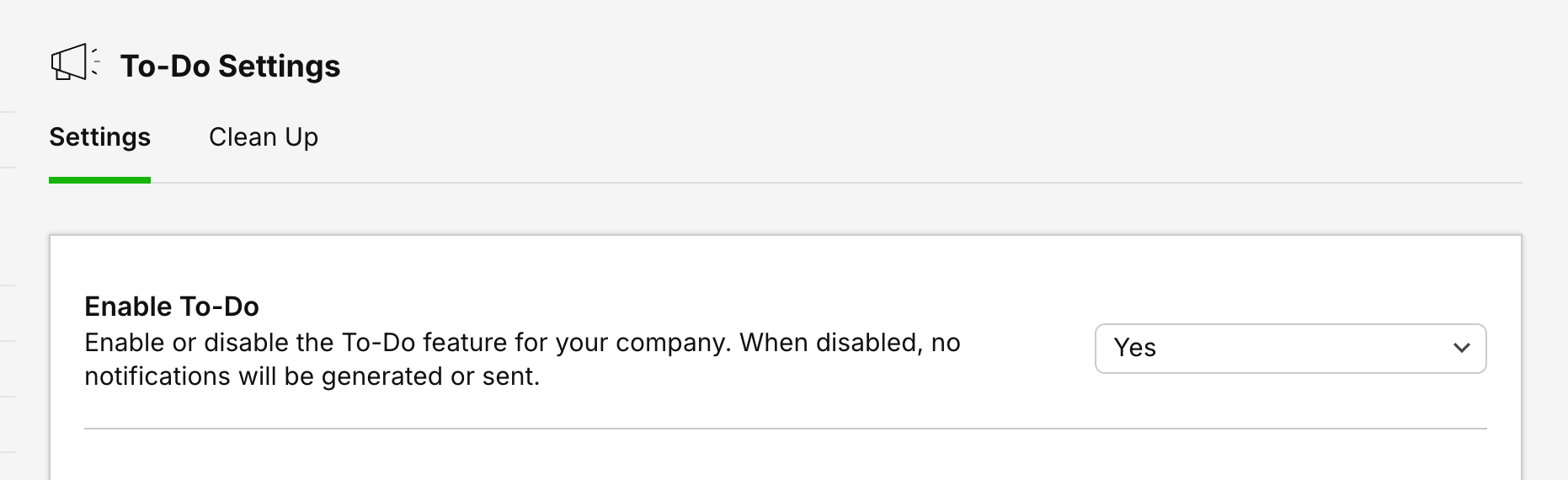
Before your team receives smart notifications, make sure to activate the feature for your company.
Go to Settings
Select To-Do Settings under the Request Settings section in the sidebar.
Locate the Enable To-Do dropdown menu.
Select Yes to enable notifications.
You can decide exactly when SafariOffice reminds your team to act based on the activity on a Request. You can do this per pipeline status.
New Requests
Check the box to Trigger a notification if no follow-up (draft quote or sent quote) has been detected.
Select the number of days from the dropdown to define your follow-up window.
Working on Requests
Check the first box to Trigger a notification if no Quote has been sent after a specific timeframe.
Select the number of days from the dropdown to define your follow-up window.
Snooze Option: Check the second box to add extra time before a new notification triggers when a user selects Still working on. This effectively snoozes the notifications for the amount of time you indicate.
Open Requests
Check the first box to Trigger a notification if no new Quote has been (re)sent to a client.
Select the number of days from the dropdown to define your follow-up window.
Snooze Option: Check the second box to add extra time if a user selects Still in contact. This effectively snoozes the notifications for the amount of time you indicate.
Check the first box to Trigger a notification if still pre-booked after an amount of time
Select the number of days from the dropdown to define your follow-up window.
Snooze Option: Check the second box to add extra time if a user selects Still in contact. This effectively snoozes the notifications for the amount of time you indicate.
SafariOffice can send a summary of all pending tasks directly to your team's inbox.
Scroll to the Timing Emails section.
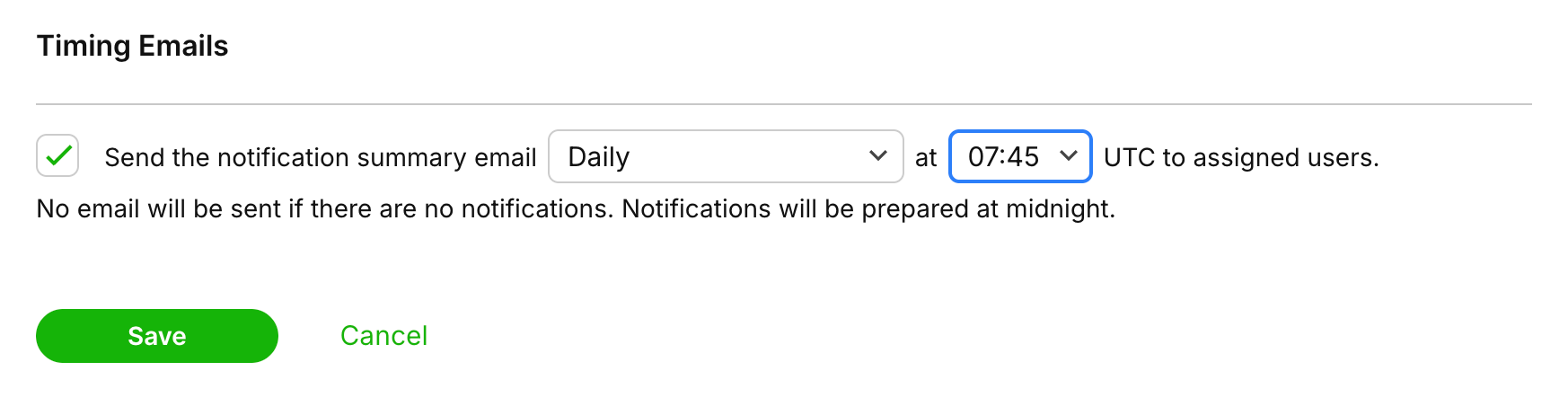
Check the box to Send the notification summary email.
Select the frequency from the dropdown (e.g., Daily).
Choose the specific time for the email delivery (NOTE this is in UTC, adjust for your time zone)
Click Save to apply your changes.

To maintain an efficient workspace, you can periodically remove old or unwanted To-do entries from your list. This does not remove the Requests only these notifications for the requests.
Navigate to the Clean Up tab within To-Do Settings.
Select a date under To-Do's for requests created before:.
Check the boxes for the specific statuses you wish to clear, such as New, Open, or Unassigned.
Click Clean Up Now.

Manage Your To-Do List and Using Quick Actions
Read about how to set-up an use this feature helping users to stay on top of priorities
