Setting your confirmed bookings to 'booked' will allow SafariOffice to add this data to your 'Insights', which allows you to track important information about your company's performance. For example, you will be able to analyze the number of booked quotes, conversion rate, average booking value, and more.
Setting the sent quote to booked or not booked is a manual process that can be done in a few simple steps. There are two ways you can do this.
Go to the 'Open' category and select the request of the client who has confirmed the booking with you.
Go to the top right and click on 'Booked'.

You will then get a pop-up to confirm which sent quote version has been confirmed by the client.
After you select the corresponding quote(s), click on the green 'Confirm booking'.
Now your request will automatically move to the Booked status category.
Go to the automatic confirmation email you have received after the client has confirmed the booking.
Scroll down the email and click on the green 'Set this request to Booked'.

You will then get a pop-up to confirm which sent quote version has been confirmed by the client. After you select the corresponding quote(s), click on the green 'Confirm booking'.


You can still change the status request if, for example, you accidentally marked a quote as Booked or the client has changed their mind about their booking.
Go to the Booked status category
Click on the request that you wish to change the status.
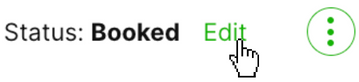
On the top right of the request, click on the green 'Edit', and adjust the booking status accordingly.
How to Activate and Use the Pre-Booked Status
Learn about the Pre-Booked status in SafariOffice that helps you manage confirmed but not final bookings with ease.
