
You have the option to apply a default style and color to all your templates at once or apply different styles and colors per quote or template. Choosing a specific style and color allows you to personalize your quotes with unique aesthetics, bring your brand to life, and help you stand out in the market.
There are two ways to change your style and color.
Changing the style and color in your smart quote/ tour template builder.
Choosing a default style and color in your quote settings.
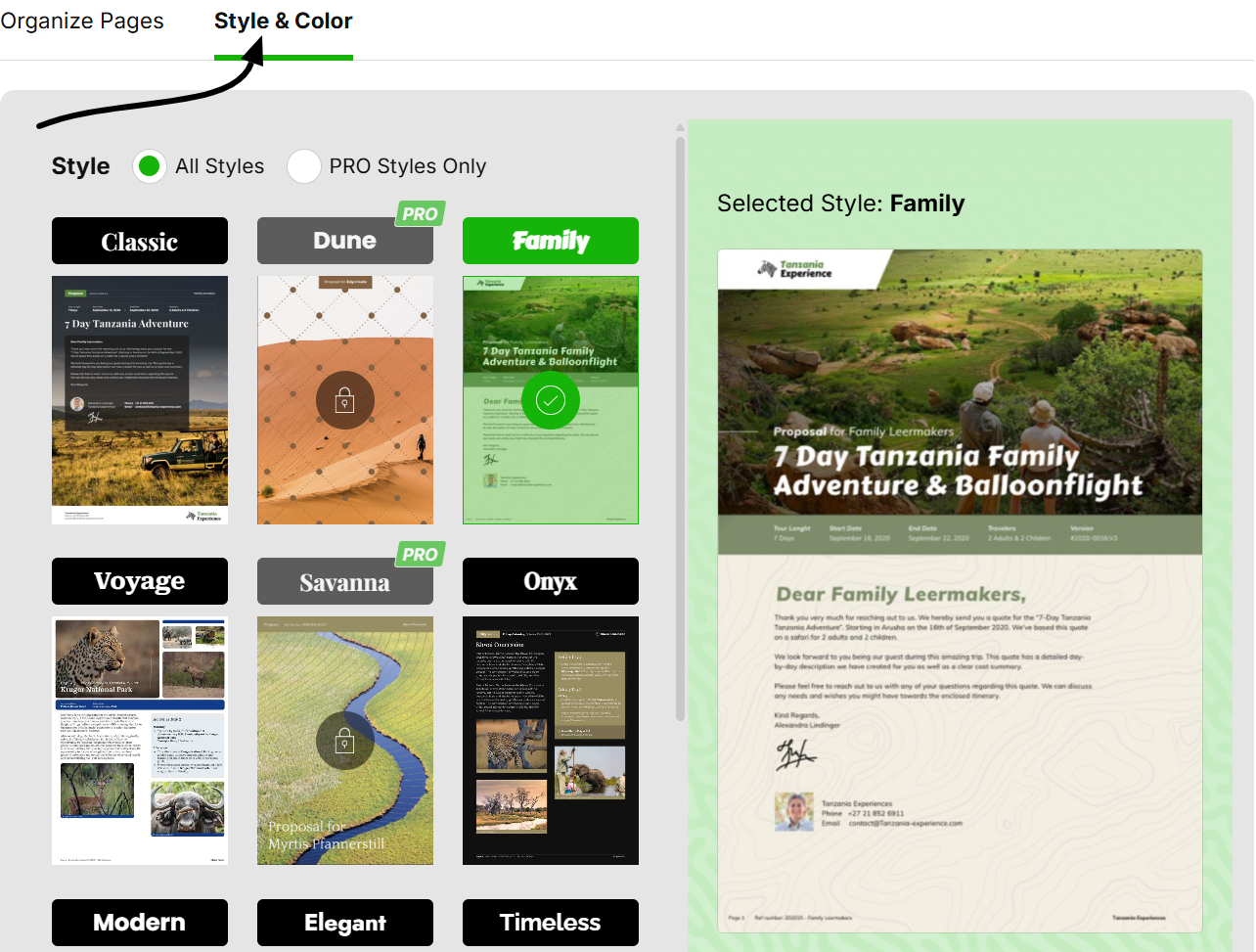
Style: contains different layouts and fonts
Color: contains different existing colors and you can also customize a color
How to Change Style & Color within a Quote or Tour Template
For each individual quote or template, you have the option to change the style and color when editing that itinerary. Check out the steps below:
Open the quote or template you are working on
Go to 'Step 3. Preview & Edit' within the builder.
Click on 'Document Settings' at the top right of your quote or template
Go to 'Style & Color' and select your preferred style and color

How to Set Up Your Default Style & Color
You can set a default style and color for your templates and quotes to maintain a consistent and professional design. This saves time and ensures uniformity across all documents.
Settings > Tour & Quote Settings > Style Design Studio
Go to your account Settings
Click on 'Style Design Studio' in your quote settings
Select your preferred default style and color
Click Save
Each time you create a new quote or template, the default style and color will be used. However, you can still change the style or color per quote or template if needed.
Related Articles
Using the Style Design Studio
In this article we explain the options offered to design your style in detail.