
SafariOffice provides a flexible way to detail the meal plan of a tour for each day. This flexibility is great for defining the differences in meal plans for between all of the accommodations in a tour. Additionally you can be as general or as specific as you prefer!
Editing the Meal Plan

To edit the meal plan :
Navigate to the quote or tour template in question
In the day by day builder locate the ‘Meal Plan’ in the fourth column of the table
The boxes at the top of the column labeled ‘BLD’ represent breakfast, lunch, and dinner. You are able to click on the blocks labelled “BLD’ at the top of the column to mass select these options and apply that meal to every day of the tour.
Afterwards you are able to simply uncheck meals that don’t apply to certain days. For example unchecking ‘B’/Breakfast for ‘Day 1’.
If you’d like to add more details to the meal plan you can click on the green text ‘Add drinks & other options’.
Here you can add details about the drinks available, what is provided during long transfers/game drives, as well as address special dietary requirements
If the client will spend several nights at the same accommodation, you can still specify a different meal plan per day by clicking the green text ‘Set meal plan per day’
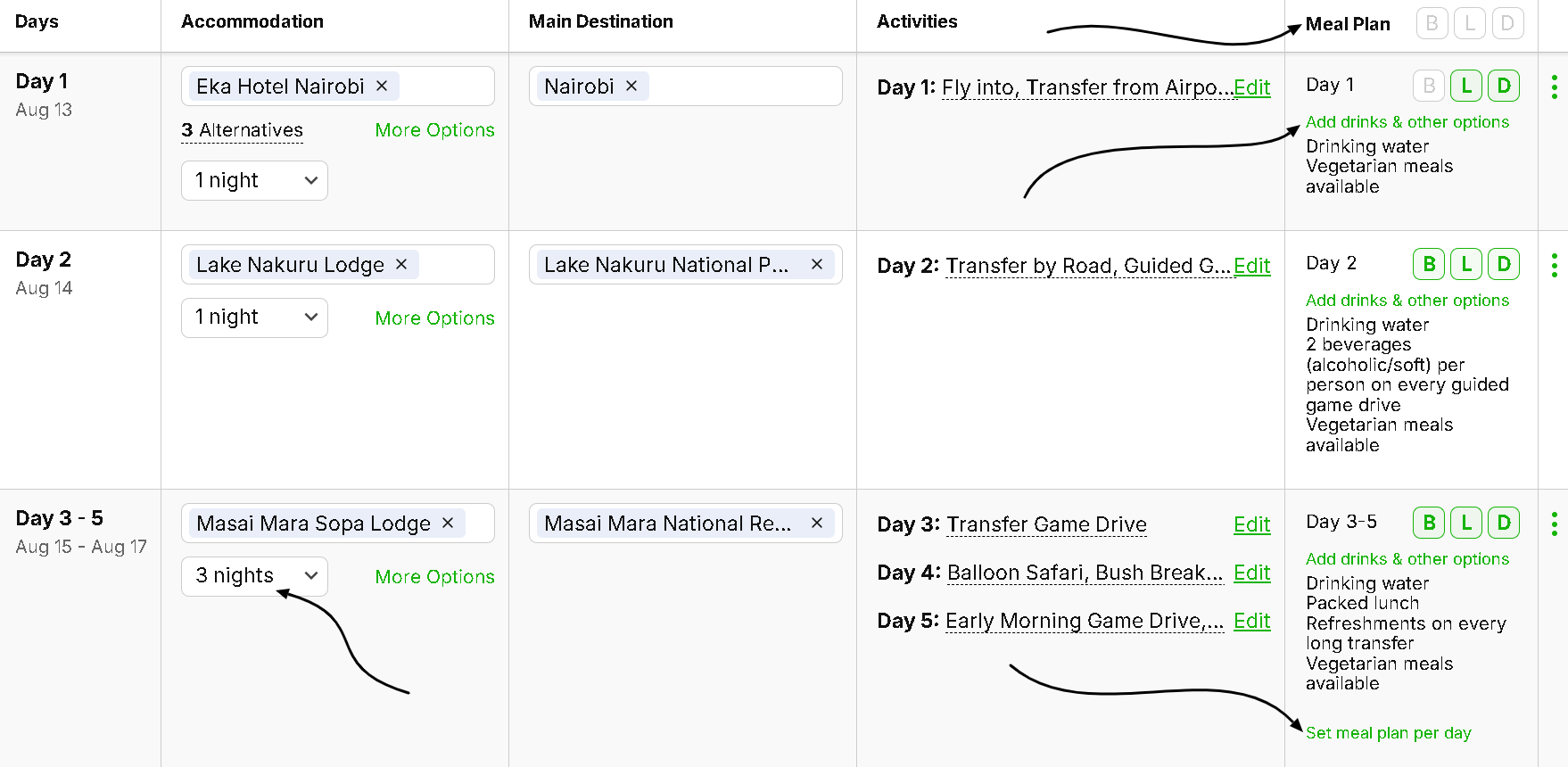
If you make use of the accommodation alternatives option, you can also customize the meal plan for the different selection of accommodations.
How to Add Alternative Accommodations
Learn about how to add alternative accommodations to your itineraries.
Meal plan in the final document
In the final document under the section ‘preview and edit’, you can see the meal plan on the summary page, as well as in the day by day section.
Here it is listed in bullet point format. Please note that you cannot edit the meal plan text in the final document.
If you wish to make any edits, they will need to be done in step one as stated above and demonstrated in the video.
Click below to navigate to the next part of the onboarding series :
#8 How to Edit the Start Date
This tutorial shows you the several ways to edit the start date of a quote/request