We will use Instagram, Facebook and YouTube as examples but many other social media platforms have similar interfaces and methods for embedding.
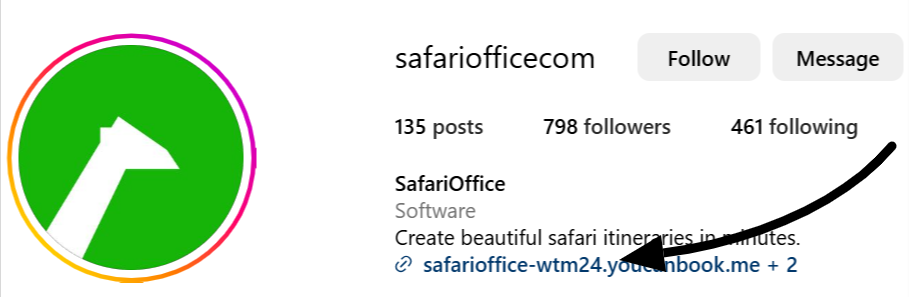
If you want to promote a specific tour on your Instagram profile, add the link to your bio. This will appear not on a specific post but on your page as a whole.
To do so:
Open your Instagram profile page and tap the button ‘Edit profile’. It will be under your profile picture alongside ‘Share profile’.
Tap on ‘Add link’ under the and then ‘Add external link’
Enter the link in the ‘URL’ field and a description of the webpage under ‘Title’
Click the blue check mark in the upper right corner of the screen
If you need more than 5 links in your bio, consider using an application such as a link tree.
If you are operating your Instagram profile as a business you can run some ads. This will enable you to include clickable links through various call-to-action (CTA) buttons. By following these steps, your sponsored Instagram posts will include a clickable link, directing users to your desired webpage.
To do so :
Select the post you would like to act as an advert.
Select the blue button ‘Boost post’ (only available for businesses on instagram)

Under the prompt ‘What do you want people to do when they see your ad?’ select ‘Visit tour web page’
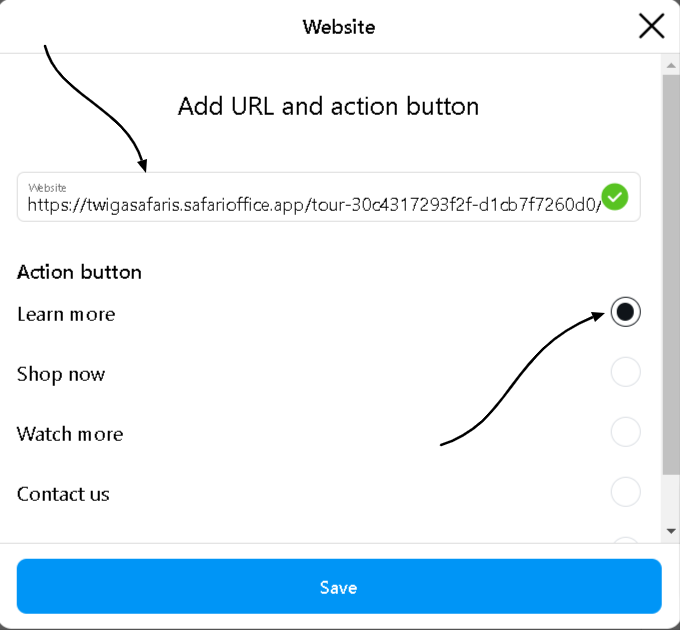
Click ‘next’ and then paste your tour page link in the URL field and choose a label for your action button (learn more, contact us, book now etc.)
Choose your target audience, daily budget and how long to run the advert
Lastly, submit your ad for review. Once approved, it will appear as a sponsored post in users' feeds, featuring the clickable CTA button.
You can use link stickers in your stories to redirect viewers to your tour pages.
Simply upload an image/video depicting that tour to your story. Then follow these steps :
Click the + on your profile picture to begin adding a status
Add a video or image depicting the tour you are promoting
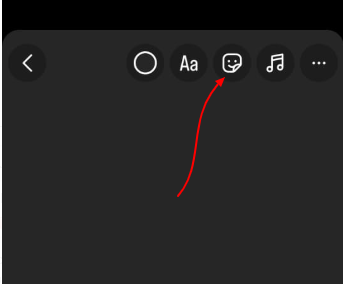
Click the sticker icon
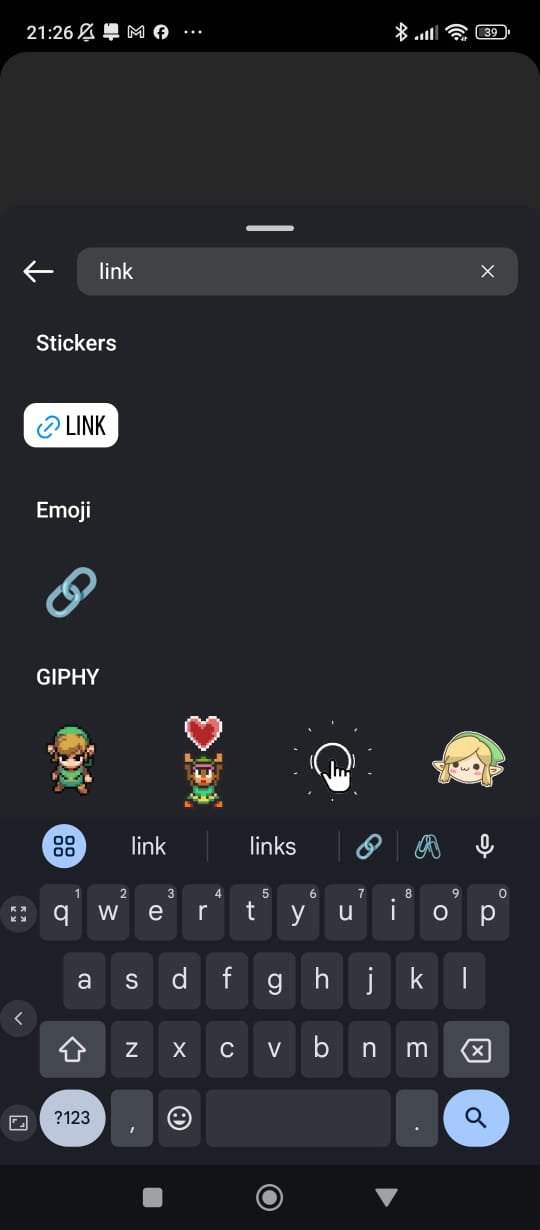
Search for and select the link sticker
Under the URL field paste the link for the tour page you’re promoting
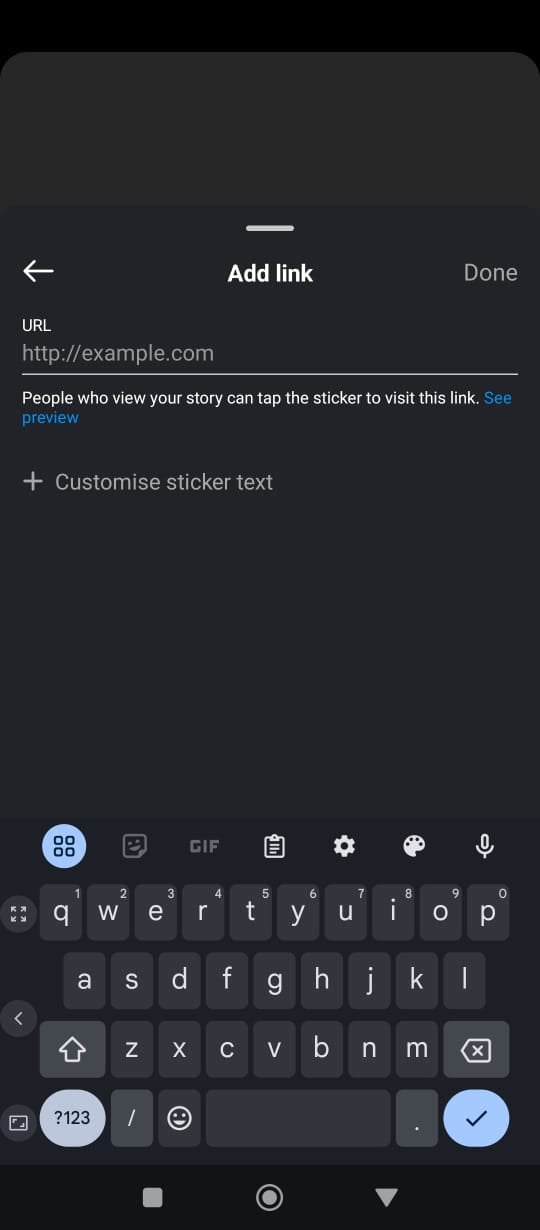
Customize the sticker text if desired (perhaps with a call to action prompt)
Post the status!
Simply paste the URL in the caption area of your post. Once pasted, Facebook will automatically generate a link preview below your caption (which includes the website’s title, thumbnail, and description).
After the preview loads, you can delete the URL from your caption if you prefer a cleaner look. The preview remains clickable even if the URL text is removed from the caption.
If you’re sharing your post across platforms, especially Instagram where clickable links aren’t available in captions, consider adding a line like “Link in bio.” This works if you’ve set up a link in your bio that leads to the same URL.
If you’re creating a paid (sponsored) post, you can include a link in the caption along with a call-to-action (CTA) button (like “Read More” or “Get Free Quote”), which will direct users to the designated URL. This is often more visually prominent and user-friendly than a link in the caption alone.
Embedding links on your YouTube channel to direct your audience to your tour webpage is a great way to drive traffic.
Go to your YouTube channel page.
Click on "Customize Channel," then select the "Basic Info" tab.

In the "Links" section, click "Add link" and enter your share tour name and URL.
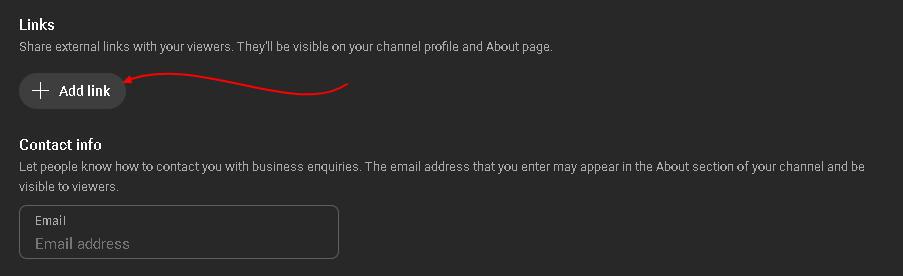
These links will appear on your channel’s banner (up to 5 links are allowed, but only the first one will be fully visible on your banner).
In each video’s description, you can add clickable links.
Place the links near the top of the description so viewers can easily see them without clicking "Show more." The image below shows a shortened link of the tour page in the description box. The link shortener used can be accessed via this link.
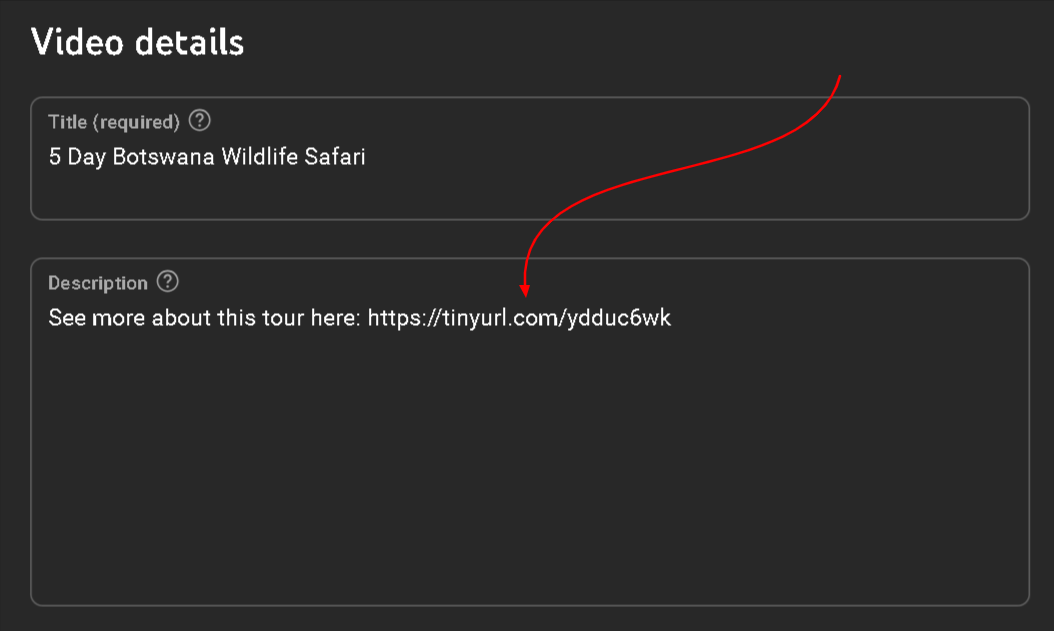
Use a clear call-to-action (e.g., “Get a Free Quote: [Your Link]”) to encourage clicks.
You can leave a comment with the link on your video and pin it, so it stays at the top of the comment section. Click on the three dots next to your comment and select the option 'Pin'.
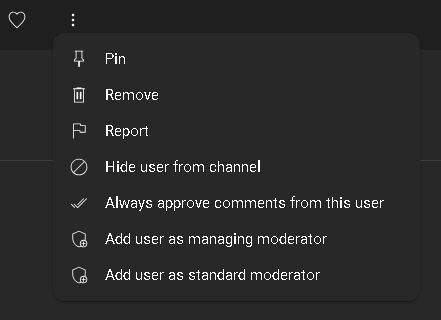
Use a clear call-to-action to invite viewers to click the link, such as “Get a free quote for this exclusive offer! [Your Link]”.
These methods give viewers multiple ways to engage with your content off YouTube, helping you maximize reach to your website.
How to Use the Share Tour Add-on
Here is a step-by-step detail to set up your share tours.
How to Embed the Share Tour Weblink on Your Website
Learn how to add share tour links to your website.
