Emails are an ideal environment in which to promote your tour pages and arguably offer some of the best conversion rates when done right.
Although most mailing systems differ slightly, embedding or pasting a link in the email content should be fairly standard across them all.
Some of these methods are very similar to those mentioned in the article
'How to Embed the Share Tour Weblink on Your Website'
Highlight the text that you would like to hyperlink.
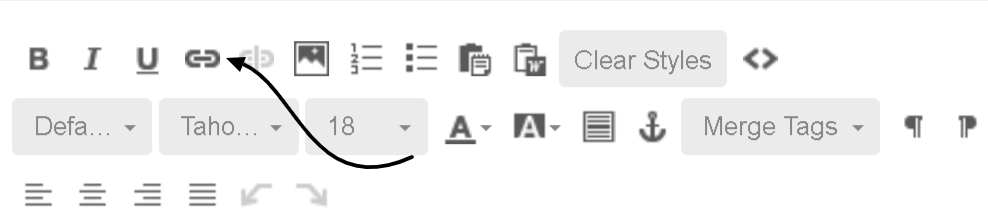
Click the link icon in the toolbar.
Copy the tour page link
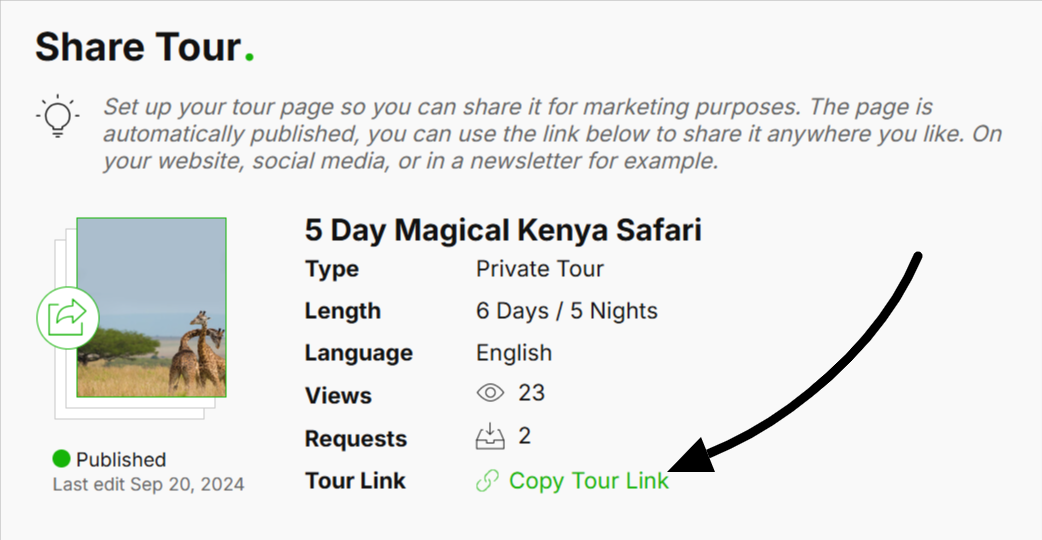
Paste the unique tour page link in the corresponding link field.
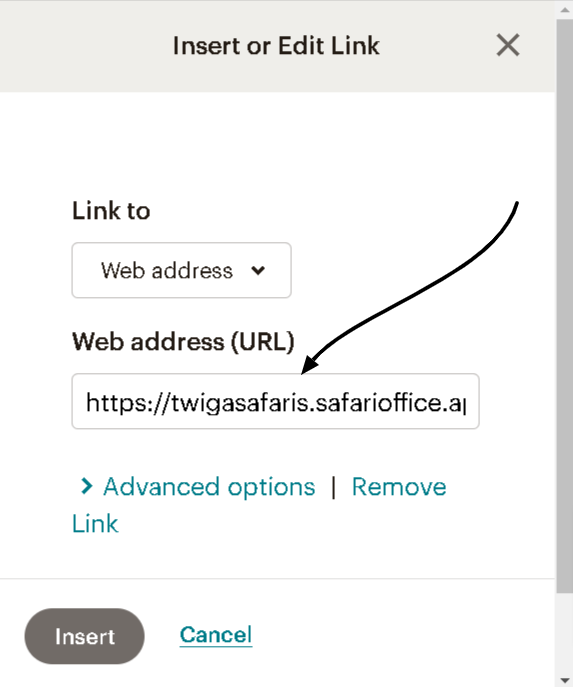
Now whenever a client clicks on that text it will take them to the tour page in question. The text will also appear to be hyperlinked and may appear blue.

After adding a button in your mailing system software, you can then embed a link in that button image. You can do the same for a regular email by adding an image to the email content that resembles a button. Embedding links in an image is the final section of the article so refer below for those instructions.
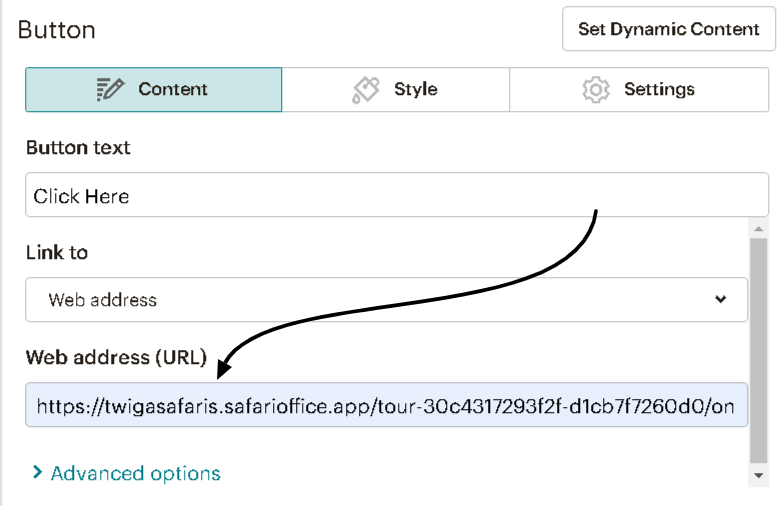
Insert the button block from your email builder. Sometimes this requires you to drag and drop the item into the builder, or simply click on it. This depends on the system you use.
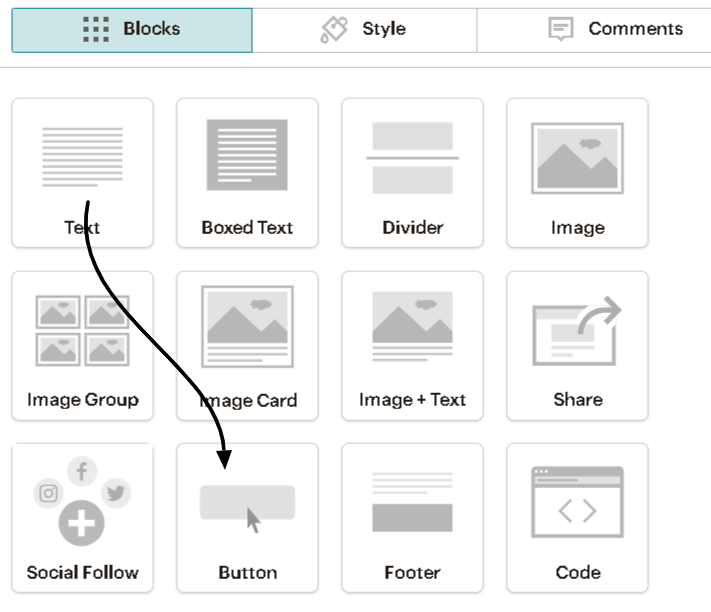
Edit the call to action text as desired. For example "4-Day Luxury Tour" or "Read More"
Select ‘Web URL’ or website in whatever builder you are using (as opposed to email address, survey etc.)
Paste the tour page link in the URL field.
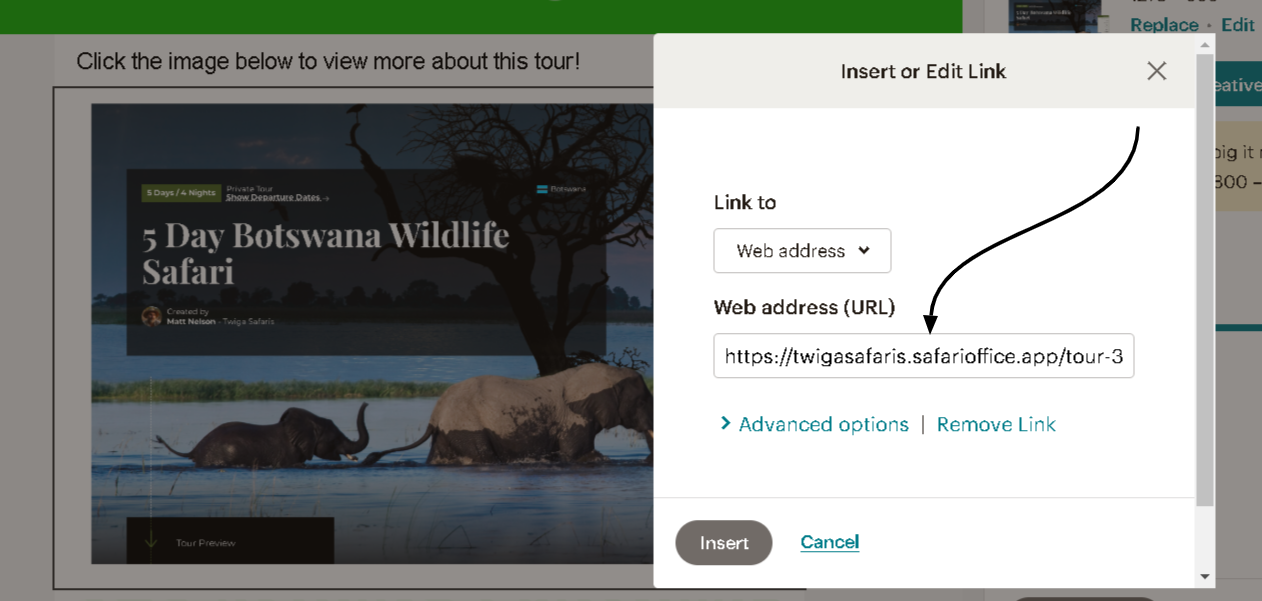
You can add images to your email campaigns all with links that redirect viewers to your desired pages. These may be images of social media icons, your company logo and even an image of you and your clients on a tour.
Most images in email campaigns nowadays always have a link embedded in them to the point that viewers expect this to be the case.
So to do so in your mailing system :
Insert/upload the chosen image in your block.
Double click the image (or right click it). Alternatively you can highlight the image and select the ‘link’ icon in your toolbar/email interface.
Look for the URL field and paste the tour page link in here.

How to Use the Share Tour Add-on
Here is a step-by-step detail to set up your share tours.
How to Embed the Share Tour Weblink on Your Website
Learn how to add share tour links to your website.
