company logo

Help center

Go to SafariOffice
All collectionsYour Account & User ManagementHow to Add Your Phone and WhatsApp Number to Your Profile and Email Signature

How to Add Your Phone and WhatsApp Number to Your Profile and Email Signature

Learn how to add your phone and WhatsApp number to your profile and show them in your email signature with TAGS.

You can now add a phone number and a WhatsApp number to your SafariOffice profile. Once added, you can show them in your email signature (and anywhere else the phone or WhatsApp TAGS are available), so clients always know how to reach you directly.

In this article you will learn how to:

  1. Add your phone and WhatsApp number to your profile

  2. Show them in your Default Email Signature using TAGS

  3. Apply the updated signature to your existing quotes and tour templates

1. Add Your Phone and WhatsApp Number to Your Profile

  1. Go to Settings. The first thing you will see is your Profile, and the Personal Information tab will be open.

  2. Fill in the Phone and/or WhatsApp fields. Both are optional.

  3. Click Save at the bottom of the page.
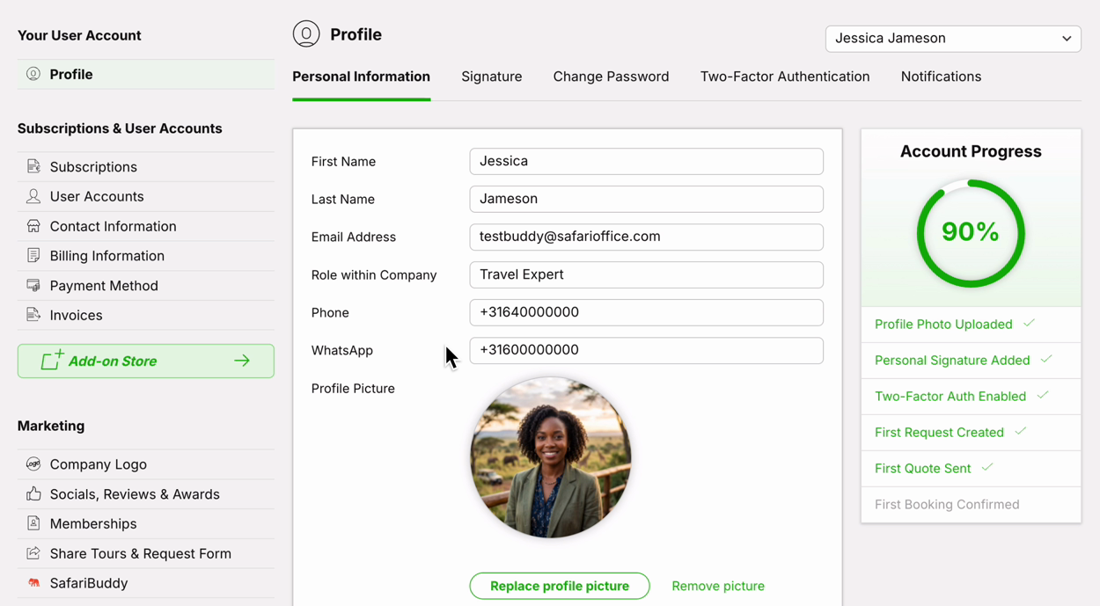
The User Account Profile screen shows the Personal Information form, profile picture controls, and Account Progress checklist. Visible: Your User Account, Profile, Subscriptions & User Accounts, Subscriptions, User Accounts, Contact Information.
info icon
Tip: Add your number in international format, including the country code (for example +31 6 1234 5678), so clients abroad can call or message you straight away.
warning icon
Every user in your company has their own profile, so each colleague should add their own numbers.

2. Show Your Numbers in Your Email Signature

  1. In Settings, go to Tour & Quote Settings > Email & Messaging.

  2. On the Email tab, scroll down to Default Email Signature.

  3. Place your cursor where you want the number to appear.

  4. Hover over TAGS in the bottom right corner of the editor and click Sender Phone or Sender WhatsApp.
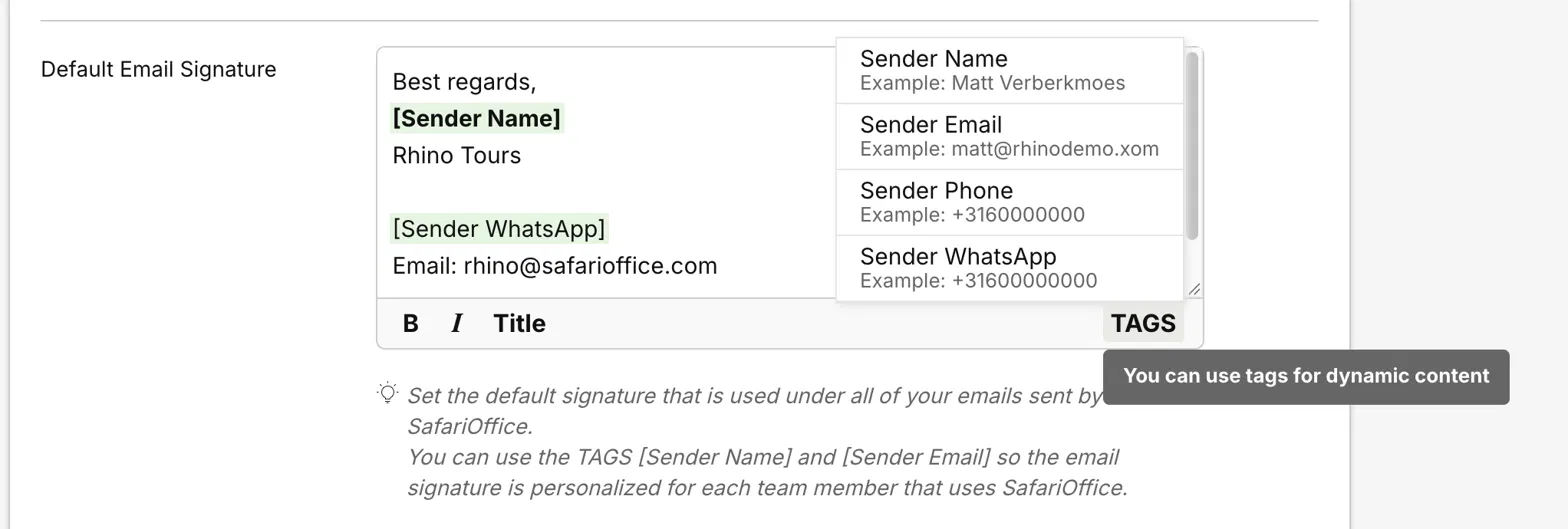
Default Email Signature settings show the signature editor with the TAGS menu open for sender details and a tooltip about dynamic content. Visible: Default Email Signature, Best regards,, Sender Name , Rhino Tours, Sender WhatsApp , Email: rhino@safarioffice.com.

The tag (for example [Sender WhatsApp]) is now part of your signature. You can type a label in front of it, such as "WhatsApp:".
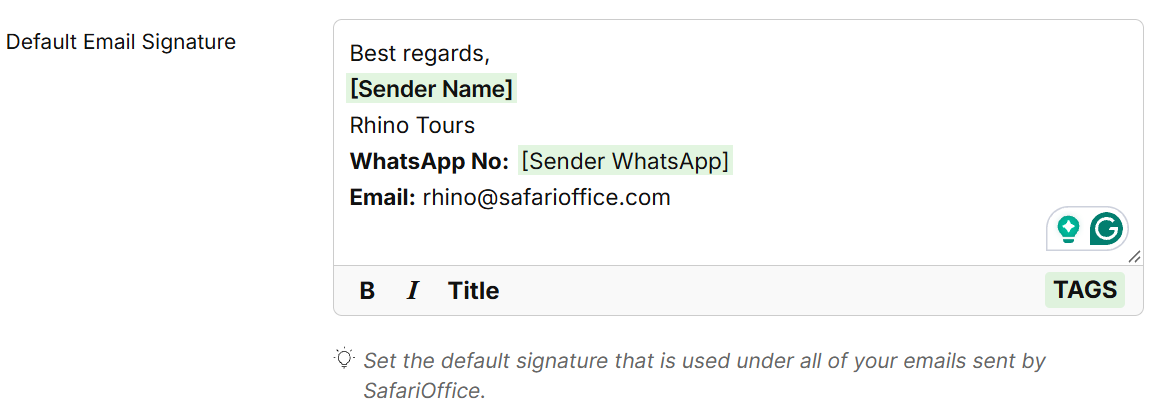
The Default Email Signature editor shows a sample sign-off with sender name, company, WhatsApp number, and email, plus formatting and tags controls. Visible: Default Email Signature, Best regards,, Sender Name , Rhino Tours, WhatsApp No:, Sender WhatsApp .

How the tags work: SafariOffice automatically fills in the number of the user who sends the email. If your company has multiple users, each email shows the phone or WhatsApp number of the colleague sending it.

warning icon
Make sure every user has added their numbers to their profile, otherwise the tag stays empty for them.

3. Save and Apply to Existing Quotes and Tour Templates

  1. Click Save at the bottom of the Email & Messaging page.

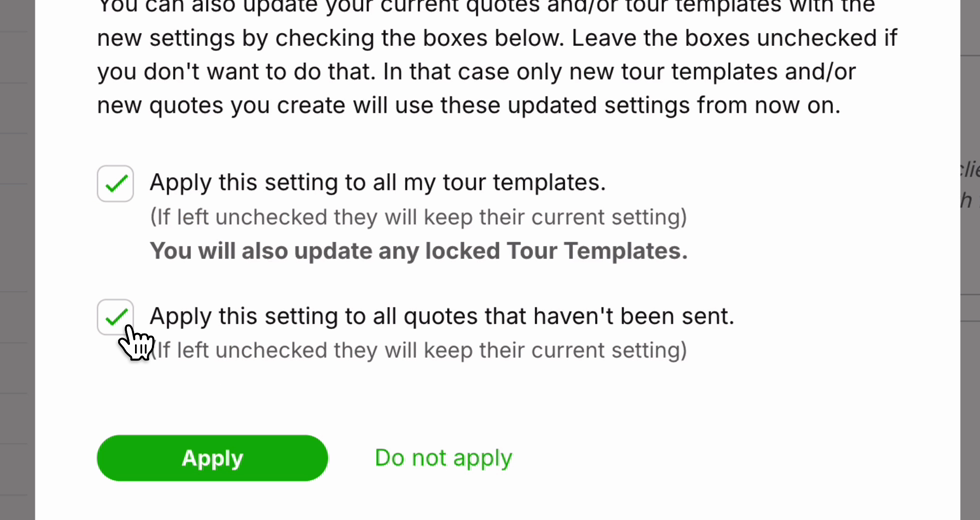
  2. A pop-up asks: Also apply to your current quotes and/or tour templates?

    • Tick Apply this setting to all my tour templates to update your existing tour templates (this also updates locked Tour Templates).

    • Tick Apply this setting to all quotes that haven't been sent to update quotes that are still in progress.

  3. Click Apply.

A settings confirmation dialog shows checked options to update tour templates and unsent quotes, with Apply and Do not apply buttons. Visible: Apply this setting to all my tour templates., (If left unchecked they will keep their current setting), You will also update any locked Tour Templates., Appl

If you leave both boxes unchecked and click Do not apply, nothing changes in your existing quotes and templates. The new signature will then be used from the next quote or tour template you create.

Frequently Asked Questions

Do I have to fill in both numbers?

No. Both fields are optional. Only add the tags for numbers you have filled in.

Will my colleagues' emails show my number?

No. The tags always show the number of the user sending the email.
You can still also show the company number on the About and Cover pages too.

I send quotes in several languages. Do I need to update each one?

The Email settings have a tab per language (for example English, French, German). Add the tags to the signature on each language tab you use.


Did this answer your question?
😞
😐
😁