
The Accommodations Directory gives you three ways to look at the same results: List View, Map View and your Favorites. This article explains each one and how to save the accommodations you want to come back to.
List View
List View is the default. Each accommodation appears as a card showing a photo, the name, the location, the accommodation type and class.
Click on a card to get the available details and open the Details Panel.
From every card you can also open its Digital Page, use Copy Link, or click the heart to save it as a favorite.
Map View
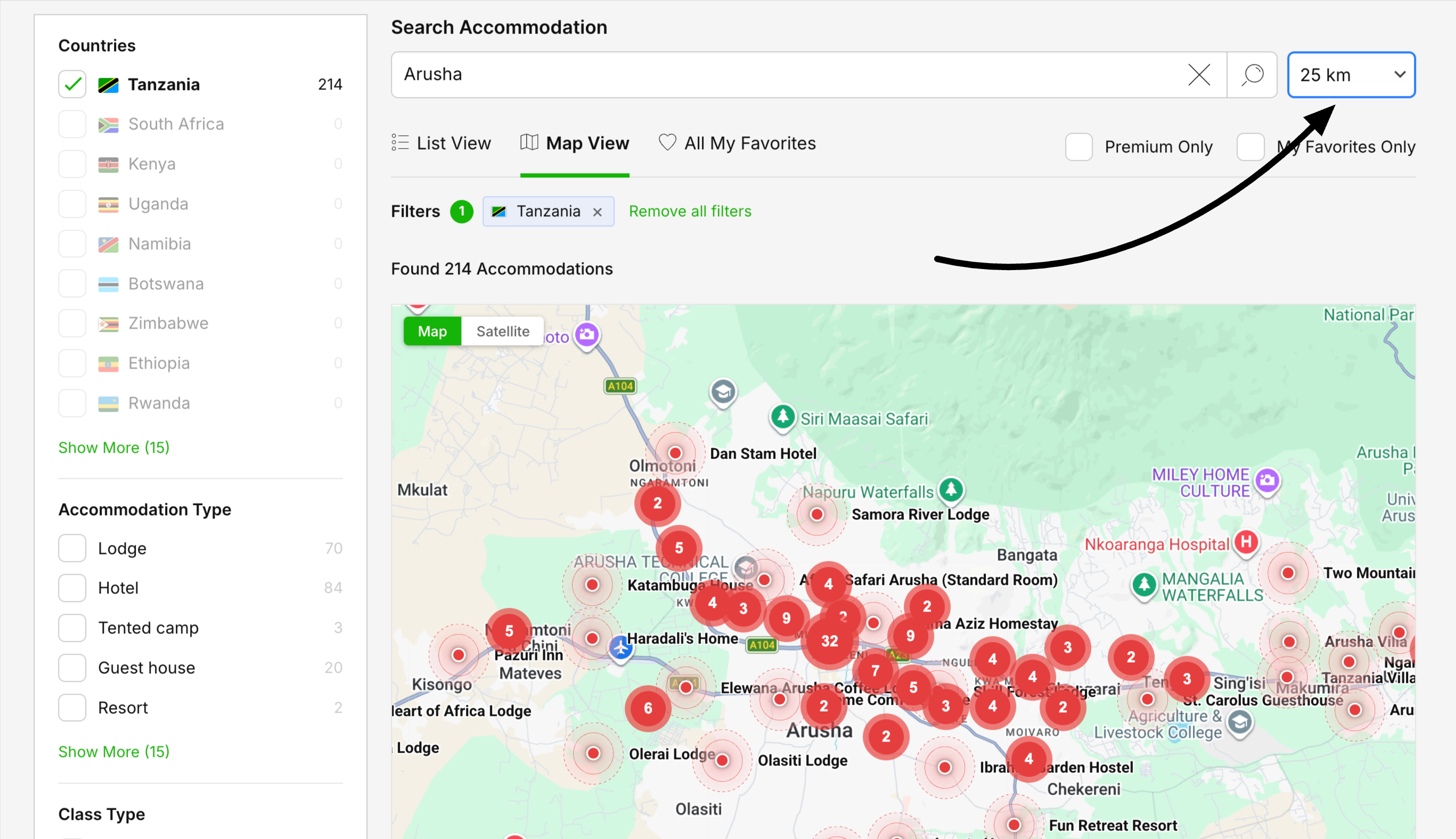
Click Map View to see the same accommodations plotted geographically. This is ideal for understanding where properties sit in relation to a park, a route or each other.
Accommodations are grouped into clusters; the number on a cluster shows how many properties are in that area. Zoom in to break a cluster apart into individual pins.
Switch between the Map and Satellite background using the toggle in the top-left of the map.
Click any pin to open a mini card with a photo, the type and class, and a View Details button.
When you search for a destination, you can also set a distance radius to find accommodations within a certain range of that point.
Saving favorites
Click the heart icon on any accommodation card to add it to your favorites. A filled heart means the property is saved. You can review your saved properties in two ways:
Open the All My Favorites view to see just your saved accommodations. The header shows how many favorites you have (for example, "Showing 10 Favorites").
Turn on the My Favorites Only toggle to filter the current List or Map results down to your favorites.

