Whether you are working from a template or a specific quote, SafariOffice gives you the flexibility to customize your visual and written content to match your brand's voice. This guide will walk you through how to add new media to your documents.
This section gives you an overview of what is possible and how to navigate the editor. In later sub-sections you will see guidance on how to actually make changes to the content.
To begin editing, open the template or quote you wish to modify and navigate to Step 3: Preview and Edit.
To make changes:
Navigate to the page that requires edits. From here click on the button in the top left of the screen ‘Edit’. The label of the button is different for each page of the document. For example on the map page the button will appear as ‘Edit Map Page’
Clicking on the button then opens the content editor. Here you can edit text and images. In the Day-by-Day section you will get access to the content for destinations, accommodations, and activities.
Each of these categories are labelled on the left of the content. For example the destination for that day will have a sub section labelled ‘Destination info’ (text) and ‘Destination Media’ (images)
The media section will have 2 tabs. The first is for images and the second is for embedding videos.
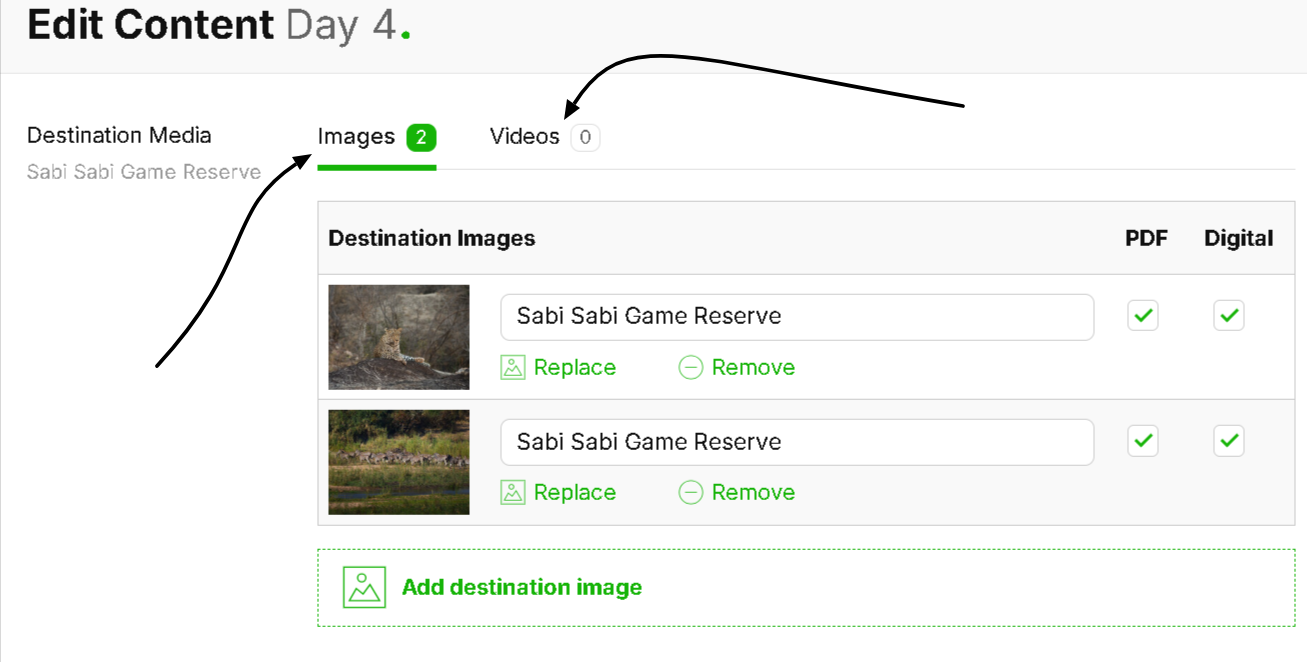
The media can also look different between the 2 different versions of the quote/template. Namely the PDF and Digital version. This is controlled by the checkboxes next to each image.
If you select the checkbox the image will be present for that version.
In this way you can add dozens of images to the digital version while still keeping the PDF version brief.
You can upload your own images or simply use the ones SafariOffice provides for you in the database.
Adding Videos to your template/quote is reserved for those that have a PRO subscription. The video will also play exclusively in the Digital version of the quote, within the Safaribuddy app and in the Share Tours links/widgets you decide to put anywhere online.
For Written content there are 3 tiers.
The SafariOffice content : which is content from the SafariOffice Database.
The Template/Quote Exclusive content : content used only for that single document and not to be reused elsewhere
Your Library Content : Content you write yourself and save within your content library to use multiple times for a topic across several documents
You can shuffle between these tiers of content and choose which one applies best for each document.
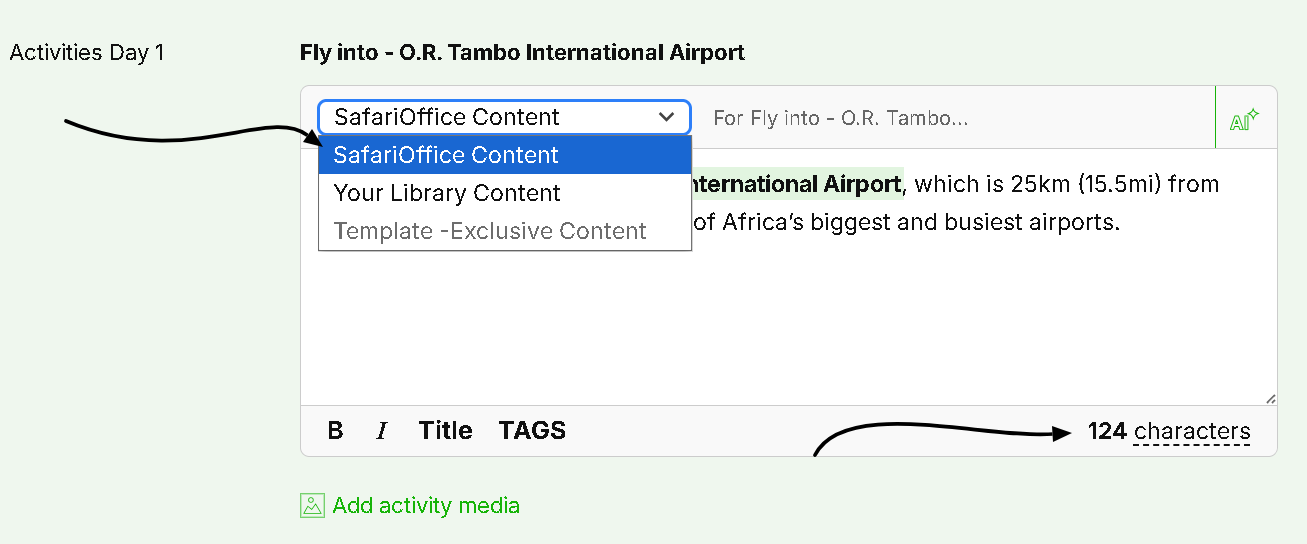
Additionally you have a guidance over the character limit per topic. For the Activity topic above if you hover over the text ‘Characters’ it will inform you that the advised number is 300.
You are also able to use relevant TAGS for each topic for the sake of convenience (such as locations, times and dates that were set in step 1)
You are also able to manipulate the text by emboldening, italicizing or making the font appear larger.
Adding images directly to your content library is useful because it allows you to :
Add up to 10 images at a time for any topic
Categorize images directly to their topic
Select whether or not you want to use your own content (or the SafariOffice content) by default
Navigate to the content library in the main menu
Select the sub-section you desire under ‘Main Content’ in the left side menu
Click ‘Add new content’ or (select from the existing table by clicking under the ‘Image’ column)
If you clicked ‘Add New content’ search for the topic you desire (a destination activity, theme etc.)
If the topic you desire is custom, create it and fill in the extra details required
Click ‘next add content’
Click on the ‘Images’ tab
Click ‘Upload to this destination’
Select up to 10 (5 if you’re on the free version) images from your base PC folders
Adjust the positioning of the images and add captions if you wish

When uploading images within templates and quotes, please remember that you can only do so one at a time.
For non custom items, SafariOffice will provide you with content the majority of the time. To see what is available simply navigate to ‘Step 3 Preview and Edit’. From here you can navigate to any page of the document and see hyperlinked text that will allow you to add or replace images from the SafariOffice database of images.
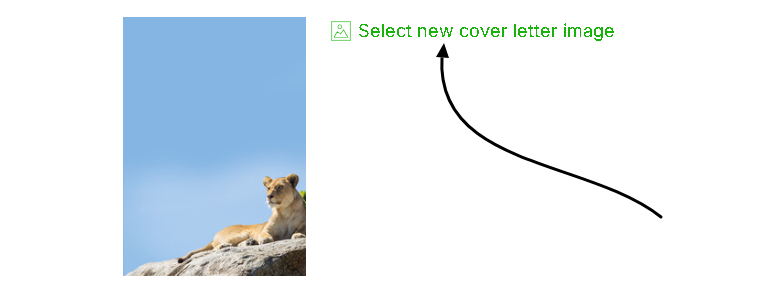
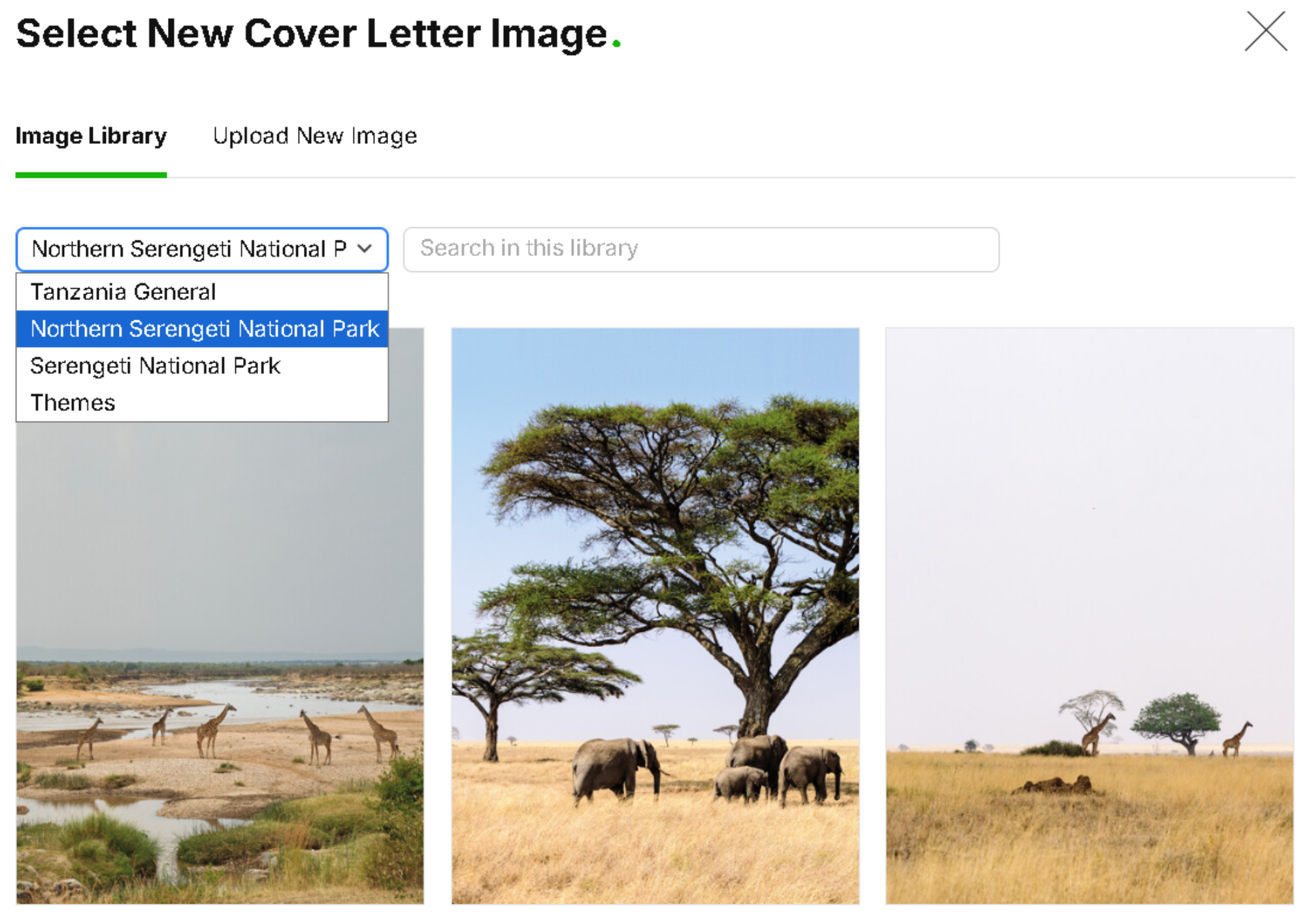
Once you select to replace or add images you will be met with a pop up window showing the images available for that topic (e.g. cover page). You can also click the drop down menu under the tab ‘image library’ to see the other sub-sections available (as it pertain to the tour).
To make your digital quotes more immersive, you can embed videos directly into the media subsections. Please note that this option is only available to PRO users of SafariOffice
Switch Tabs: Within the media editor, click the Video tab.
Link Your Source: Paste a link from either YouTube or Vimeo.
Finalize: Click Add Video to save the link.
Note: Videos are interactive elements and can only be played within the digital version of the quote; they will not be functional in a downloaded PDF.
After making your adjustments, always remember to save your changes to view the updated results in your preview.
