The document style that you choose can reflect a lot about your company. As a result we have many options for you to choose from. You also have the freedom to arrange the order of the pages of your templates/quotes. This freedom can help you stand out from other operators and gives you a solid chance of creating unique and original documents!
If you would like to change one document (Template/Quote) in isolation follow the next few steps.

Navigate to the template or quote in question
Navigate to Step 3 ‘Preview and Edit’
Click on the gear icon in the top right of the screen labelled ‘Document Settings’
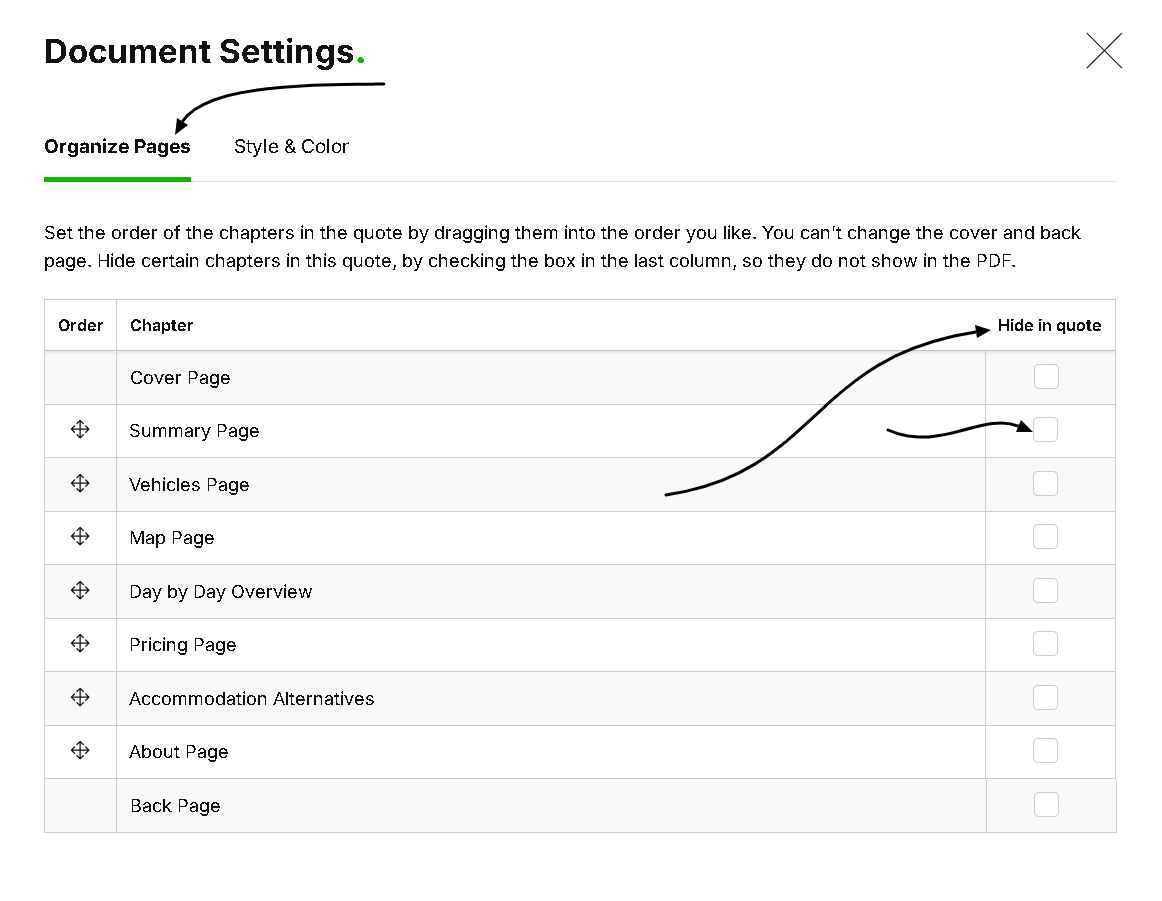
in the ‘Organize Pages’ tab you can drag and drop the pages to rearrange the order of the document
On the right hand side there is a column labelled ‘Hide in Quote’. Check any of these boxes to hide the corresponding page

Navigate to the template or quote in question
Navigate to Step 3 ‘Preview and Edit’
Click on the gear icon in the top right of the screen labelled ‘Document Settings’
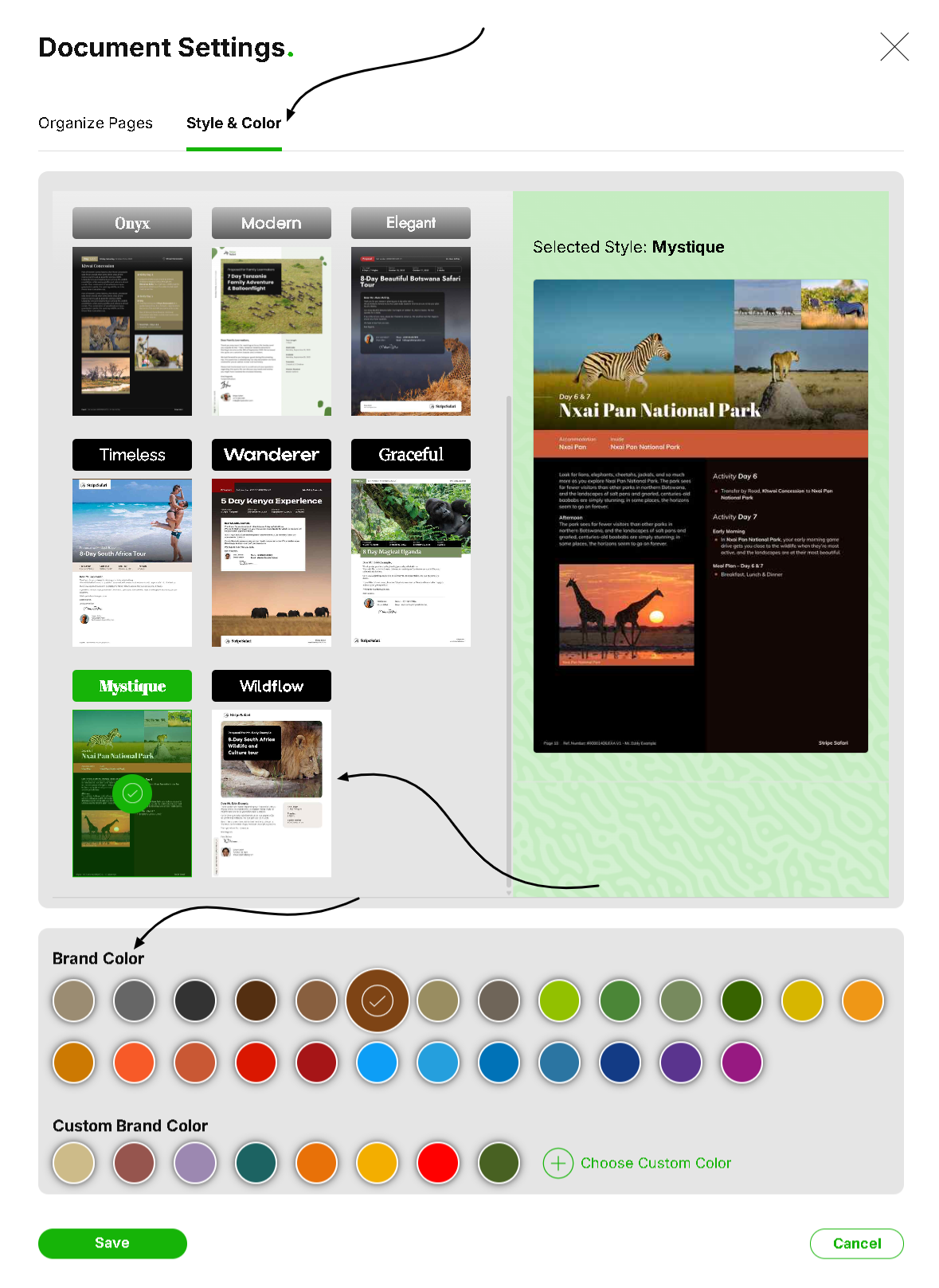
Click on the tab ‘Style and Color’
Select the new document style and/or color you prefer
If you would like to make a mass style/color/page order update to all of your templates and unsent quotes at once, follow these steps
Navigate to your global settings by clicking ‘Settings’ in the top right of the screen.
Click on ‘Style’ under ‘Quote settings’ in the left side menu.
Make your selection
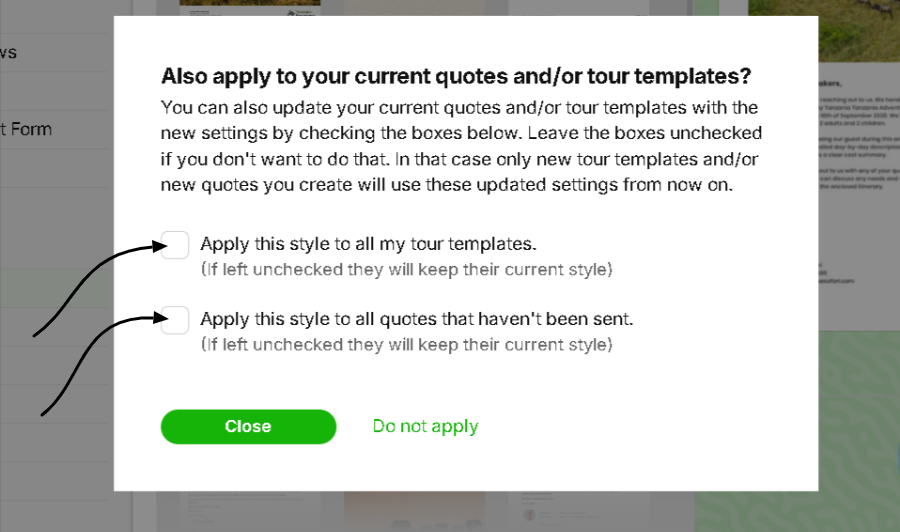
Click save. Select whether or not you want to push this update to all of your templates/unsent quotes or not.
Navigate to your global settings by clicking ‘Settings’ in the top right of the screen.
Click on ‘Organize Pages’ under ‘Quote settings’ in the left side menu.
Drag and drop the pages to the desired order
Click save. Select whether or not you want to push this update to all of your templates and/or unsent quotes or not.
